
The date picker in Ads Manager controls which time window your table, graph, and total summary reflect. This article explains how to set a date range, switch between install time and event time, and compare two periods side by side.
If you want to learn how the graph displays data across the selected period, see Understand the graph in Ads Manager.
Open the date picker
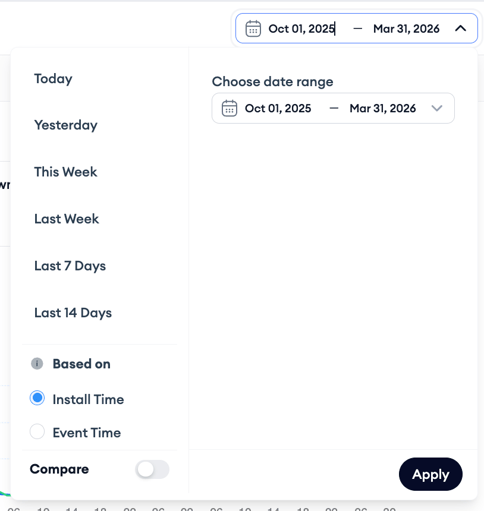
The date picker sits in the upper right area of Ads Manager, visible on every layer. It shows the currently active date range. Click it to open the selection panel.
Select a date range
The left side of the date picker shows preset range options: Today, Yesterday, This Week, Last Week, Last 7 Days, and Last 14 Days. Click any preset to apply it immediately.
For a custom range, use the Choose date range fields on the right side of the panel. Select a start date and an end date using the calendar inputs. Click Apply to update the table and graph.
Switch between install time and event time
Below the date range options, a Based on toggle lets you switch between two date attribution modes.
Install Time is the default. It attributes all data, installs, spend, taps, and conversions to the date the install occurred. This is the standard view for most Apple Ads reporting and aligns with how Apple reports performance natively.
Event Time attributes data to the date the in-app event occurred rather than the date of install. This is relevant when analyzing cohort metrics and in-app conversion events, where the action being measured may happen days or weeks after the install.
Switch to Event Time when you want to analyze goal completions or revenue events by when they actually happened.
Compare two time periods
To compare performance across two periods, turn on the Compare toggle at the bottom of the date picker. A second date range selector appears labeled Choose compare date range.
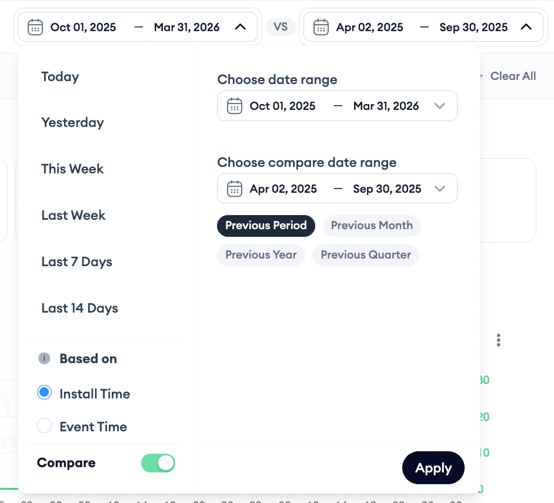
You can set a custom comparison window using the calendar inputs, or choose one of the preset comparison options: Previous Period, Previous Month, Previous Year, or Previous Quarter.
Selecting Previous Period automatically sets the comparison window to the same length as your primary range, shifted back in time. For example, if your primary range is Last Week, Previous Period sets the comparison to the week before that.
Click Apply to activate the comparison view.
Reading the comparison view
When comparison mode is active, the table shows percentage change indicators next to each metric value.
Keep in mind!
A green tag does not always mean an improvement and a red tag does not always mean a decline. The color reflects whether the value went up or down, not whether the direction is good or bad for your goals. For example, a green tag on CPA means your cost per acquisition increased, which is typically unfavorable.
In comparison mode, each Total Summary card shows the current value with the change from the comparison period in parentheses. For most metrics, the change is a percentage, for example Spend 15USD (+5%), where increases show a plus sign and decreases a minus sign. For metrics that are already percentages, the change is shown as the difference in points without a percent sign, for example TTR 15% (+5). When a value hasn't changed, the change shows as 0.
If a card has no comparison value, the change shows as N/A. If the current value is missing, both the value and the change show as N/A.
In comparison mode, the graph shows both periods for each plotted metric. Each metric uses a single color across both periods, and the two periods are distinguished by style: in line view, the current period is solid and the comparison period is dashed; in bar view, the current period is solid while the comparison period is hatched, with the two bars grouped side by side.
Related links
- Understand the graph in Ads Manager
- Use data segmentation in Ads Manager
- Build scheduled reports in Ads Manager
- Ads Manager overview
Need more help?
If you have further questions, contact your dedicated Customer Success Manager or reach out via live chat.