
Scheduled Reports lets you send Ads Manager performance data automatically on a recurring basis. Instead of manually exporting data and sharing it, you define what data is exported, how it is structured, and when it is delivered, and the platform handles the rest.
This article explains how to create a scheduled report, manage existing ones, and review past delivery runs.
Open Scheduled Reports
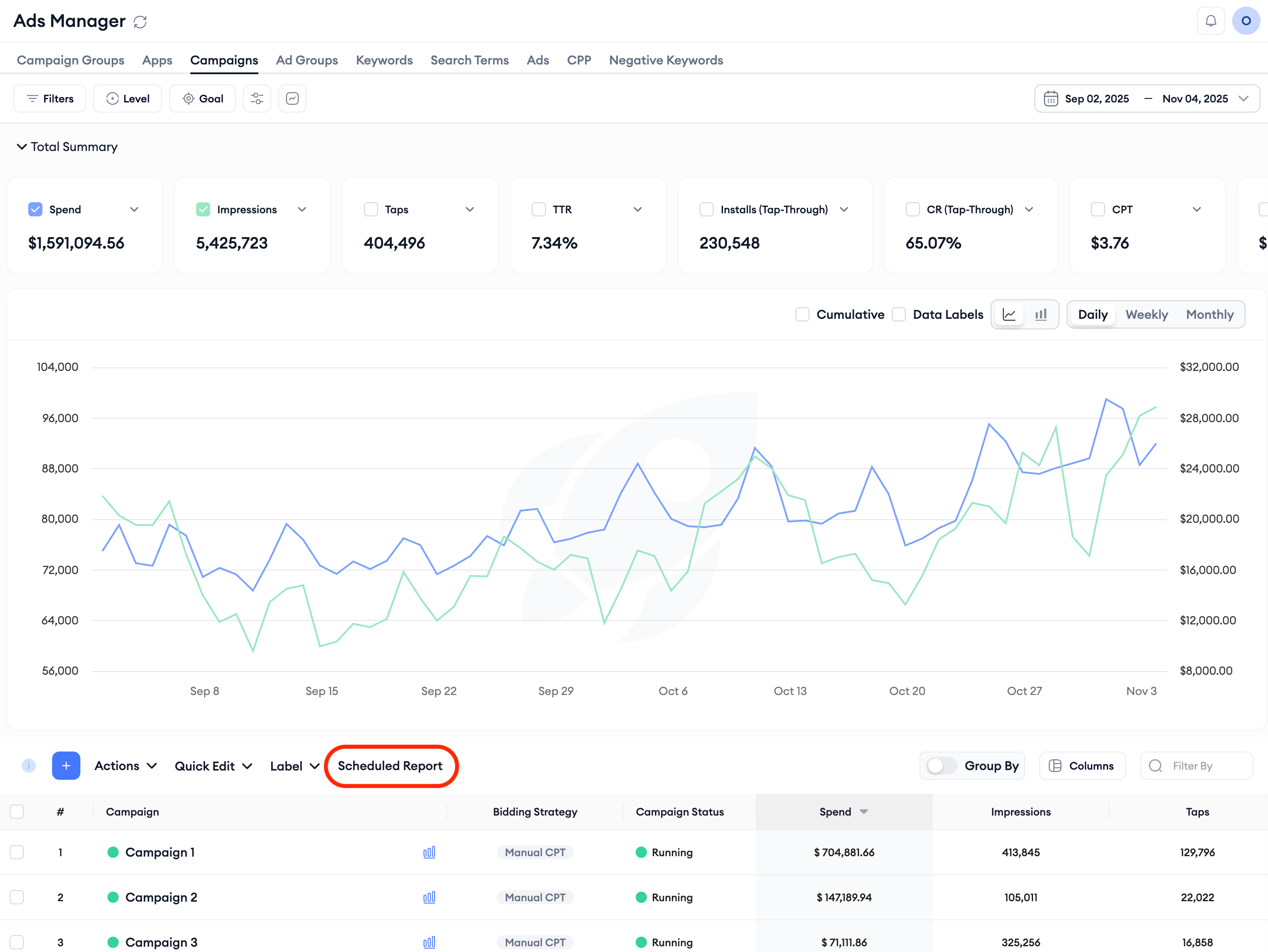
From any layer in Ads Manager, click the Scheduled Report button above the table. This opens the Scheduled Reports drawer, which shows all your existing reports and a button to create a new one.
Create a scheduled report
Inside the drawer, click Create Scheduled Report. A setup form appears on the right side with eight fields to configure.
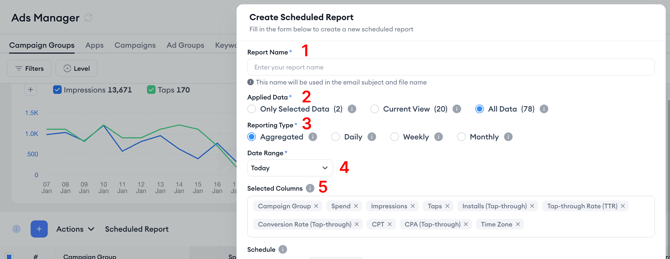
1: Report Name
Enter a name for the report. This name is used in the email subject line and as the exported file name, so choose something that clearly identifies what the report contains. For example: "Weekly Campaigns - US" or "Daily Ad Group Performance."
2: Applied Data
Choose which data the report is based on.
Current View exports exactly what you are currently seeing in Ads Manager, the same layer, filters, and column configuration active when you opened the drawer.
All Data exports the full dataset available for the selected layer without the filters from your current view.
Selected Data limits the report to the specific rows you had selected in the table before opening the drawer.
3: Reporting Type
Select how the data is aggregated in the export.
Aggregated produces a single summarized row per entity covering the full date range. Use this when you want a period-level summary.
Daily breaks the data into one row per entity per day. Use this when you need day-by-day performance detail.
Weekly and Monthly are available when you select All Data as the applied data source, and break results into weekly or monthly rows, respectively.
4: Date Range
Select which time period is included each time the report runs. Options include Today, Yesterday, Last 7 Days, Last 14 Days, This Week, Last Week, This Month, and Last Month.
The date range recalculates automatically each time the report runs based on the option you choose, so a report set to Last 7 Days always covers the seven days before each delivery.
5: Selected Columns
Review the columns that will appear in the exported file. These are drawn from your current view's column configuration. You can remove any columns you do not need before saving the report. Once the data setup is complete, move on to scheduling.
6: Schedule
Choose when the report runs.
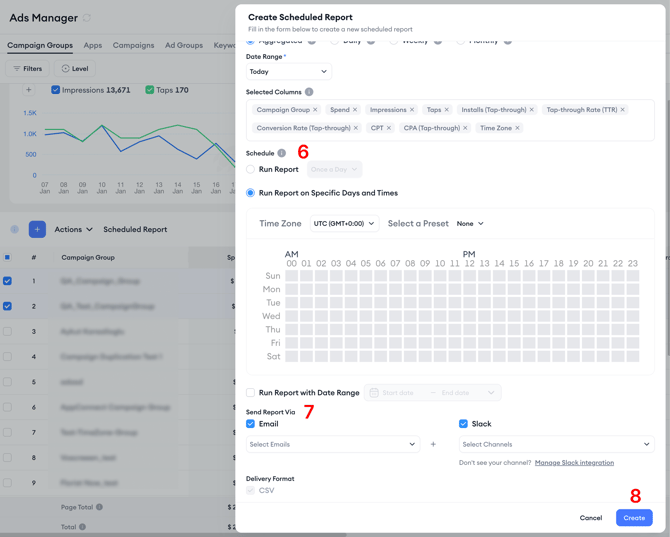
Run Report sets a simple recurring schedule, for example, once a day at a specific time.
Run Report on Specific Days and Times gives you full control over the schedule using a day-and-hour grid. Select the exact days of the week and hours of the day when you want the report to run. You can also set a time zone and select a preset time if needed.
Run Report with Date Range adds a start and end date to the schedule, which is useful when you only need the report to run for a defined period rather than indefinitely.
7: Send Report Via
Select how the report is delivered.
Email sends the report to one or more email addresses. You can add multiple recipients, which is useful for sharing with stakeholders who do not have platform access.
Slack sends the report to a Slack channel. If you have not connected a Slack channel yet, a link appears to set up the integration.
You can select both Email and Slack simultaneously if you need delivery to both destinations. Scheduled Reports are delivered as CSV files.
8: Create
Once you have reviewed all your settings, click Create. The report appears in the Scheduled Reports list and will run according to the schedule you defined.
Manage your scheduled reports
All scheduled reports are listed in the drawer with their name, status, and the email address of the person who created them.
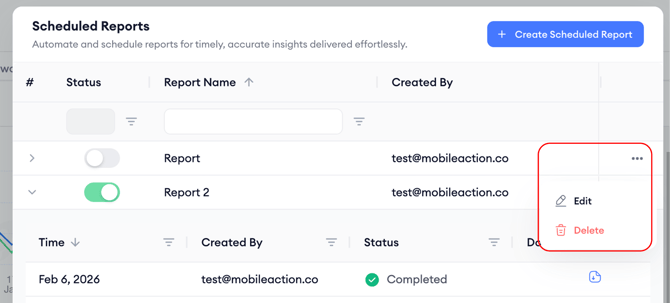
The Status toggle next to each report lets you pause or resume it at any time. Turning it off stops future deliveries while keeping the report configuration saved. To make changes to a report, open the three-dot menu on the right side of the report row and select Edit. To remove a report you no longer need, select Delete from the same menu.
You can filter the list to show only Active or Passive reports using the filter icon next to the Status column header. You can also search by report name to find a specific report quickly.
Review past runs and download reports
Each scheduled report keeps a record of its previous delivery runs. Click the arrow on the left side of a report row to expand it and view its run history. For each run, you can see the execution time, who triggered it, and whether it completed successfully.
To download a completed export, click the Download Link icon on the right side of the run row.
Pro Tip: If you need to resend or recheck a previously delivered report, downloading it from the run history is faster than creating a new report.
Related links
- Use time selection and compare periods in Ads Manager
- Customize table columns in Ads Manager
- Use data segmentation in Ads Manager
- Ads Manager overview
Need more help?
If you have further questions, contact your dedicated Customer Success Manager or reach out via live chat.