
Data segmentation in Ads Manager lets you break down your campaign data into more granular views without leaving the platform. Instead of seeing a single aggregated row per campaign or ad group, you can split the table by dimensions such as storefront, ad placement, label, or time and combine multiple dimensions to go even deeper.
This article explains how to use the Group By feature and what segmentation options are available.
How segmentation works
The Group By button sits above the table on the right side, next to the Columns button. Clicking it opens a panel where you can select one or more dimensions to segment your data by.
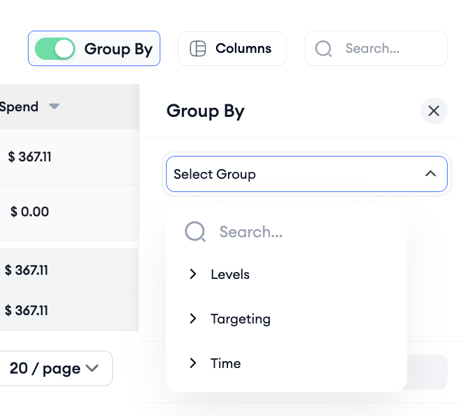
Once applied, each row in the table expands to show a breakdown across the selected dimension, with metrics shown separately for each segment.
Segmentation works alongside filters. If you have an active filter applied, the segmented view reflects only the filtered data. You can combine multiple Group By dimensions, for example, breaking down by Campaign Name and then by Storefront, to get a multi-dimensional view of performance in a single table.
Segmentation dimensions
The available Group By dimensions are organized into three categories.
Campaign structure
Campaign Group breaks down performance at the campaign group level, showing how each group contributes to your overall metrics.
App Name separates results by app, which is useful when your account manages multiple apps and you want to compare how each performs across campaigns.
Campaign Name drills down into individual campaign performance, showing a row per campaign within the current view.
Campaign Notes segments by any notes attached to campaigns, which can help surface patterns across campaigns you have tagged with the same internal notes.
Ad Group Name breaks performance down to the ad group level, showing each ad group as a separate row with its own metrics.
Targeting
Storefront separates data by country or region, showing how your campaigns perform in each market independently. This is particularly useful when a single campaign targets multiple storefronts, and you want to compare them without creating separate campaigns.
Label segments by the custom labels you have applied to campaigns or ad groups, making it straightforward to compare performance across campaigns you have grouped by strategy or theme.
Ad Placement separates results by placement type: Search Results, Search Tab, Today Tab, or Product Pages, so you can see which placement is driving the most value.
Campaign Type separates Brand, Generic, and Competitor campaigns so you can compare how each strategic type is performing without applying a manual filter.
Time
Day, Week, and Month break performance down by time period, showing a row for each day, week, or month within the selected date range.
Time-based segmentation is useful for spotting patterns. For example, identifying which days of the week consistently produce higher conversion rates, or comparing monthly performance trends across campaigns.
Combining segmentation dimensions
You can apply more than one Group By dimension at the same time. For example, selecting Campaign Name and then Storefront produces a table where each campaign is broken down by the storefronts it targets, with separate metric rows for each combination. Selecting Campaign Name, Storefront, and Day takes this further, showing daily performance per campaign per market.
To add a dimension, click Group By and select additional options from the panel. To remove a dimension, click the X next to it in the active Group By indicator above the table.
Note: Combining multiple dimensions can produce a large number of rows. Use filters alongside segmentation to keep the view focused on the data you need.
Related links
- Use time selection and compare periods in Ads Manager
- Advanced filters: build multi-level filters
- Customize table columns in Ads Manager
- Ads Manager overview
Need more help?
If you have further questions, contact your dedicated Customer Success Manager or reach out via live chat.