
Use this action to save selected keywords from your discovery results to a keyword list for later use.
This article explains how to save keywords from the Keyword List page. To learn how to manage, edit, or delete your saved lists, see Manage your saved keyword lists.
Before you start
Keep the following in mind:
- Each keyword list can hold up to 1,000 keywords.
- Saved keywords are stored at the Campaign Group level, meaning they are visible to all users with access to the same Campaign Group.
- A keyword list is tied to the input pair used during discovery, either app + storefront or keyword + storefront. You cannot add keywords from different input pairs to the same list.
- If a keyword already exists in the target list, it will not be added to that list again. The system saves only new, unique keywords.
How to use it
- On the Keyword List page, select the keywords you want to save by checking the box next to each one.
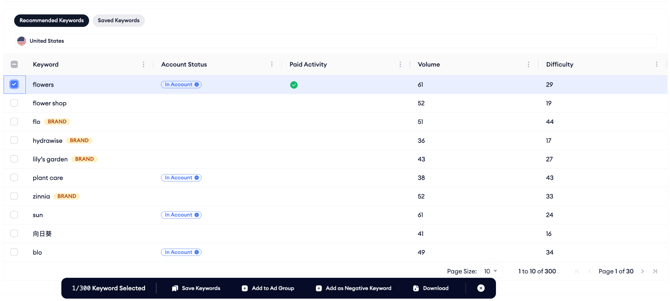
3. In the Save Keywords modal, review the app and country shown at the top. These are pre-filled from your discovery session and cannot be changed.
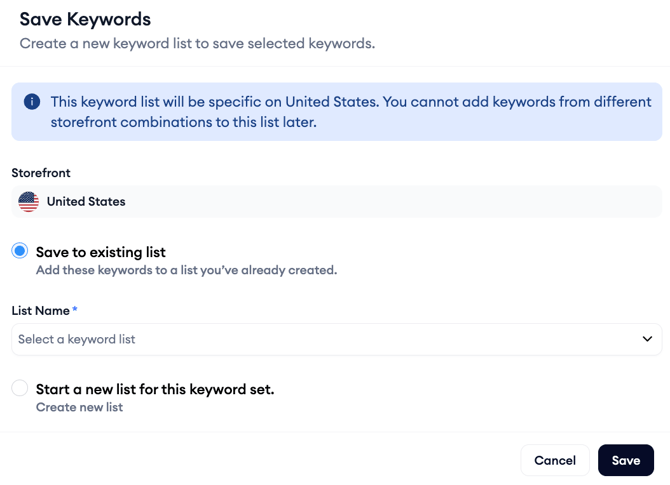
- Create new list: Enter a list name and save.
- Save to existing list: Select an existing list that matches your input pair. This option only appears if a matching list already exists. Lists that do not have enough capacity to hold all selected keywords appear as disabled.
5. Click Save.
What happens after you save
If none of the selected keywords already exist in the target list, the system saves all of them and shows a toast notification in the top-right corner:
“Keywords have been saved. You can view them in the Saved Keywords tab.”
Click “View now” in the notification to go directly to the saved list.
If some of the selected keywords already exist in the target list, the system saves only the new ones and skips the duplicates.
If all selected keywords already exist in the target list, no keywords are saved, and the system informs you that nothing was added.
After you finish
You can continue your discovery session without navigating away.
To review your saved keywords, switch to the Saved Keywords tab in the recommendation table, or return to the landing page and click View Saved Keywords.
Related links
Manage your saved keyword lists
Requirements and limits for AI Keyword Planner
Need more help?
If you have further questions, contact your dedicated Customer Success Manager or reach the support team via live chat.