
Use this page to view, rename, and delete your saved keyword lists in AI Keyword Planner.
This article explains how to manage lists in the Saved Keywords section. To learn how to save keywords in the first place, see Save keywords.
How to access your saved keywords
You can reach the Saved Keywords section in two ways:
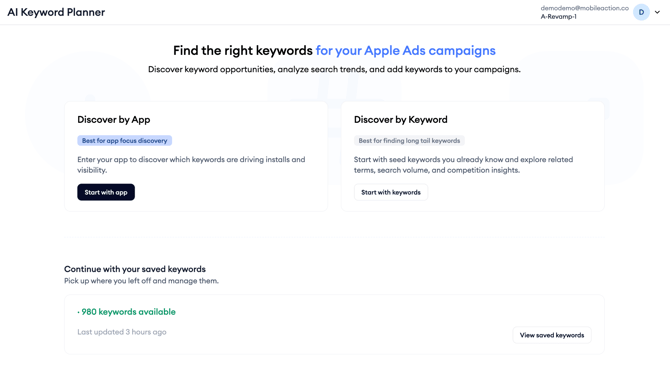
- From the landing page: If you have previously saved keywords, a section appears at the bottom of the landing page showing how many keywords are available. Click View Saved Keywords to open the most recently updated list.
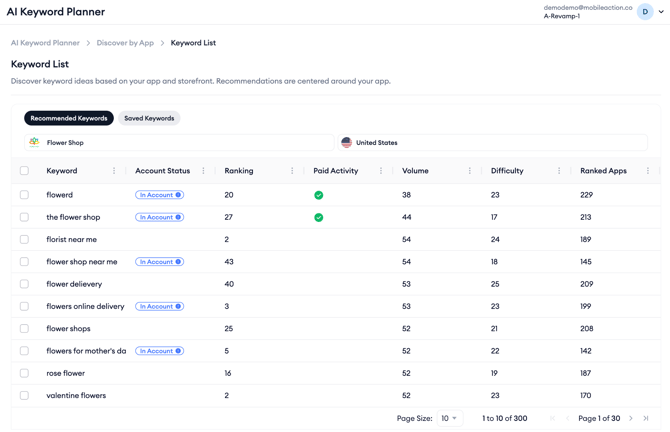
- From the Keyword List page: Click the Saved Keywords tab above the recommendation table.
Switch between lists
The Saved Keywords page shows one keyword list at a time. Use the dropdown above the table to switch between your saved lists.
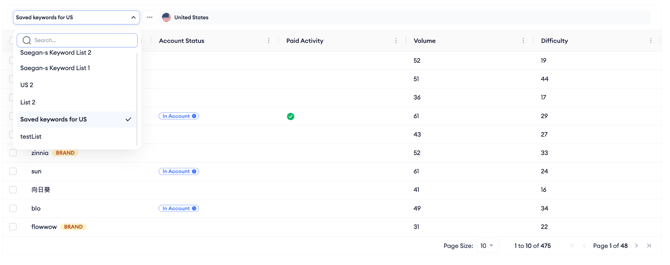
The dropdown works with single selection.
On the right side of the page, the storefront where the list was created is shown for reference.
For lists created by using the Discovery by app option, you’ll also see the app the list is created for, for reference. The country and app visible for the lists cannot be changed.
Edit a list name
- Click the three-dot menu next to the list selector dropdown.
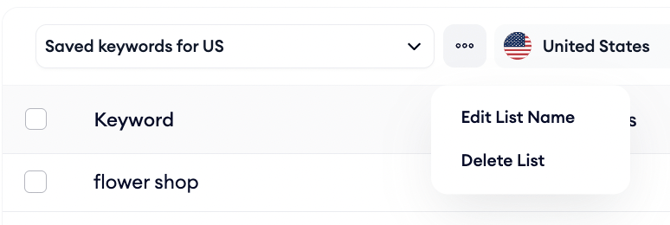
3. Enter the new name in the input field.
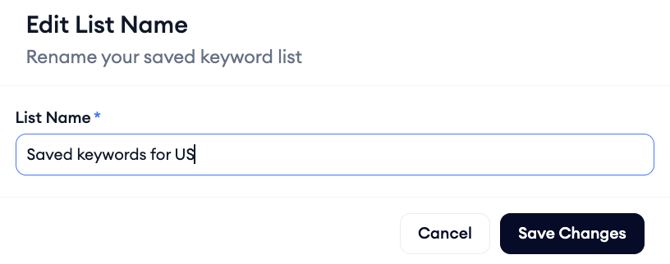
List names must be unique within your account.
Delete a list
- Click the three-dot menu next to the list selector dropdown.
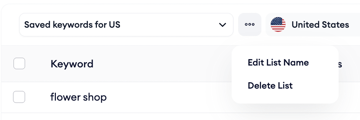
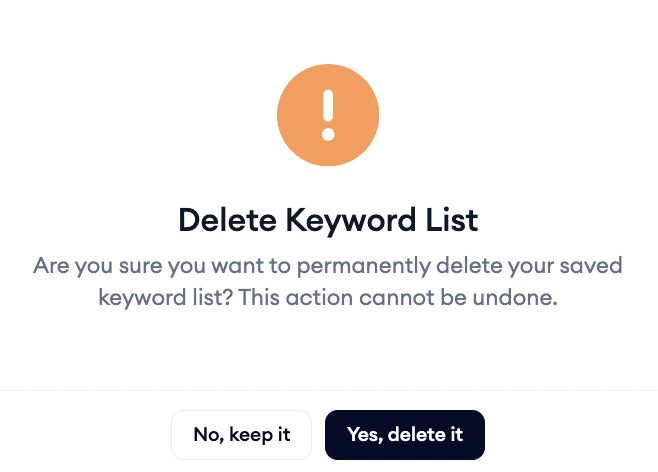
3. Review the confirmation message and click Delete to confirm. To keep the list, click Cancel.
Keyword metrics in saved lists
For each saved keyword, the system shows up-to-date performance data, including Account Status, Paid Activity, Volume and Difficulty. These metrics are refreshed to reflect the latest available data.
Actions available in the Saved Keywords table
After selecting keywords from the Saved Keywords table, you can:
- Add them to an ad group
- Add them as negative keywords
- Unsave them to remove them from the list
- Download them as a CSV file
Related links
Add keywords as negative keywords
Need more help?
If you have further questions, contact your dedicated Customer Success Manager or reach the support team via live chat.