
This article explains how to manage keyword-level AI Smart Bidding settings from Ads Manager. From the Keywords layer, you can freeze or unfreeze selected keywords and set minimum and/or maximum bid limits for AI Smart Bidding.
Before you begin
- To use these settings, you need access to AI Smart Bidding in your MobileAction CMP plan.
- These settings are managed from Ads Manager > Keywords, not from the main AI Smart Bidding table.
- Select the keywords you want to update before opening AI Smart Bidding Settings.
Open AI Smart Bidding Settings
- Go to Ads Manager.
- Open the Keywords layer.
- Select the keywords you want to update.
- Click Actions.
- Select AI Smart Bidding Settings.
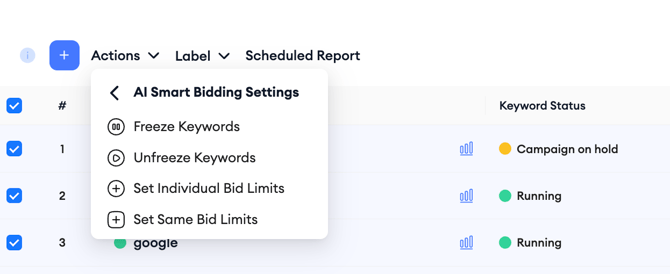
From this menu, you can choose Freeze Keywords, Unfreeze Keywords, Set Individual Bid Limits, or Set Same Bid Limits.
Freeze keywords
Use Freeze Keywords when you want AI Smart Bidding to stop making adjustments for selected keywords.
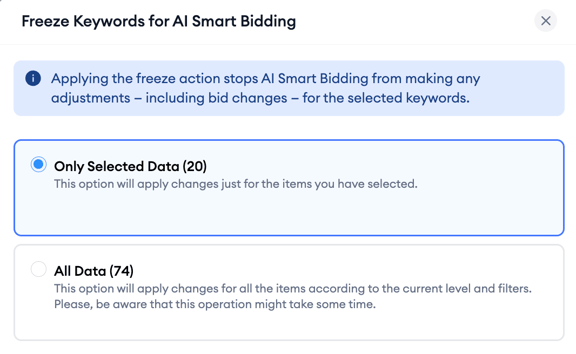
Applying the freeze action stops AI Smart Bidding from making any adjustments, including bid changes, for the selected keywords.
You can apply the action to:
- Only Selected Data: Applies the change only to the keywords you selected.
- All Data: Applies the change to all items according to the current level and filters.
Click Save to apply your selection.
Unfreeze keywords
Use Unfreeze Keywords when you want AI Smart Bidding to resume making adjustments for selected keywords.
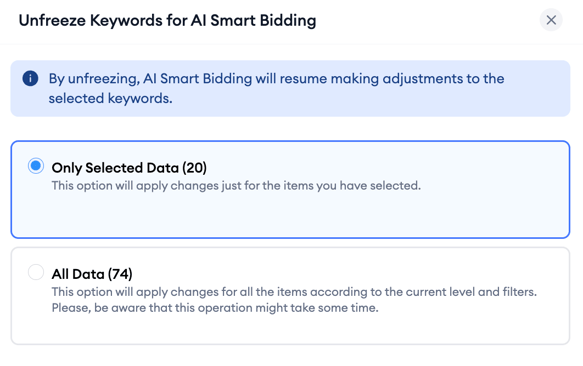
By unfreezing, AI Smart Bidding will resume making adjustments to the selected keywords.
You can apply the action to:
- Only Selected Data: Applies the change only to the keywords you selected.
- All Data: Applies the change to all items according to the current level and filters.
Click Save to apply your selection.
Set individual bid limits
Use Set Individual Bid Limits when you want to set different minimum and/or maximum bid limits for each selected keyword.
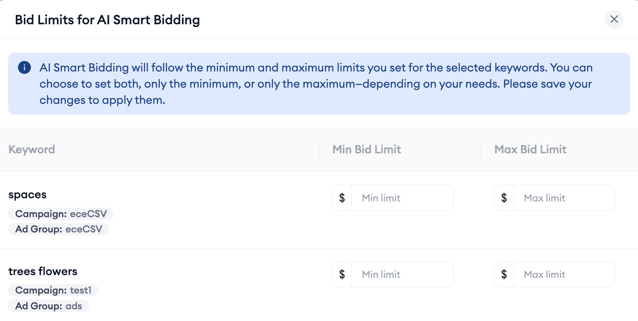
For each keyword, you can enter:
- Min Bid Limit
- Max Bid Limit
AI Smart Bidding will follow the minimum and maximum limits you set for the selected keywords. You can set both limits, only the minimum, or only the maximum depending on your needs.
Click Save to apply your changes.
Set the same bid limits
Use Set Same Bid Limits when you want to apply the same minimum and/or maximum bid limits to multiple keywords at once.
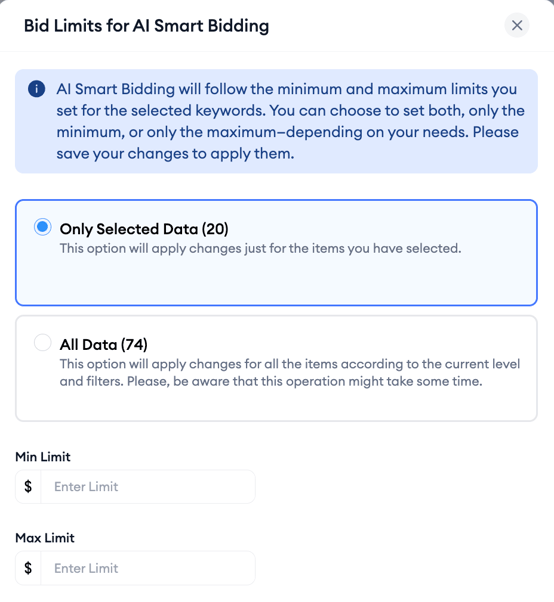
You can apply the change to:
- Only Selected Data: Applies the change only to the keywords you selected.
- All Data: Applies the change to all items according to the current level and filters.
Then enter the Min Limit, Max Limit, or both. AI Smart Bidding will optimize the selected keywords within the limits you set.
Click Save to apply your changes.
Keep in mind!
-
Freezing and unfreezing keywords are keyword-level AI Smart Bidding settings. They differ from setup-level status controls, such as Run, Pause, and Stop, in the AI Smart Bidding table.
-
Setting bid limits does not stop AI Smart Bidding. It allows AI Smart Bidding to continue optimizing the selected keywords within the minimum and/or maximum limits you define.