
This article shows you how to review, filter, edit, export, and control AI Smart Bidding setups from the AI Smart Bidding table.
Before you begin
- To use AI Smart Bidding, you need access to AI Smart Bidding in your plan.
- AI Smart Bidding can only be applied to campaigns and ad groups running search results ads.
- For details, see About AI Smart Bidding.
Instructions
Open the AI Smart Bidding table
- Go to MobileAction CMP > AI Smart Bidding.
- Review the table that lists all AI Smart Bidding setups in one view.
From the table, you can see each setup’s:
- AI Smart Bidding name
- Bidding strategy
- Goal
- Attribution settings
- Target
- Label
- Status
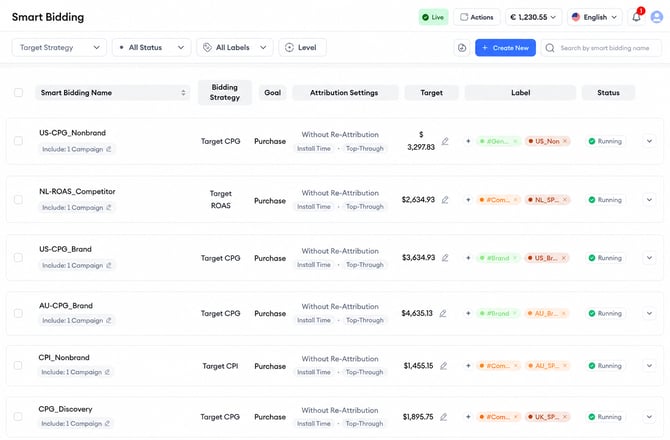
Filter AI Smart Bidding setups
Use the filters at the top of the table to focus on the setups you want to review or manage.
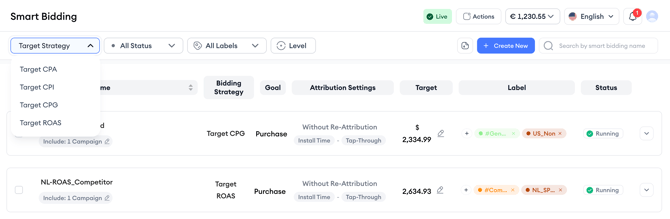
You can filter setups by:
- Target Strategy
- Status
- Labels
- Level
You can also use the search bar to search by AI Smart Bidding name.
Filter by target strategy
Use the Target Strategy filter to focus on a specific optimization strategy.
Available options include:
- Target CPA
- Target CPI
- Target CPG
- Target ROAS
- Target Impression Share
Filter by status
Use the Status filter to review setups based on their current state.
Available status options include:
- Running
- Paused
- Stopped
Select one or more statuses, then click Apply.
Filter by labels
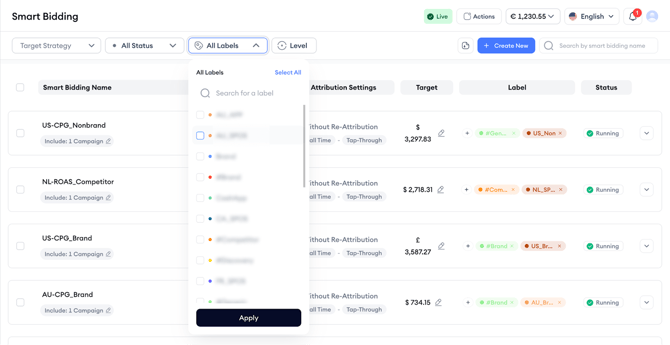
Use the Labels filter to review setups based on your own structure, such as brand, competitor, market, or campaign grouping.
You can search for a label, select one or more labels, and click Apply to filter the table.
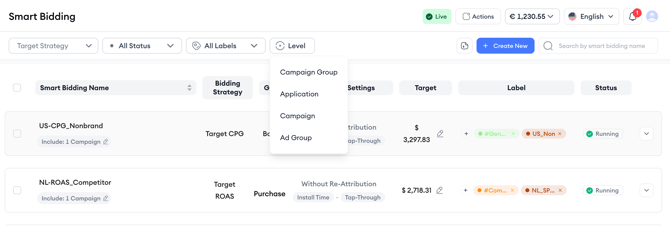
Filter by level
Use the Level filter to find setups based on where AI Smart Bidding is applied.
Available level options include:
- Campaign Group
- Application
- Campaign
- Ad Group
Export AI Smart Bidding data
To export the full AI Smart Bidding table data:
- Click Export Smart Bidding Data at the top of the page.
- Download the exported file.
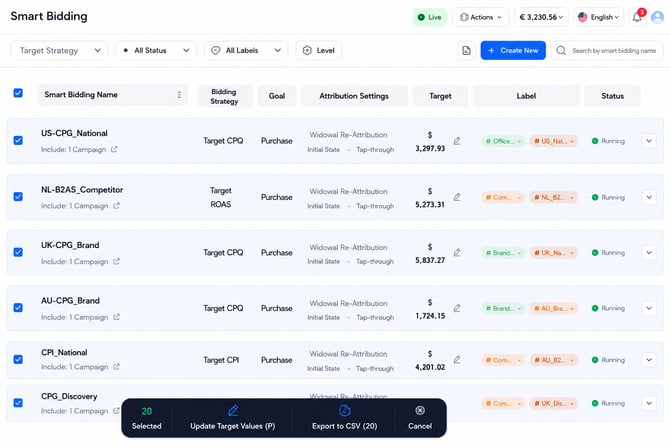 Update target values or export selected setups
Each row includes a checkbox so you can select one or more setups.
After selecting setups, an action bar appears at the bottom of the page. From this action bar, you can:
- Update Target Values for the selected setup or setups
- Export to CSV for only the selected setup or setups
- Cancel to clear your selection
Pro tip: Use filters first, then multi-select. For example, filter by Target Strategy = Target CPA and Status = Running, then select only the setups you want to update.
Keep in mind!
Bulk actions support target value updates and CSV export. Status controls are managed per setup from the table.
Edit an existing setup
You can edit available setup details directly from the AI Smart Bidding table.
Depending on the setup, editable fields may include:
- AI Smart Bidding name
- Target value
- Selected campaign or ad group details, where available
- Labels
Keep in mind!
The bidding strategy and applied level cannot be changed after creation. Choose the right strategy and level carefully when creating a new setup.
Manage keyword-level AI Smart Bidding settings from Ads Manager
Some AI Smart Bidding keyword-level settings are managed from Ads Manager, not from the main AI Smart Bidding table.
To access these settings, go to Ads Manager > Keywords, select the keywords you want to update, open Actions, and choose AI Smart Bidding Settings.
From this menu, you can: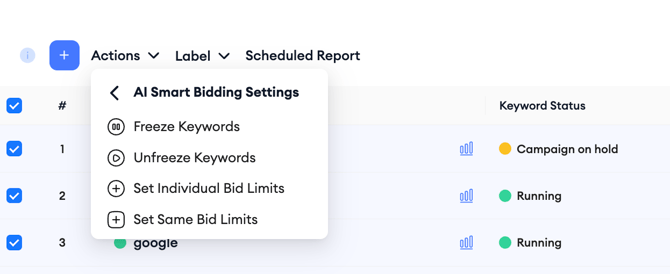
- Freeze Keywords: Stops AI Smart Bidding from making adjustments, including bid changes, for the selected keywords.
- Unfreeze Keywords: Allows AI Smart Bidding to resume making adjustments for the selected keywords.
- Set Individual Bid Limits: Lets you set different minimum and/or maximum bid limits for selected keywords.
- Set Same Bid Limits: Lets you apply the same minimum and/or maximum bid limits to selected keywords in bulk.
Keep in mind!
These are keyword-level AI Smart Bidding settings accessed from Ads Manager. They are different from setup status controls such as Run, Pause, and Stop, which are managed from the AI Smart Bidding table.
Control setup status
You can control an AI Smart Bidding setup’s status from the table.
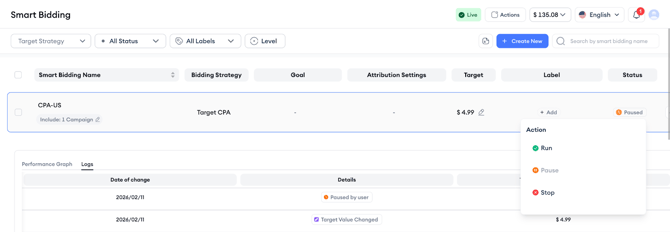
Available status controls include:
- Pause to temporarily stop AI Smart Bidding while keeping the setup.
- Run to reactivate a paused setup.
- Stop to end the setup and reset its progress.
When you run, pause, or stop a setup, the platform shows a confirmation message before applying the change.
Related links
- About AI Smart Bidding
- How to create an AI Smart Bidding setup
- How to review AI Smart Bidding logs and performance
- AI Smart Bidding best practices and FAQs
Need more help?
If you have further questions on the process, contact your dedicated Customer Success Manager or contact the support team via live chat.