---
title: Find trending keywords by category and storefront
description: The Uptrends Keywords tab in Keyword Trends shows which keywords are gaining search momentum in the App Store for the selected storefront and time period, so you can identify terms worth adding to your metadata or Apple Ads campaigns before they become heavily contested.
---
[Skip to content](https://helpcenter.mobileaction.co/en/find-trending-keywords-by-category-and-storefront#main-content)
[](https://www.mobileaction.co/)
- [Website](https://www.mobileaction.co/)
- [Help Center](https://helpcenter.mobileaction.co/en)
Open main navigation
Close main navigation
- [Website](https://www.mobileaction.co/)
- [Help Center](https://helpcenter.mobileaction.co/en)
Advice and answers from the MobileAction Team
- There are no suggestions because the search field is empty.
1. [Help Center](https://helpcenter.mobileaction.co/en?hsLang=en)
2. [ASO Intelligence](https://helpcenter.mobileaction.co/en/aso-intelligence?hsLang=en)
3. [Keyword Trends](https://helpcenter.mobileaction.co/en/aso-intelligence?hsLang=en#keyword-trends)
# Find trending keywords by category and storefront
The Uptrends Keywords tab in Keyword Trends shows which keywords are gaining search momentum in the App Store for the selected storefront and time period, so you can identify terms worth adding to your metadata or Apple Ads campaigns before they become heavily contested.
If you want to find declining keywords instead, go to [Identify declining keywords to deprioritize](https://helpcenter.mobileaction.co/en/identify-declining-keywords-to-deprioritize?hsLang=en).
### Before you start
Keyword Trends is scoped to your selected app and storefront. Make sure the correct storefront is selected at the top of the page before reviewing trends, as trending keywords vary significantly by market. If you are working with a non-English storefront and want to read keyword text in English, turn on the Translation (EN) toggle at the top right.
**Note:** Keyword trend data in this tool is based on the App Store only. If you add a keyword to Keyword Tracking from this page, it will be saved under the Google Play Store version of your app. Switch to the App Store storefront before adding keywords if you want them tracked under your iOS app.
### How to use it
1\. Open **Keyword Trends** from the MobileAction platform navigation menu. The tool opens on the **Uptrends Keywords** tab by default, showing keywords gaining search momentum across all categories for the last 30 days.
2\. Use the category dropdown at the top right to filter the list to a specific App Store category. The dropdown shows each category with its count of uptrending and downtrending keywords. Categories with subcategories show an arrow; click to expand and select a more specific segment. Select the category most relevant to your app to focus the list on terms your audience is actually searching for.
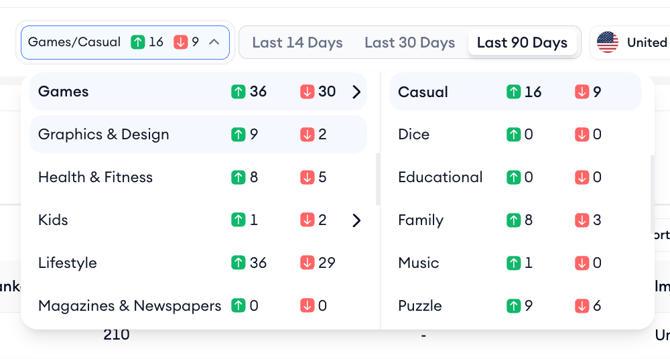
3\. Use the time period selector (Last 14 Days, Last 30 Days, or Last 90 Days) to control the window over which trend direction is calculated. Last 14 Days surfaces fast-moving terms that may be seasonal or event-driven. Last 90 Days shows more sustained momentum. Start with Last 30 Days for a balanced view, then switch periods to check whether a keyword's rise is short-term or sustained.

4\. Use the storefront selector to switch between markets and compare which terms are trending in different countries.
5\. Review the keyword table. For each keyword, check the **Relevancy** score to assess how closely it relates to your app, the **Volume** to understand its search scale, and your app's rank column on the right to see whether you are already ranking for it. Keywords marked **Unranked** in your rank column are gaps; you are not yet present for a term that is gaining traction.
6\. Click the chart icon next to any volume value to open a **Volume History** popup, which shows how that keyword's search volume has trended over time. Use this to verify that the uptrend is genuine and not a one-day spike.
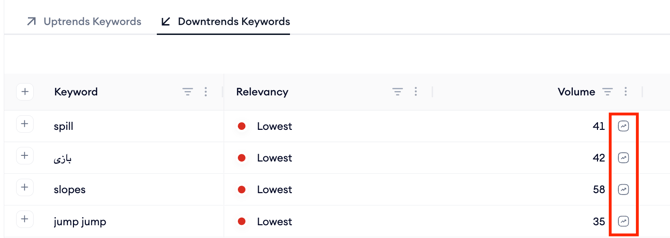
7\. To add a keyword to your tracking list, click the plus icon to the left of that keyword's row. The keyword is added to Keyword Tracking immediately.
8\. To export the full keyword list for offline analysis or reporting, click **Export as CSV** at the top right of the table.
### After you finish
Focus first on uptrending keywords where your Relevancy is Medium or High and your app shows Unranked; these are the highest-priority gaps to investigate. Use [Analyze keyword metrics with Keyword Inspector](https://helpcenter.mobileaction.co/en/analyze-keyword-metrics-with-keyword-analysis?hsLang=en) to assess the competitive landscape for any term before adding it to your metadata or campaigns. Once you have decided which terms to pursue, add them to [Keyword Tracking](https://helpcenter.mobileaction.co/en/about-keyword-tracking?hsLang=en) to monitor your ranking progress over time.
### Related links
- [About Keyword Trends](https://helpcenter.mobileaction.co/en/about-keyword-trends?hsLang=en)
- [Identify declining keywords to deprioritize](https://helpcenter.mobileaction.co/en/identify-declining-keywords-to-deprioritize?hsLang=en)
- [Add keywords to Keyword Tracking](https://helpcenter.mobileaction.co/en/add-keywords-to-keyword-tracking?hsLang=en)
- [Analyze keyword performance with Keyword Inspector](https://helpcenter.mobileaction.co/en/analyze-keyword-metrics-with-keyword-analysis?hsLang=en)
- [Score and optimize your app's title and subtitle](https://helpcenter.mobileaction.co/en/score-and-optimize-your-apps-title-and-subtitle?hsLang=en)
---
### Need more help?
If you have further questions on the process, contact your dedicated Customer Success Manager or contact the support team via live chat.
- [Quick Guide to MobileAction](https://helpcenter.mobileaction.co/en/quick-guide-to-mobileaction?hsLang=en)
- [MobileAction CMP](https://helpcenter.mobileaction.co/en/mobileaction-cmp?hsLang=en#main-content)
- [Apple Ads Integration](https://helpcenter.mobileaction.co/en/mobileaction-cmp?hsLang=en#apple-ads-integration)
- [AI Assistant](https://helpcenter.mobileaction.co/en/mobileaction-cmp?hsLang=en#ai-assistant)
- [Overview](https://helpcenter.mobileaction.co/en/mobileaction-cmp?hsLang=en#overview)
- [Ads Manager](https://helpcenter.mobileaction.co/en/mobileaction-cmp?hsLang=en#ads-manager)
- [Automations](https://helpcenter.mobileaction.co/en/mobileaction-cmp?hsLang=en#automations)
- [CPP A/B Testing](https://helpcenter.mobileaction.co/en/mobileaction-cmp?hsLang=en#cpp-a-b-testing)
- [AI Keyword Planner](https://helpcenter.mobileaction.co/en/mobileaction-cmp?hsLang=en#ai-keyword-planner)
- [AI Smart Bidding](https://helpcenter.mobileaction.co/en/mobileaction-cmp?hsLang=en#ai-smart-bidding)
- [Budget Allocation](https://helpcenter.mobileaction.co/en/mobileaction-cmp?hsLang=en#budget-allocation)
- [Benchmarks](https://helpcenter.mobileaction.co/en/mobileaction-cmp?hsLang=en#benchmarks)
- [Market Finder](https://helpcenter.mobileaction.co/en/mobileaction-cmp?hsLang=en#market-finder)
- [App Performance](https://helpcenter.mobileaction.co/en/mobileaction-cmp?hsLang=en#app-performance)
- [MMP Integration](https://helpcenter.mobileaction.co/en/mobileaction-cmp?hsLang=en#mmp-integration)
- [ASO Intelligence](https://helpcenter.mobileaction.co/en/aso-intelligence?hsLang=en#main-content)
- [Metadata Optimizer](https://helpcenter.mobileaction.co/en/aso-intelligence?hsLang=en#metadata-optimizer)
- [App Update Timeline](https://helpcenter.mobileaction.co/en/aso-intelligence?hsLang=en#app-update-timeline)
- [Creative Monitoring](https://helpcenter.mobileaction.co/en/aso-intelligence?hsLang=en#creative-monitoring)
- [Localization](https://helpcenter.mobileaction.co/en/aso-intelligence?hsLang=en#localization)
- [Keyword Tracking](https://helpcenter.mobileaction.co/en/aso-intelligence?hsLang=en#keyword-tracking)
- [Competitor Keywords](https://helpcenter.mobileaction.co/en/aso-intelligence?hsLang=en#competitor-keywords)
- [Keyword Inspector](https://helpcenter.mobileaction.co/en/aso-intelligence?hsLang=en#keyword-inspector)
- [Keyword Trends](https://helpcenter.mobileaction.co/en/aso-intelligence?hsLang=en#keyword-trends)
- [Keyword Translator](https://helpcenter.mobileaction.co/en/aso-intelligence?hsLang=en#keyword-translator)
- [Organic CPP Results](https://helpcenter.mobileaction.co/en/aso-intelligence?hsLang=en#organic-cpp-results)
- [ASO Report](https://helpcenter.mobileaction.co/en/aso-intelligence?hsLang=en#aso-report)
- [Visibility Report](https://helpcenter.mobileaction.co/en/aso-intelligence?hsLang=en#visibility-report)
- [Download Share](https://helpcenter.mobileaction.co/en/aso-intelligence?hsLang=en#download-share)
- [Store Analytics](https://helpcenter.mobileaction.co/en/store-analytics?hsLang=en#main-content)
- [Revenue Snapshot](https://helpcenter.mobileaction.co/en/store-analytics?hsLang=en#revenue-snapshot)
- [Organic Acquisition Dashboard](https://helpcenter.mobileaction.co/en/store-analytics?hsLang=en#organic-acquisition-dashboard)
- [Download Report](https://helpcenter.mobileaction.co/en/store-analytics?hsLang=en#download-report)
- [Conversion Funnel View](https://helpcenter.mobileaction.co/en/store-analytics?hsLang=en#conversion-funnel-view)
- [Analytics Overview](https://helpcenter.mobileaction.co/en/store-analytics?hsLang=en#analytics-overview)
- [Search Ads Intelligence](https://helpcenter.mobileaction.co/en/search-ads-intelligence?hsLang=en#main-content)
- [Search Result/App](https://helpcenter.mobileaction.co/en/search-ads-intelligence?hsLang=en#search-result-app)
- [Search Result/Keyword](https://helpcenter.mobileaction.co/en/search-ads-intelligence?hsLang=en#search-result-keyword)
- [Search Result/Competitor](https://helpcenter.mobileaction.co/en/search-ads-intelligence?hsLang=en#search-result-competitor)
- [Today Tab](https://helpcenter.mobileaction.co/en/search-ads-intelligence?hsLang=en#today-tab)
- [Search Tab](https://helpcenter.mobileaction.co/en/search-ads-intelligence?hsLang=en#search-tab)
- [Product Pages](https://helpcenter.mobileaction.co/en/search-ads-intelligence?hsLang=en#product-pages)
- [Top Advertisers](https://helpcenter.mobileaction.co/en/search-ads-intelligence?hsLang=en#top-advertisers)
- [CPP by Keyword](https://helpcenter.mobileaction.co/en/search-ads-intelligence?hsLang=en#cpp-by-keyword)
- [CPP by App](https://helpcenter.mobileaction.co/en/search-ads-intelligence?hsLang=en#cpp-by-app)
- [CPP by Category](https://helpcenter.mobileaction.co/en/search-ads-intelligence?hsLang=en#cpp-by-category)
- [CPP on Ad Networks](https://helpcenter.mobileaction.co/en/search-ads-intelligence?hsLang=en#cpp-on-ad-networks)
- [App Intelligence](https://helpcenter.mobileaction.co/en/app-intelligence?hsLang=en#main-content)
- [Compass Explore](https://helpcenter.mobileaction.co/en/app-intelligence?hsLang=en#compass-explore)
- [Compass Trace](https://helpcenter.mobileaction.co/en/app-intelligence?hsLang=en#compass-trace)
- [Compass Impact](https://helpcenter.mobileaction.co/en/app-intelligence?hsLang=en#compass-impact)
- [App Profile](https://helpcenter.mobileaction.co/en/app-intelligence?hsLang=en#app-profile)
- [Publisher Profile](https://helpcenter.mobileaction.co/en/app-intelligence?hsLang=en#publisher-profile)
- [Featured Apps](https://helpcenter.mobileaction.co/en/app-intelligence?hsLang=en#featured-apps)
- [Category Rankings](https://helpcenter.mobileaction.co/en/app-intelligence?hsLang=en#category-rankings)
- [Reviews](https://helpcenter.mobileaction.co/en/app-intelligence?hsLang=en#reviews)
- [AI Review Reply](https://helpcenter.mobileaction.co/en/app-intelligence?hsLang=en#ai-review-reply)
- [Ratings](https://helpcenter.mobileaction.co/en/app-intelligence?hsLang=en#ratings)
- [Similar Apps](https://helpcenter.mobileaction.co/en/app-intelligence?hsLang=en#similar-apps)
- [In-App Events](https://helpcenter.mobileaction.co/en/app-intelligence?hsLang=en#in-app-events)
- [Promotional Content](https://helpcenter.mobileaction.co/en/app-intelligence?hsLang=en#promotional-content)
- [Top Charts](https://helpcenter.mobileaction.co/en/app-intelligence?hsLang=en#top-charts)
- [Biggest Movers](https://helpcenter.mobileaction.co/en/app-intelligence?hsLang=en#biggest-movers)
- [Biggest Losers](https://helpcenter.mobileaction.co/en/app-intelligence?hsLang=en#biggest-losers)
- [Ad Intelligence](https://helpcenter.mobileaction.co/en/ad-intelligence?hsLang=en#main-content)
- [Creative Analysis](https://helpcenter.mobileaction.co/en/ad-intelligence?hsLang=en#creative-analysis)
- [Advertiser Analysis](https://helpcenter.mobileaction.co/en/ad-intelligence?hsLang=en#advertiser-analysis)
- [Ad Publisher Analysis](https://helpcenter.mobileaction.co/en/ad-intelligence?hsLang=en#ad-publisher-analysis)
- [Developer Analysis](https://helpcenter.mobileaction.co/en/ad-intelligence?hsLang=en#developer-analysis)
- [Top Advertisers](https://helpcenter.mobileaction.co/en/ad-intelligence?hsLang=en#top-advertisers)
- [Top Ad Publishers](https://helpcenter.mobileaction.co/en/ad-intelligence?hsLang=en#top-ad-publishers)
- [Top Creatives](https://helpcenter.mobileaction.co/en/ad-intelligence?hsLang=en#top-creatives)
- [Top Developers](https://helpcenter.mobileaction.co/en/ad-intelligence?hsLang=en#top-developers)
- [App Collections](https://helpcenter.mobileaction.co/en/ad-intelligence?hsLang=en#app-collections)
- [Creative Collections](https://helpcenter.mobileaction.co/en/ad-intelligence?hsLang=en#creative-collections)
- [Troubleshooting](https://helpcenter.mobileaction.co/en/troubleshooting?hsLang=en#main-content)
- [MobileAction CMP Troubleshooting](https://helpcenter.mobileaction.co/en/troubleshooting?hsLang=en#mobileaction-cmp-troubleshooting)
- [ASO Intelligence Troubleshooting](https://helpcenter.mobileaction.co/en/troubleshooting?hsLang=en#aso-intelligence-troubleshooting)
- [Search Ads Intelligence Troubleshooting](https://helpcenter.mobileaction.co/en/troubleshooting?hsLang=en#search-ads-intelligence-troubleshooting)
- [Integrations](https://helpcenter.mobileaction.co/en/integrations?hsLang=en#main-content)
- [MobileAction Integrations](https://helpcenter.mobileaction.co/en/integrations?hsLang=en#mobileaction-integrations)
- [SearchAds.com Integrations](https://helpcenter.mobileaction.co/en/integrations?hsLang=en#searchads-com-integrations)
- [SSO Configuration](https://helpcenter.mobileaction.co/en/integrations?hsLang=en#sso-configuration)
- [Settings](https://helpcenter.mobileaction.co/en/settings?hsLang=en#main-content)
- [MobileAction Settings](https://helpcenter.mobileaction.co/en/settings?hsLang=en#mobileaction-settings)
- [SearchAds.com Settings](https://helpcenter.mobileaction.co/en/settings?hsLang=en#searchads-com-settings)
- [Single Sign-On Configuration Guides](https://helpcenter.mobileaction.co/en/settings?hsLang=en#single-sign-on-configuration-guides)
[](https://www.mobileaction.co)
Build app store marketing on AI, automation and expertise
Copyright © 2025, MobileAction