
The Downtrends Keywords tab in Keyword Trends shows which keywords are losing search volume over the selected time period, so you can reassess whether they are still worth targeting in your metadata or Apple Ads campaigns.
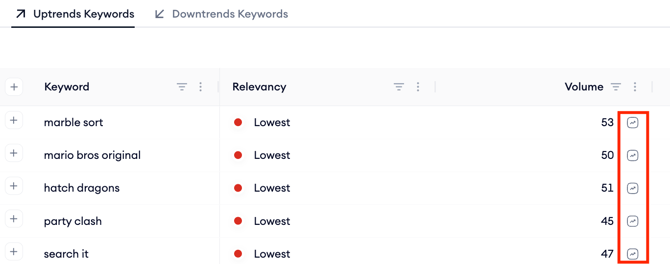
If you want to find keywords gaining momentum instead, go to Find trending keywords by category and storefront.
Before you start
Keyword Trends is scoped to your selected app and storefront. Make sure the correct storefront is selected at the top of the page before reviewing downtrends. If you are working with a non-English storefront and want to read keyword text in English, turn on the Translation (EN) toggle at the top right.
How to use it
1. Open Keyword Trends from the MobileAction platform navigation menu and click the Downtrends Keywords tab.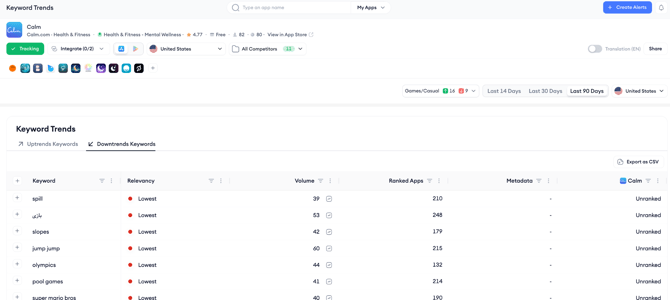
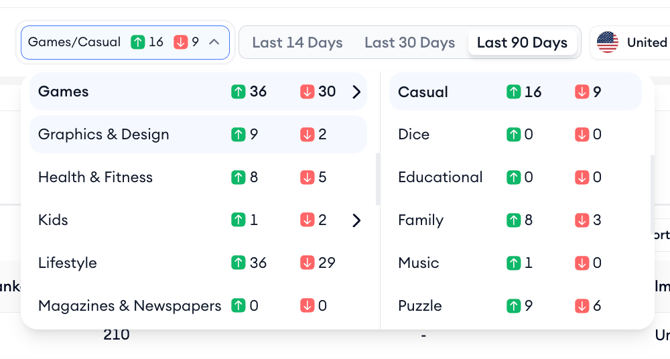
2. Use the category dropdown to filter the list to the category most relevant to your app. This focuses the downtrends list on keywords your audience is searching for rather than showing unrelated terms losing volume in other markets.

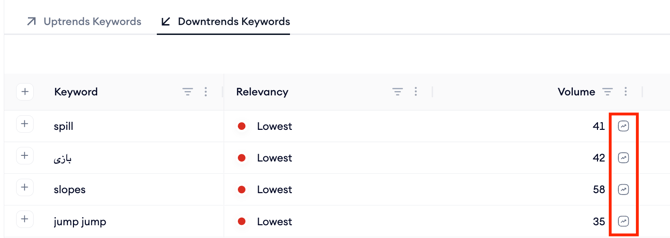
6. To export the declining keyword list for offline review or to share with your team, click Export as CSV at the top right of the table.
After you finish
Cross-reference declining keywords against your current Keyword Tracking list.
If a keyword you are actively targeting is showing sustained volume decline, use Analyze keyword metrics with Keyword Inspector to check its current volume, difficulty, and impression share before deciding whether to remove it from your metadata. Replace deprioritized keywords with uptrending alternatives from the Uptrends Keywords tab.
Related links
Need more help?
If you have further questions on the process, contact your dedicated Customer Success Manager or contact the support team via live chat.