
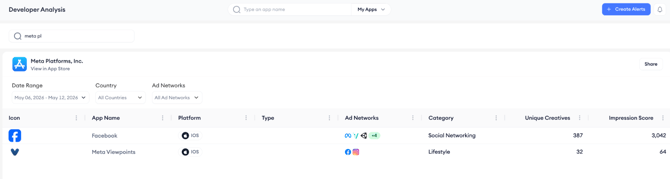
Developer Analysis opens with a developer name search. Once you have loaded a developer, a table shows every app associated with that developer that has detected ad activity within the selected filters.
This article explains how to search for a developer, read the table, and act on what you find.
To understand what Developer Analysis tracks and how it relates to the other Ad Intelligence tools, see About Developer Analysis.
Search for a developer
- Open Developer Analysis from the Ad Intelligence module in the navigation menu.
- Type a developer name into the Type a developer name search bar below the page header and select the developer from the results.
- The developer's profile loads with their name, a View in App Store link, and the app table below.
Read the app table
Each row in the table represents one app associated with the developer that has detected ad activity within the selected filters. The columns are:
- Icon: The app icon. Click it to open the Saving to App Collection panel, where you can add the app to an existing App Collection or create a new one.
- App Name: The app's name. Click it to go directly to Creative Analysis for that app, where you can browse its full creative set and distribution data.
- Platform: The platform the app is running on, for example iOS.
- Type: The app type or classification.
- Ad Networks: The ad network icons for networks where this app's creatives have been detected. If there are more networks than fit in the column, a +N badge shows the remaining count.
- Category: The App Store category the app belongs to.
- Unique Creatives: The number of distinct creatives detected for this app within the selected date range and filters.
- Impression Score: An aggregate signal of the app's detected ad reach across networks within the selected period.
Save an app to a collection
Click the app icon in any row to open the Saving to App Collection panel.
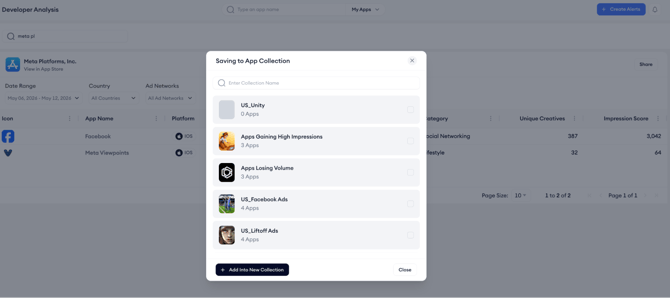
The panel lists your existing App Collections with their current app counts. Check the box next to any collection to add the app to it. To create a new collection, click Add Into New Collection at the bottom of the panel.
Go to Creative Analysis for an app
Click an app's name in the table to open Creative Analysis for that app.
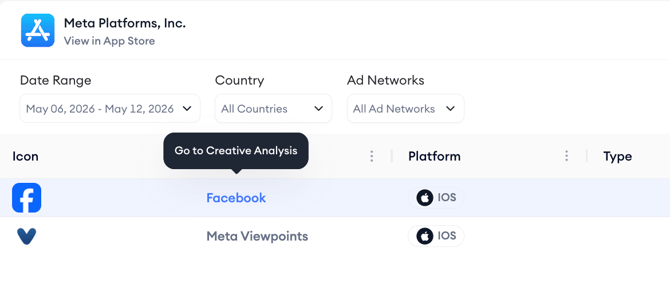
This action takes you directly to the full creative view for that title, the same view available by searching for the app in Creative Analysis directly.
After you finish
If a developer has multiple apps with high Unique Creatives counts across several networks, that suggests an active, broad advertising strategy worth monitoring closely. Save the apps most relevant to your analysis to an App Collection so you can return to them without repeating the developer search.
Related links
Use filters in Developer Analysis
Need more help?
If you have further questions on the process, contact your dedicated Customer Success Manager or contact the support team via live chat.