
Keyword Tracking lets you add keywords manually, discover them from multiple suggestion sources, or import them from a CSV file so you can start monitoring rankings right away.
If you need to learn about how to organize keywords into groups after adding them, go to Create and manage keyword groups.
Before you start
Keywords are tracked per app and per country.
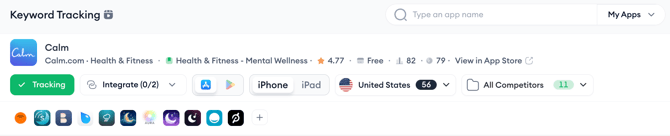
Make sure the correct app and country are selected at the top of the page before adding keywords. If a keyword you try to add is already being tracked, the platform will show an error and skip the duplicate.
You can assign keywords to a group during the add flow or do it later from the table.
Add keywords manually
1. In the text field at the top of the Tracked Keywords tab, type your keywords separated by commas, for example: meditation, sleep, relax.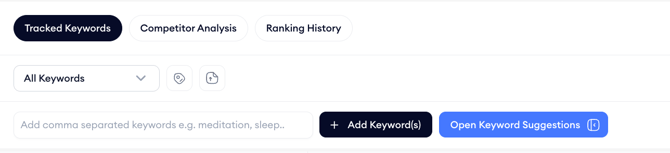
2. Click + Add Keyword(s). The keywords are added to your tracking list immediately and begin showing ranking data.
Add keywords from suggestion sources
The Open Keyword Suggestions button gives you access to multiple keyword sources organized into two groups: Keyword Related and App Related.
You can also use the language filter in supported suggestion sources to narrow the suggested keywords by language. The dropdown shows the available languages together with the number of keywords found for each language, helping you focus on the most relevant keyword suggestions faster.
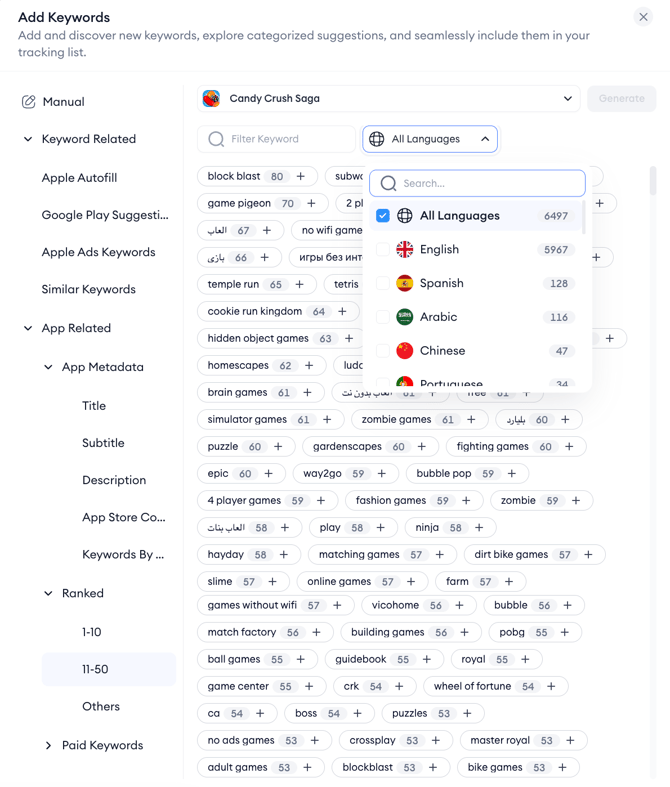
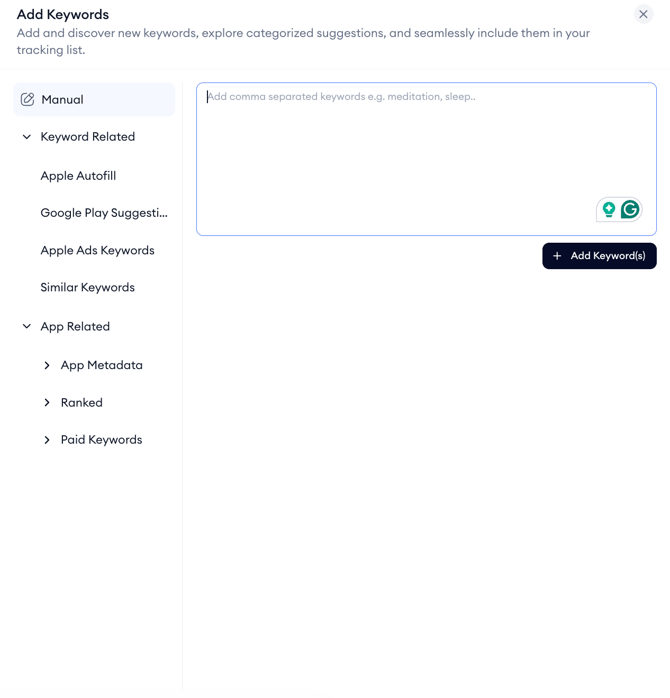
2. On the left side of the panel, select the source you want to use. The available sources are:
Manual: Type or paste keywords directly into the text field, one per line or comma-separated.
Keyword Related sources:
- Apple Autofill: Keywords suggested by the App Store search autocomplete for your app.
- Google Play Suggestions: Keyword suggestions based on Google Play Store search data.
- Apple Ads Keywords: Keywords from your active Apple Ads campaigns.
- Similar Keywords: Keywords semantically related to the terms you are already tracking.
App-related sources:
- App Metadata: Keywords extracted from your app's Title, Subtitle, Description, App Store Connect keyword field, or Keywords By Download.
- Ranked: Keywords your app is currently ranking for, broken into position brackets: 1–10, 11–50, and Others.
- Paid Keywords: Keywords you are actively bidding on in Apple Ads.
3. If the selected source supports language filtering, open the language dropdown and choose one or more languages. Languages are sorted by keyword count, with the languages that have the most suggestions shown first.
Note: The language filter is available only for suggestion sources that generate a high volume of keyword suggestions. It is not available for Apple Autofill, Google Play Suggestions, Title, or Subtitle/Short Description. Keywords without a language tag or without a mapped language appear under Other Languages.
Import keywords from a CSV file
1. Click the CSV upload button next to the keyword grouping dropdown.
2. Click or drag your CSV file into the upload area. The file must contain either a single column of keywords or a column labeled 'Keyword' or 'Keywords'.
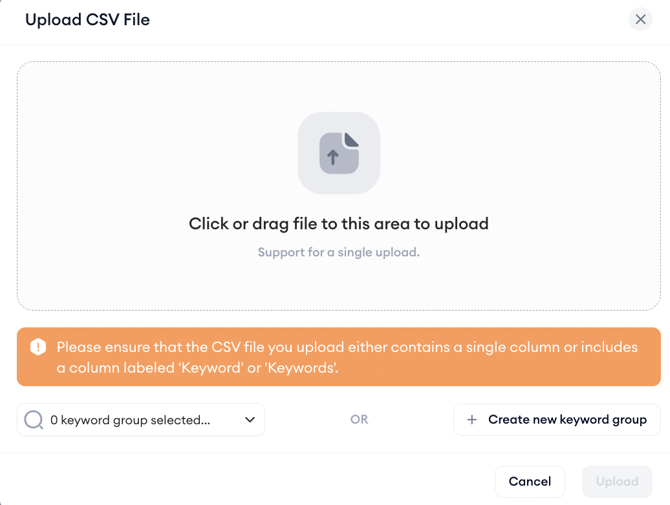
3. Select an existing keyword group to assign the imported keywords to, or create a new group, then click Upload.
Discover keywords with AI suggestions
Go to the Create and manage keyword groups article to learn how you can discover AI-suggested keywords and add keyword groups.
After you finish
Once your keywords are added, you can review their performance metrics in the Tracked Keywords table. To organize them for easier analysis, go to Create and manage keyword groups. To start reviewing ranking data, go to Review tracked keyword performance.
Related links
Need more help?
If you have further questions on the process, contact your dedicated Customer Success Manager or contact the support team via live chat.