
Creative Analysis has two levels of filters: global filters that apply to the entire page, and creative-level filters that narrow the Creatives section specifically.
Using them together lets you focus your research on exactly the creatives most relevant to your analysis.
To understand what each metric means once you have filtered results, see Analyze creative performance metrics.
Global filters
The global filters sit at the top of the Creatives section and apply across the whole page, including the App Overview summary stats.
The country selector narrows results to ads detected in a specific storefront.
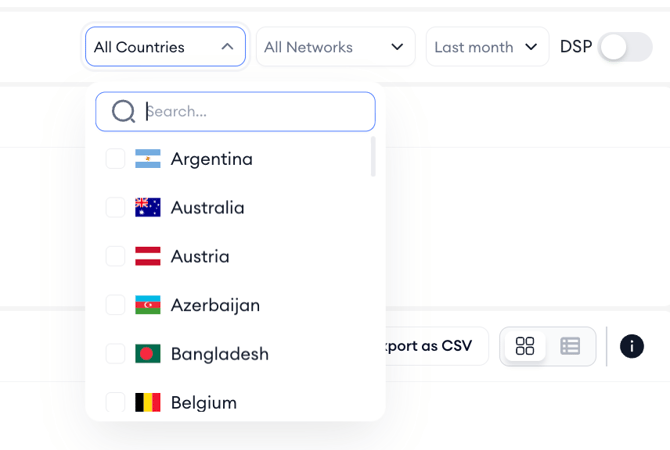
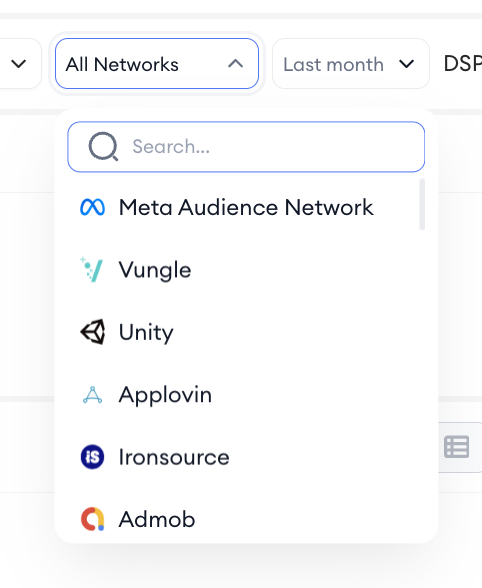
The network selector filters by ad network, so you can focus on a platform (for example, TikTok or Facebook) without seeing results from networks outside your scope.
The date range controls the detection window: Last week and Last month are presets; Select week, Select weeks, Select month, and Select months let you define a custom period.
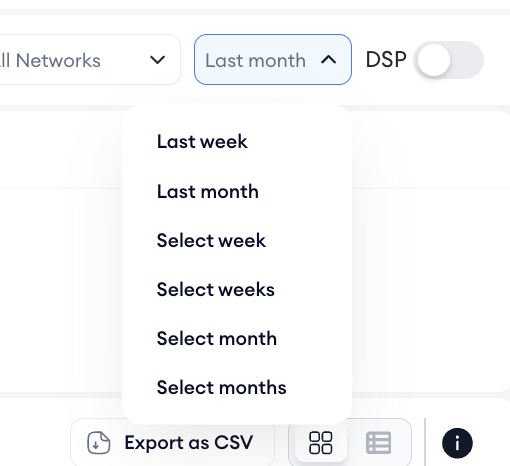
The DSP toggle includes or excludes demand-side platform inventory from the results.
Creative-level filters
The creative-level filters sit directly above the creative grid and apply to the Creatives section only.
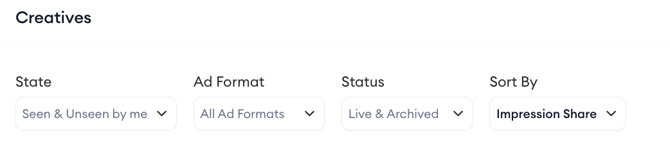
The State filter controls which creatives are shown based on whether you have seen them before.
The Ad Format filter lets you narrow results to specific formats: Video, Image, Interstitial, Banner, Interactive, or Rewarded. You can select multiple formats at once.
The Status filter switches between Live creatives, Archived creatives, or both.
The Sort By dropdown orders results either by First Seen, showing the most recently detected creatives first, or by Impression Share, showing the highest-performing creatives first.
Combining filters for common research tasks
To find what an app is actively running right now, set Status to Live and Sort By to Impression Share. This surfaces the creatives currently being served at the highest rate.
To find long-running creatives that have proven effective over time, set Status to Live & Archived and Sort By First Seen, then look for creatives with a high Duration days value in their cards.
To focus on a specific format (for example, video ads only), set Ad Format to Video. Combine this with a specific network in the global filter row to see video ads running on that platform.
To compare ad activity across different markets, change the country selector in the global filter row while keeping other filters constant.
Related links
Browse and filter creatives in Creative Analysis
Analyze creative performance metrics
Export and share Creative Analysis data
Need more help?
If you have further questions on the process, contact your dedicated Customer Success Manager or contact the support team via live chat.