
This article covers the most common issues you may encounter when integrating your Apple Ads account with MobileAction’s Apple Ads Campaign Management Platform, the likely cause of each one, and the steps to resolve it.
If you encounter an issue that is not listed here, or if any of the steps below do not resolve your problem, contact your dedicated Customer Success Manager via your communication channels or reach the support team via live support.
Integration expired
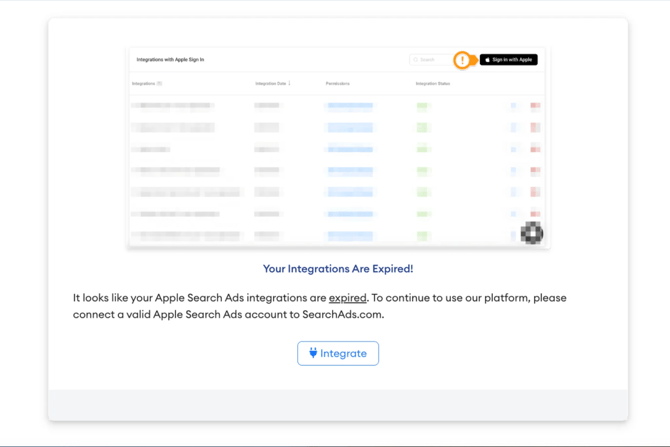
The Integration expired status appears on the Integrations page when the MobileAction’s Apple Ads Campaign Management Platform can no longer access your Apple Ads account using the existing authorization. This typically happens when something changes on the Apple Ads side that invalidates the original authorization token.
The most common causes are:
- Your Apple Ads account password was changed after the integration was set up. Apple invalidates existing API authorizations when account credentials change.
- The campaign groups connected through the integration were moved to a different account or had their permissions changed in Apple Ads.
- The same campaign groups are already integrated with another MobileAction Apple Ads CMP account, which creates a conflict.
To resolve an expired integration:
- Check whether your Apple Ads account password has been changed recently. If it has, this is the most likely cause.
- Go to the Integrations page, remove the expired integration, and redo the integration from the beginning. See Integrate your Apple Ads account with Apple Ads CMP.
- During the re-integration, make sure the campaign groups you are connecting are not already active in another MobileAction Apple Ads CMP account.
- If the integration expires again shortly after you renew it, or if none of the above steps resolve the issue, contact Apple for further assistance, as the problem may originate from the Apple Ads side.
Unable to select a specific app or campaign group
If a specific app or campaign group does not appear in the selection list during integration, or if you can see it but cannot select it, the most common cause is a permissions issue in your native Apple Ads account.
To resolve this:
- In your native Apple Ads account, verify that you have the necessary permissions for the app or campaign group you are trying to integrate. You need admin-level access to the Apple Ads account to authorize CMP access.
- If your permissions in Apple Ads are correctly set and the issue persists, the problem may be on Apple's side. Contact your Customer Success Manager or Apple support for further assistance.
“An Issue Occurred” message
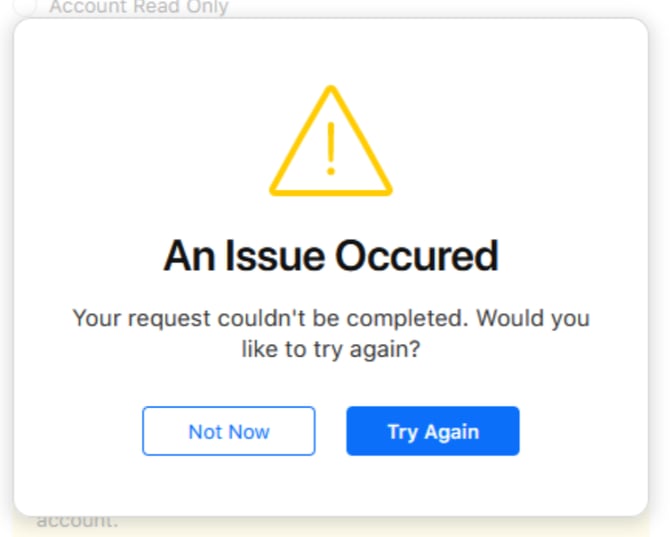
If you encounter an error message stating “Your request couldn’t be completed” error after entering your Apple Ads account and proceeding to the permissions, try the following steps:
- Attempt the integration using incognito or guest mode.
- Verify that you have admin access to the Apple Ads account.
Your request could not be completed error
This error appears during the integration process after you have logged in to your Apple Ads account and are on the permissions step. The full error message reads: 'Your request couldn't be completed.'
This error is typically caused by a browser session issue or a conflict with the active session state during the Apple authorization flow.
To resolve this:
- Open a new incognito or private browsing window in your browser and attempt the integration from there. Incognito mode prevents session conflicts caused by cached cookies or active sessions from other Google or Apple accounts in your browser.
- Verify that you have admin access to the Apple Ads account you are trying to integrate. The error can also appear when the account being authorized does not have admin permissions for the user attempting the integration.
- If the error persists after trying both steps above, contact your dedicated Customer Success Manager via your communication channels or reach the support team via live support.
Related links
- Integrate your Apple Ads account with Apple Ads CMP
- Permission types in Apple Ads Integration
- Manage your Apple Ads integrations
Need more help?
If you have further questions on the process, contact your dedicated Customer Success Manager or contact the support team via live chat!