
This article walks you through the steps to connect your Apple Ads account to MobileAction’s Apple Ads Campaign Management Platform. The process takes around 3 minutes to complete.
Before you begin
- You must be an admin of an Apple Ads account and have a MobileAction’s Apple Ads Campaign Management Platform account. See Requirements for Apple Ads Integration.
Steps to integrate
1. Sign in to your Apple Ads CMP account
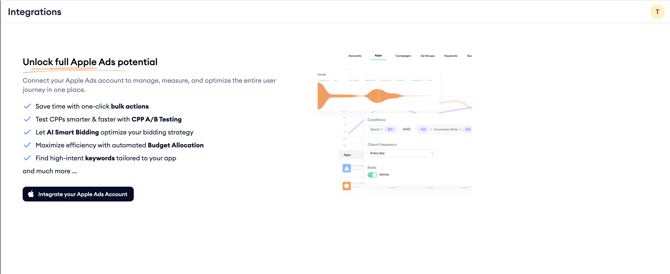
Because you do not have any Apple Ads integrations yet, you will see 'Integrate your Apple Ads Account' badges and 'Sign In with Apple Ads' buttons across the platform. You can also go to Integrations by clicking the profile picture in the top-right corner of the screen and selecting it from the dropdown. Click the 'Sign In with Apple Ads' button to start the integration.
2. Initiate the Apple Ads integration
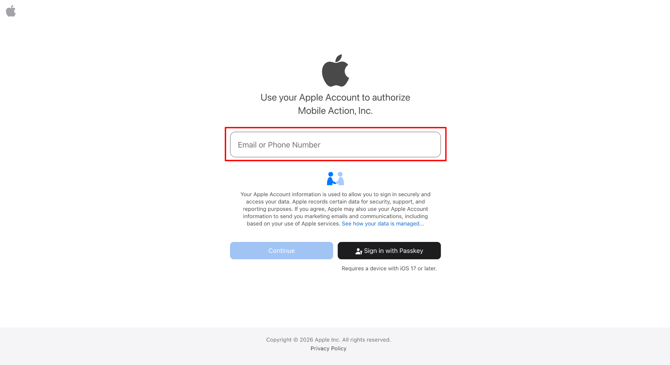
Clicking 'Sign In with Apple Ads' redirects you to Apple's authorization page. Enter your Apple ID and password to log in.
Select the accounts you want to integrate
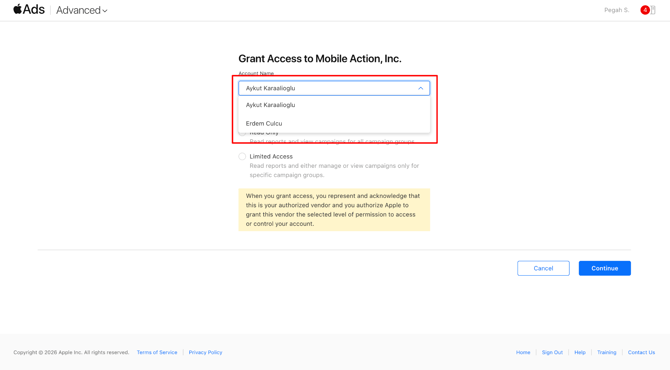
After you sign in, you are directed to the access page. All Apple Ads accounts for which you have admin permissions are listed. Select the accounts you want to connect to the Apple Ads CMP.
Set the permissions for Apple Ads CMP
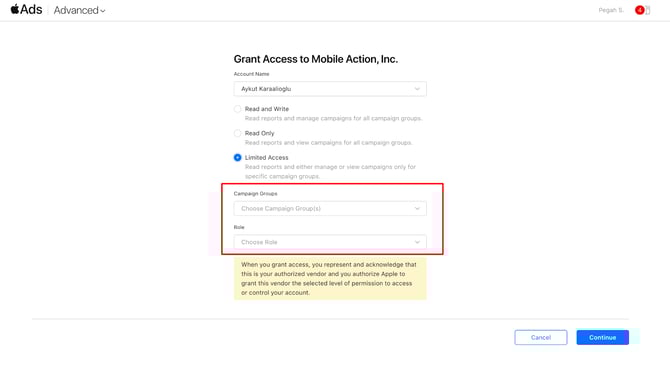
After selecting an account, choose the permission level you want to grant. This determines how the MobileAction’s Apple Ads CMP can access the data from the selected account. See Permission types in Apple Ads Integration for a full description of each option.
Grant API access
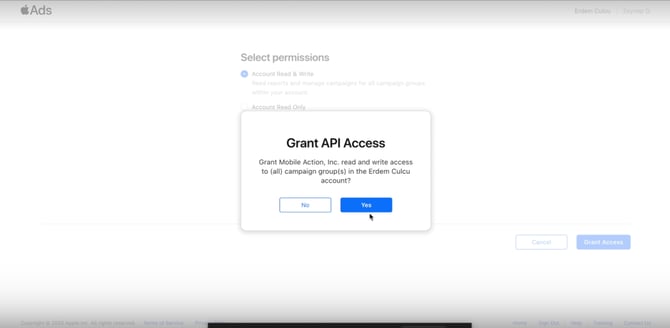
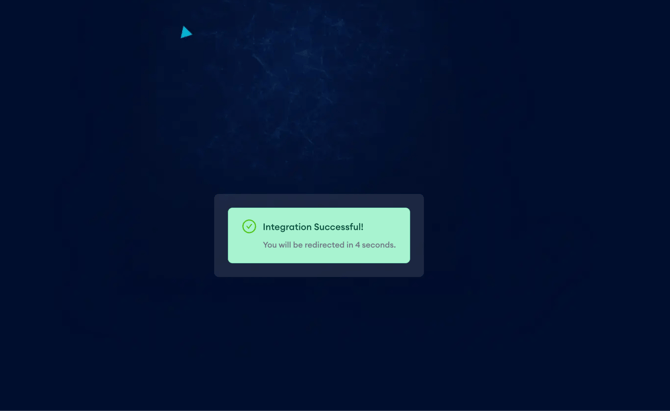
After selecting the permission type that fits your use case, click Grant Access to complete the authorization. If the setup is successful, you will see a success screen and be redirected to MobileAction’s Apple Ads CMP automatically. Your integration status will show as Valid on the Integrations page.
6. Set the timezone
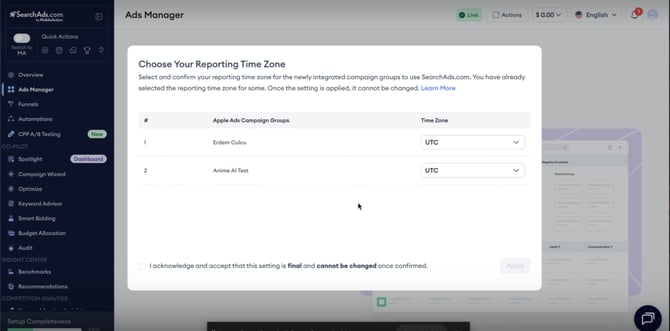
After integrating, confirm or set the timezone for each campaign group. See Setting your campaign group timezone below.
7. Setting your campaign group timezone
After your Apple Ads account is integrated, you need to confirm or set the timezone for each campaign group. Here is what you need to know before making this selection:
- By default, MobileAction’s Apple Ads Campaign Management Platform uses UTC as the timezone. You can keep this setting or select your account's default timezone.
- The selected timezone determines how performance data is processed and displayed across your MobileAction’s Apple Ads CMP dashboard.
- Once you confirm the selected timezone, it cannot be changed later.
Best practice: Since Apple reports data in UTC, we recommend setting your Apple Ads profile timezone to UTC for consistency. If you are unsure which timezone to choose, keep the default UTC setting.
What to expect after integration
Once the integration is complete, you will be redirected to MobileAction’s Apple Ads Campaign Management Platform automatically. Your Apple Ads account will now be connected, and the platform will begin fetching data.
If you are starting from scratch and have not yet created any campaigns in Apple Ads, you need to create at least one campaign in your Apple Ads account for your app and campaigns to appear in MobileAction’s Apple Ads CMP. You can create a simple test campaign with a very low budget in the native Apple Ads dashboard and pause it once the integration is complete and your app is visible in the MobileAction’s Apple Ads CMP.
For information on data availability and sync timing, see Data availability after Apple Ads integration.
Renewing an existing integration
If you are renewing an existing integration rather than connecting a new account, you need to grant MobileAction’s Apple Ads CMP access to all the campaign groups you have been managing on the platform, as well as any new campaign groups you want to add. Make sure not to leave out any campaign groups that are already active.
Note: If you have multiple Apple Ads accounts, you must integrate each one separately by repeating the steps above.
Related links
- Permission types in Apple Ads Integration
- Data availability after Apple Ads integration
- Manage your Apple Ads integrations
- Troubleshooting Apple Ads integration issues
Need more help?
If you have further questions on the process, contact your dedicated Customer Success Manager or contact the support team via live chat!