
Metadata Optimizer scores keyword variations for your app's title, subtitle, and description in real time, so you can compare options and choose the strongest copy before publishing to the App Store.
If you want to understand how the tool works before getting started, go to About Metadata Optimizer.
Before you start
Metadata Optimizer loads your app's current metadata automatically when you open it, no App Store Connect integration is required. You can begin testing variations right away. However, you need the App Store Connect integration if you’d like to test keywords in your App Store Connect keyword list.
If you want the Shared Keywords panel to show your tracked keywords alongside your draft copy, you need to have tracked keywords first. The panel will not appear if you have no tracked keywords.
How to use it
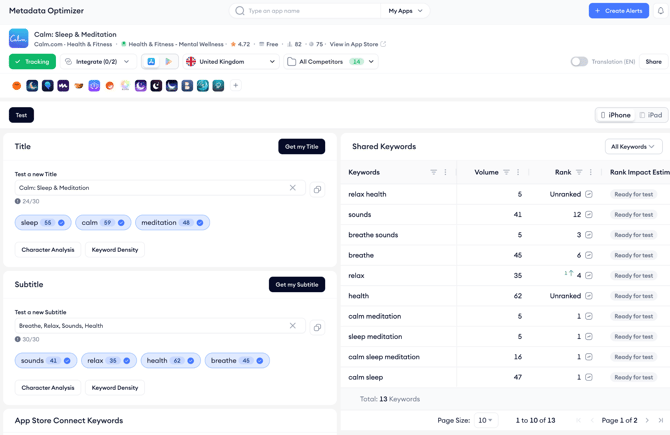
2. In the Title and Subtitle fields, type or paste the keyword variations you want to test. The tool scores each keyword as you type, showing its popularity and difficulty so you can assess your options immediately.
3. Review the scores for each keyword variation. Higher popularity means more users are searching for that term. Higher difficulty means more apps are competing for it. Use both signals together to decide which terms give you the best opportunity.
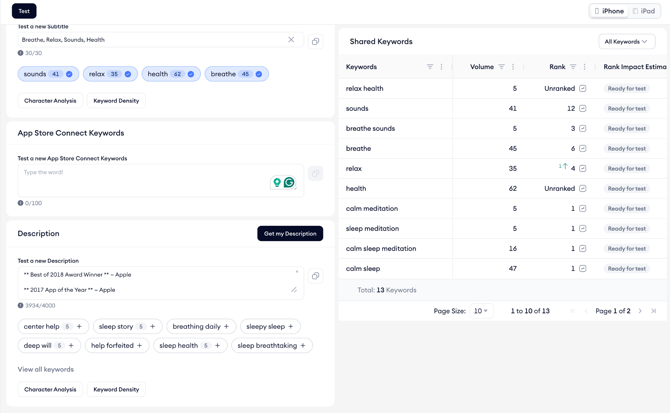
4. Scroll down to the Description section to test keyword choices for your app description. The scoring logic works the same way as the title and subtitle fields.
5. When you find the combination that works best, copy your final copy from Metadata Optimizer and apply it in App Store Connect. Metadata Optimizer does not publish changes directly, it is a drafting and scoring environment.
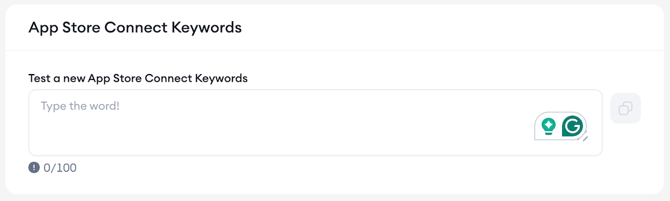
Note: If you have integrated your app with the MobileAction platform, the App Store Connect keyword list appears in the tool and highlights which of your tracked keywords the current title and subtitle already target. This makes it easy to spot gaps before you save in App Store Connect.
After you finish
Once you have finalized your metadata copy, apply it in App Store Connect. If you want to cross-reference your choices against your full set of tracked keywords before publishing, go to Use Shared Keywords to inform your metadata.
Related links
Need more help?
If you have further questions on the process, contact your dedicated Customer Success Manager or contact the support team via live chat.