
The AI Assistant keeps every conversation, so you can return to earlier analyses without redoing them.
This article covers the chat history sidebar and how conversations behave.
The chat sidebar
- Open the collapsible sidebar to see all previous conversations. It is closed by default.
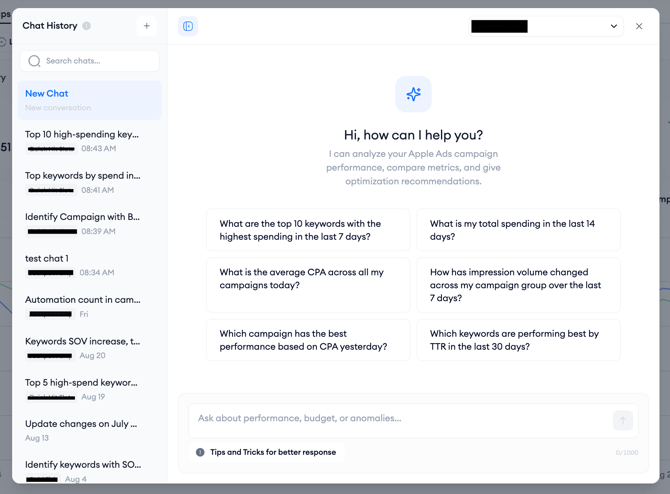
3. Use the search field to filter chats by name.
4. Rename or delete a chat from the menu on each item. Deleting asks for confirmation first.
Starting and switching chats
- The + button starts a new chat. If an empty new chat already exists, it is reused instead of creating a duplicate.
- When a chat gets a new answer, it moves to the top of the list, keeping active conversations easiest to find.
- Reopening a past chat pre-selects the campaign group that conversation used, so its context is never lost.
- Changing the campaign group in an active chat starts a fresh conversation after a confirmation; the previous one stays in your history.
Answers in the background
You can leave a chat while it is still generating; each generating chat shows its own indicator in the sidebar. When an answer completes in a chat you are not viewing, a blue unread indicator appears on it, and if the whole window is closed, the Ask AI button shows a badge with the number of completed responses.
Related links
Get started with the AI AssistantAsk questions and get better answers
What the AI Assistant can and can't answer
Need more help?
If you have any questions, feel free to reach out to your dedicated Customer Success Manager or contact us through live chat.