
Click any creative in the feed to open its details and read the full metrics, including impression share, detection window, ad network, and source app.
Open a creative
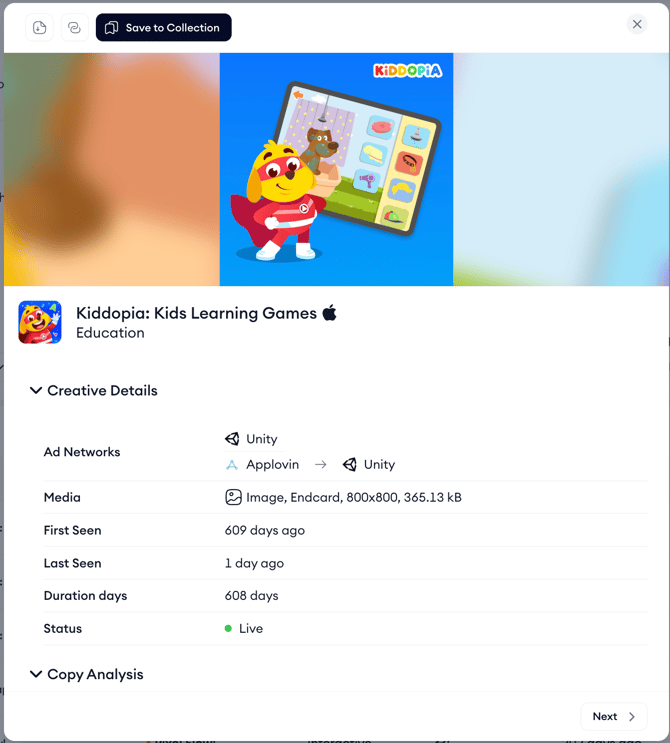
- Find the creative you want to study in the feed.
- Click the creative tile or preview to open its details panel.
- Play the creative, browse its variants, and review the metrics shown for each.
What you see in the details
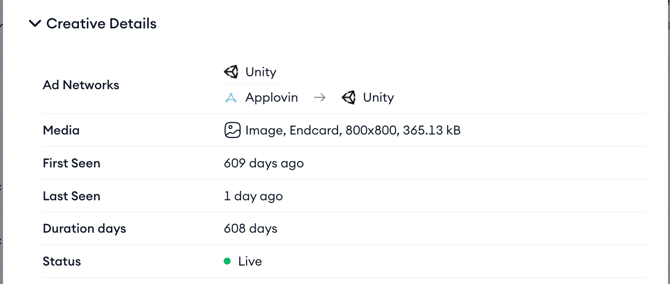
- Creative preview: The full version of the creative, with playback controls for video assets.
- State: Whether the creative is currently Live or has gone Inactive.
- Detected: The first and last seen dates, with the total number of days the creative has been detected running.
- Impression Share: The share of impressions the creative captured within the selected market and date range.
- Ad Network: The ad network delivering the creative.
- Source app: The app the creative belongs to, with its category shown beneath the app name.
Copy Analysis

The Copy Analysis section breaks down the ad copy used in the creative. It shows the title, subtitle, and body text of the ad, the country the copy was detected in, and the percentage of impressions that copy captured. Use this to see exactly what message an advertiser paired with the creative and how it varied across markets.
Top Ad Publishers
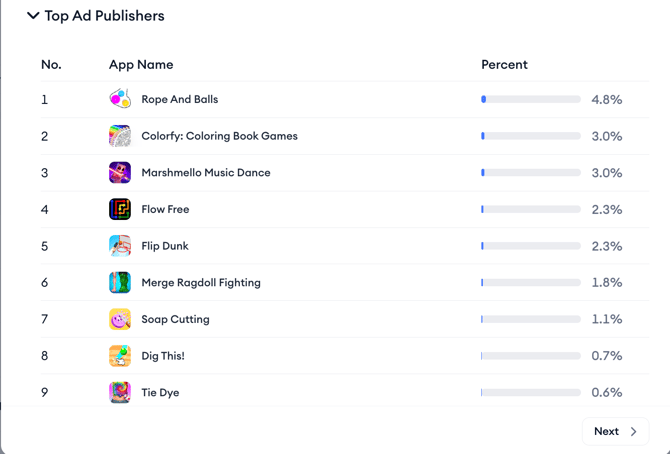
The Top Ad Publishers section shows which apps served this creative as an ad placement, ranked by the percentage of impressions each publisher delivered. Use it to identify where the creative is getting the most exposure and which publisher apps the advertiser is prioritizing for this creative.
Related articles
- View the top creatives feed
- Save a creative to a collection
- Filter, sort, and export the creatives feed
Need more help?
If you have further questions or run into any issues, reach out to your dedicated Customer Success Manager or contact the support team via live chat.