
Use the filter, sort, and export controls in Top Creatives to scope the feed to the creatives that matter most for your analysis and share findings with your team.
Apply quick filters
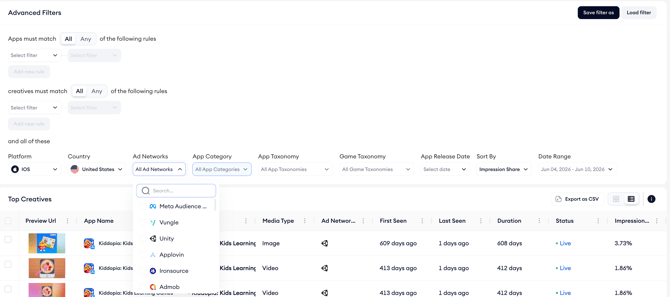
- Find the filter dropdown for the field you want to scope: Platform, Country, Ad Networks, App Category, App Taxonomy, Game Taxonomy, App Release Date, or Date Range.
- Open the dropdown and select your value(s).
- The feed reloads with the new filter applied.
Build advanced filter rules
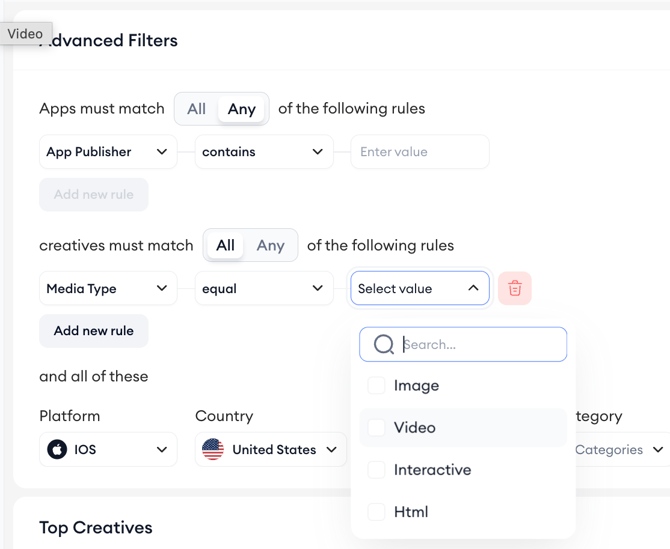
Open the Advanced Filters panel to stack multiple conditions for both apps and creatives.
App rules narrow the feed by app attributes such as name, keyword, publisher, first seen, top charts, category, or app collection.
Creative rules narrow the feed by attributes such as media format, state, title, dimensions, or duration. Choose whether each rule set must match All or Any of the conditions, and click Add new rule to stack more.
Save and load filter combinations
- Build the filter rules you want to keep using.
- Click Save filter as in the top right of the Advanced Filters panel and give the combination a name.
- Use the Load filter to reload any saved combination in one click on future visits.
Sort the feed
Use the Sort By dropdown to order the feed by impression share or other available sort options. The default sort is impression share, which surfaces the most prominent creatives at the top.
Export the feed
- Apply any filters and sort you want included in the export.
- Click the Export as CSV button above the feed.
- The CSV downloads to your device with the current view of the feed.
Related links
Need more help?
If you have further questions or run into any issues, reach out to your dedicated Customer Success Manager or contact the support team via live chat.