
This article shows you how to create an AI Smart Bidding setup in MobileAction CMP and choose the right target strategy for your campaign goal.
Before you begin
- To use AI Smart Bidding, you need access to AI Smart Bidding in your plan.
- AI Smart Bidding can only be applied to campaigns and ad groups running search results ads.
- For details, see About AI Smart Bidding.
Instructions
Create a new AI Smart Bidding setup
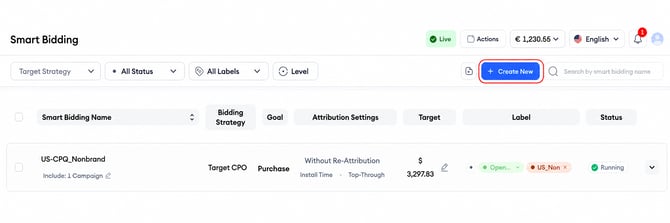
1. Go to MobileAction CMP > AI Smart Bidding.
2. Click Create New.
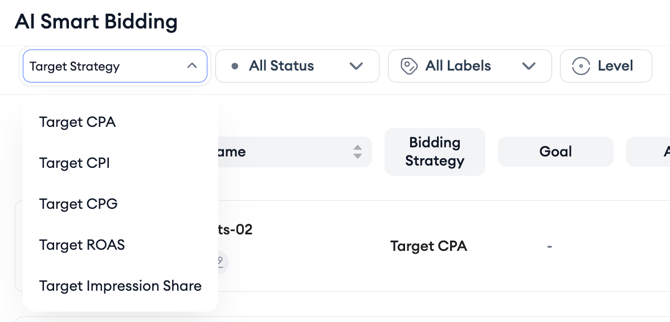
- Target CPA
- Target CPI
- Target CPG
- Target ROAS
- Target Impression Share
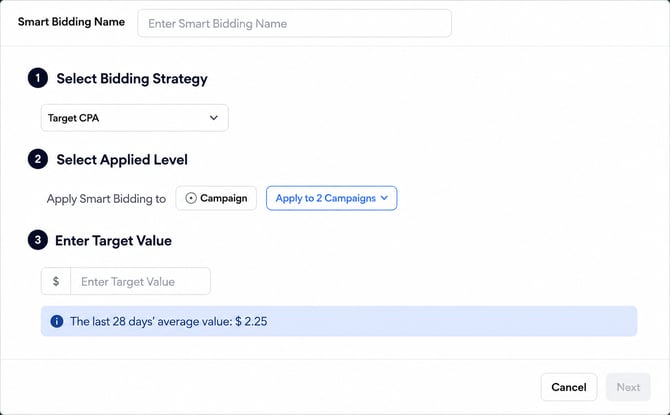
Depending on your setup, you can apply AI Smart Bidding at the available level shown in the flow, such as campaign or ad group level.
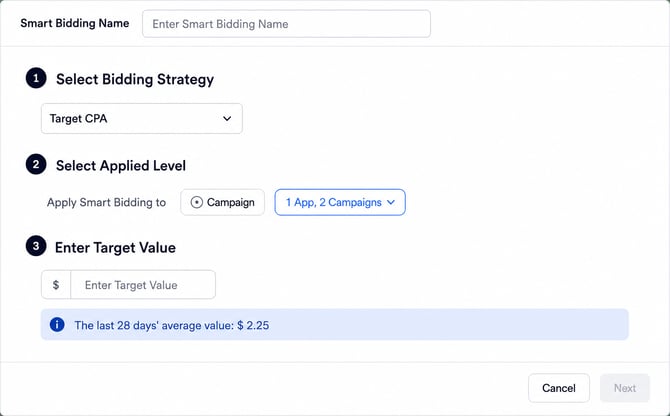
6. Select the campaign, ad group, or other available item you want to include in the setup.
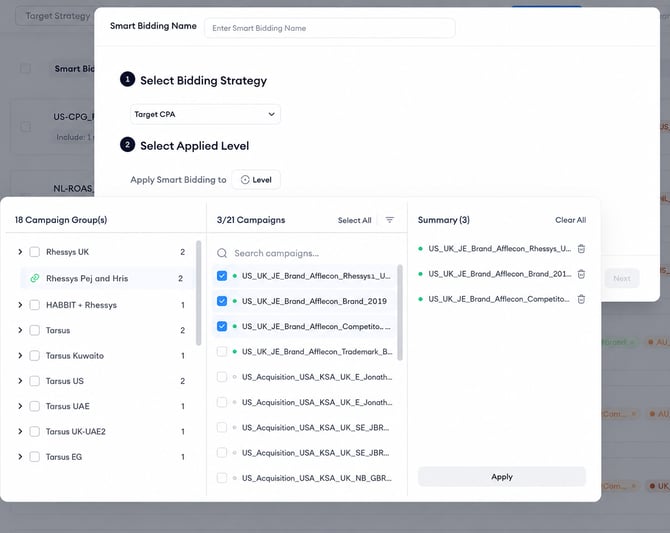
7. Under Enter Target Value, complete the fields for your selected strategy.
8. Click Save.
Target strategy settings
Target CPA
If you select Target CPA, AI Smart Bidding focuses on keeping your cost per acquisition aligned with your target.
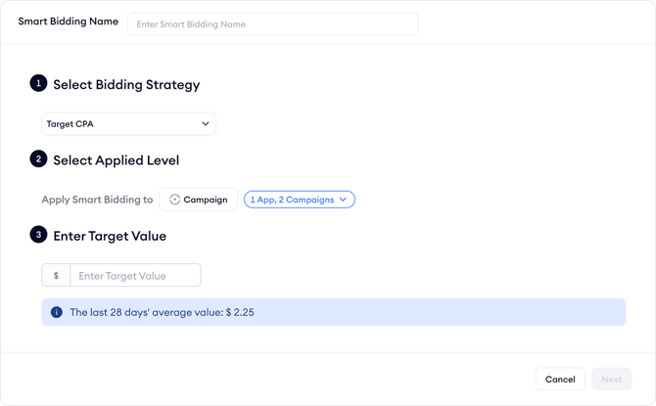
- Enter a currency-based target value. (for example, $10).
- Keep in mind that the currency is taken from the related campaign group.
- Use the last 28 days’ average value reference line to decide whether your target is realistic for the selected campaign(s) or ad group(s).
Target CPI
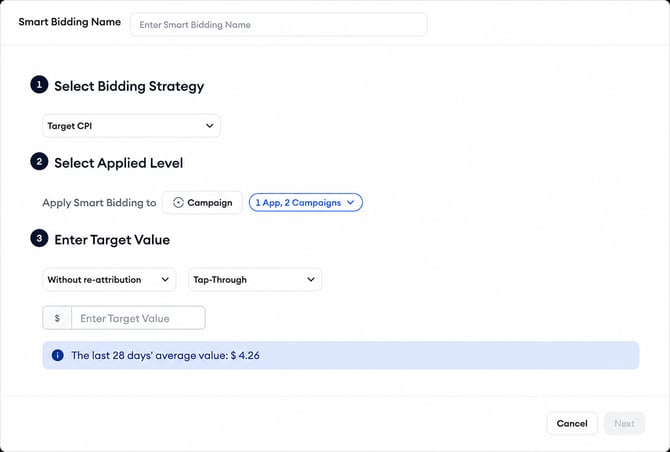
If you select Target CPI, AI Smart Bidding focuses on keeping your cost per install aligned with your target.
- Enter a currency-based target value.
- Select the attribution-related settings shown in the setup flow, such as re-attribution handling and attribution type.
- Use the last 28 days’ average value reference line as guidance.
Target CPG
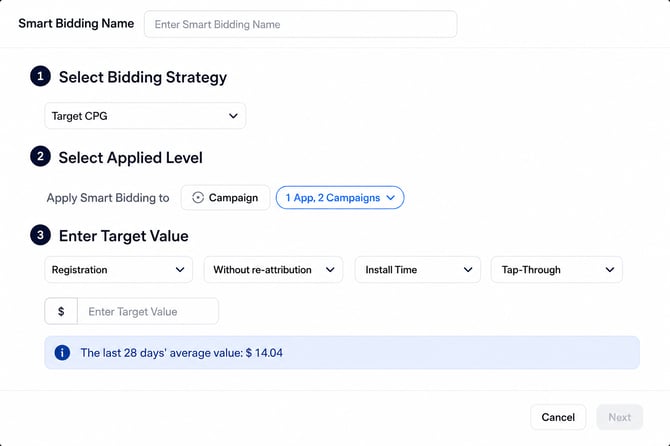
If you select Target CPG, AI Smart Bidding optimizes toward the cost of a selected post-install goal.
- Choose the goal or event you want to optimize for.
- Select the related attribution settings shown in the flow, such as re-attribution handling, timing, and attribution type.
- Enter a currency-based target value.
- Use the last 28 days’ average value reference line as guidance.
Target ROAS
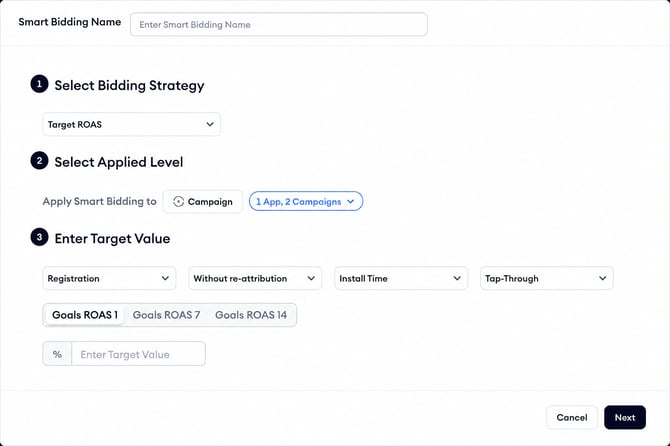
If you select Target ROAS, AI Smart Bidding optimizes toward return on ad spend instead of a cost-based target.
- Choose the measurement settings shown in the flow, such as event and attribution-related selections.
- Select the ROAS window you want to optimize for.
- Available ROAS windows include D1, D7, D14, D30, and D60.
- Enter your target as a percentage.
Target Impression Share
.png?width=670&height=443&name=searchads.mobileaction.co_smart-bidding%20(6).png)
If you select Target Impression Share, AI Smart Bidding optimizes toward impression share instead of cost or revenue.
This strategy is especially useful for brand protection. For brand campaigns or ad groups, maintaining visibility on important brand keywords can be more important than optimizing only for cost-based performance.
- Select Target Impression Share as the bidding strategy.
- Choose where the strategy should apply.
- Enter the daily Impression Share (First Ad Position) target or range shown in the setup flow. AI Smart Bidding uses the defined target value to adjust each keyword’s last day Impression Share (First Ad Position) toward that target.
- Save the setup.
AI Smart Bidding adjusts keyword bids to help keep your brand visible on the terms you want to protect.
Keep in mind!
For all target strategies, MobileAction CMP checks whether there is enough recent performance data for AI Smart Bidding to start. If there is not enough data, you will see a message explaining that the setup cannot start yet. You can go back and adjust your selection without losing the details you entered.
Strategy type and applied level should be selected carefully during setup, because they may not be editable after the setup is created.
Related links
- About AI Smart Bidding
- How to manage AI Smart Bidding setups
- How to review AI Smart Bidding logs and performance
- AI Smart Bidding best practices and FAQs
Need more help?
If you have further questions on the process, contact your dedicated Customer Success Manager or contact the support team via live chat.