
Building from scratch gives you full control over how your automation works. You choose:
- Where it runs
- What it monitors
- What it does
- How often it runs
The setup takes six steps. Before you begin, make sure your Apple Ads integration is active and you have at least one campaign group and one campaign.
If you prefer to start from a ready-made setup instead of building everything manually, see Create an automation using templates.
Step 1: Select an ad placement
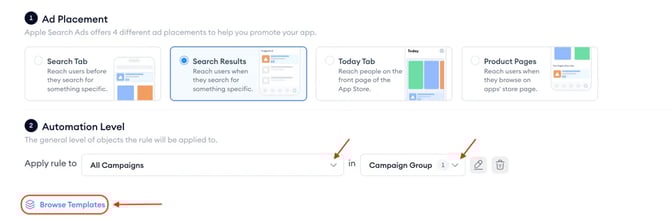
At the top of the page, choose the ad placement where the automation will run:
- Search results
- Search tab
- Today tab
- Product pages
An automation runs on one placement only.
Your placement choice affects which levels are available in the next step. For example, keyword and search term levels are only available for search results campaigns.
Step 2: Choose the automation level

In the Automation Level section, define:
- Apply rule to → what the automation acts on
- in → where it applies (scope)
You can build automations for:
- Campaign Groups
- Apps
- Campaigns
- Ad Groups
- Ads
- Keywords
- Search Terms
Use the in field to narrow the scope.
For example, you can apply a keyword-level rule only inside selected campaigns instead of across your entire account.
There is no limit to how many entities the automation can act on.
If paused entities are included in the scope, the automation will not act on them unless the action is Activate.
Step 3: Add conditions
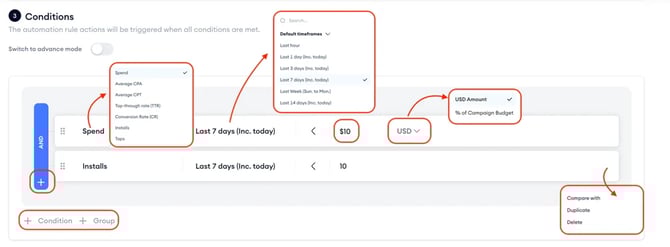
Conditions define when the automation should trigger.
To create a condition:
- Select a metric
- Choose a time range
- Set a comparison (for example, greater than, less than)
- Enter a value
You can add multiple conditions and combine them.
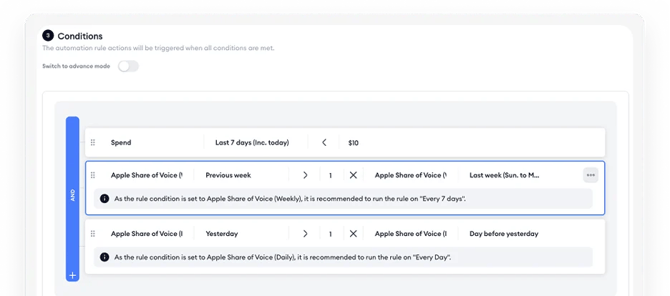
Keep it simple at first. Start with one or two clear performance signals, then expand later if needed.
If you need a detailed explanation of metrics, comparisons, advanced mode, attribution settings, or AND/OR logic, see Set conditions for an automation.
Step 4: Actions
Actions define what happens when your conditions are met.
Available actions depend on the level you selected. Examples include:
- Sending notifications
- Pausing entities
- Activating entities
- Changing budgets or bids
- Adding labels
You can add more than one action to a rule, but each action type can only be used once per automation.
For a full list of available actions by level, see Add actions to an automation.
Note: If your automation involves AI Smart Bidding, Budget Allocation, CPP A/B Testing, or Maximize Conversions campaigns, some actions may not apply. See Automations execution and behavior for details on how automations interact with these tools.
Step 5: Set the schedule
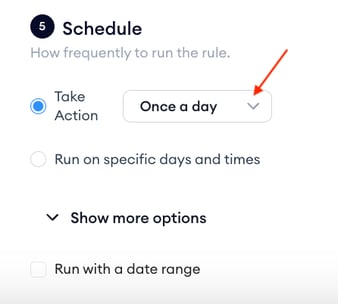
Choose how often the automation runs.
Option 1: Take action (recurring)
This is the default mode.
You define:
- How often conditions are checked
- How often actions are executed
By default, both are set to run daily.
Option 2: Run on specific days and times
Select exact days and times when the automation should run.
In this mode, checking and action happen at the same time.
You can also expand Show more options to set a start date, end date, or both.
For more details about scheduling behavior and execution logic, see Set the schedule for an automation.
Step 6: Save or activate
Once all required fields are complete, choose:
- Save Draft → creates the automation in Paused status
- Set Active → creates the automation in Active status
If set to Active, the automation immediately begins evaluating conditions based on your schedule.
Related articles
- Automations execution and behavior
- How to manage Automations
- How to read automation logs
- How to fix issues with Automations
Need more help?
If you have further questions on the process, contact your dedicated Customer Success Manager or contact the support team via live chat!