---
title: Analyze keyword ranking distribution
description: Report By Ranking in ASO Report shows how your app's keywords are distributed across position bands over time.
---
[Skip to content](https://helpcenter.mobileaction.co/en/analyze-keyword-ranking-distribution#main-content)
[](https://www.mobileaction.co/)
- [Website](https://www.mobileaction.co/)
- [Help Center](https://helpcenter.mobileaction.co/en)
Open main navigation
Close main navigation
- [Website](https://www.mobileaction.co/)
- [Help Center](https://helpcenter.mobileaction.co/en)
Advice and answers from the MobileAction Team
- There are no suggestions because the search field is empty.
1. [Help Center](https://helpcenter.mobileaction.co/en?hsLang=en)
2. [ASO Intelligence](https://helpcenter.mobileaction.co/en/aso-intelligence?hsLang=en)
3. [ASO Report](https://helpcenter.mobileaction.co/en/aso-intelligence?hsLang=en#aso-report)
# Analyze keyword ranking distribution
Report By Ranking in ASO Report shows how your app's keywords are distributed across position bands over time. It is the default view when you open ASO Report and gives you the clearest signal of whether your overall ranking health is improving or declining.
To understand which keyword pool to use before you start, see [Understand Tracked Keywords and All Ranked Keywords](https://helpcenter.mobileaction.co/en/understand-tracked-keywords-and-all-ranked-keywords?hsLang=en).
### What you see in Report by Ranking
The view has two components side by side.
The **Ranking Graph** on the left is a stacked area chart. Each colored band represents a position group: rank 1 (blue), 2–3 (green), 4–10 (purple), 11–30 (orange), 31–100 (yellow), and 101+ (red).
The left axis shows the number of keywords in each band. The black line running across the chart is your Visibility Score, plotted against the right axis.
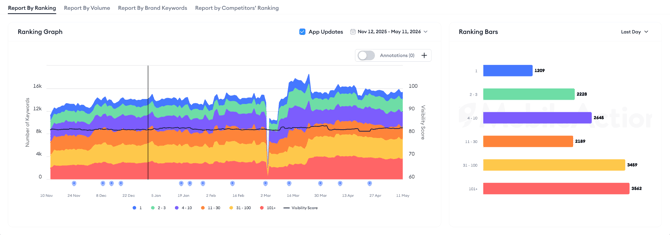
The **Ranking Bars** on the right show a snapshot of how many keywords sit in each position band at a specific point in time.
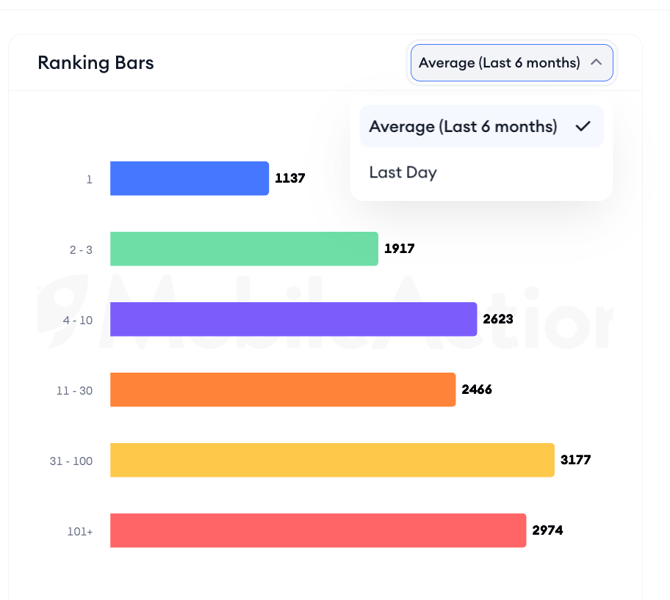
The dropdown above the bars lets you switch between **Last Day** and **Average (Last 6 months)**. Last Day shows your most recent rankings. Average (Last 6 months) smooths out daily noise and gives you a broader trend view.
### Using the chart controls
The **App Updates** toggle overlays your app's release dates as markers on the chart. Enabling it lets you correlate ranking shifts with version updates, if a band narrows or widens after a release date, that is a signal worth investigating.
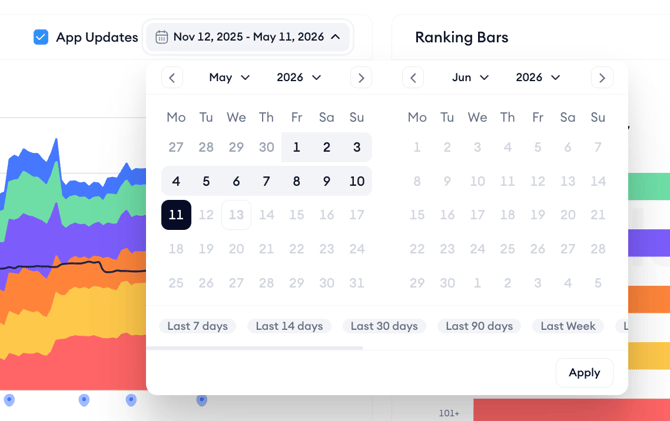
The **date range picker** controls the period shown in the chart. You can set a custom range or use the presets. A longer range is useful for spotting long-term trends; a shorter range helps you focus on the impact of a recent change.
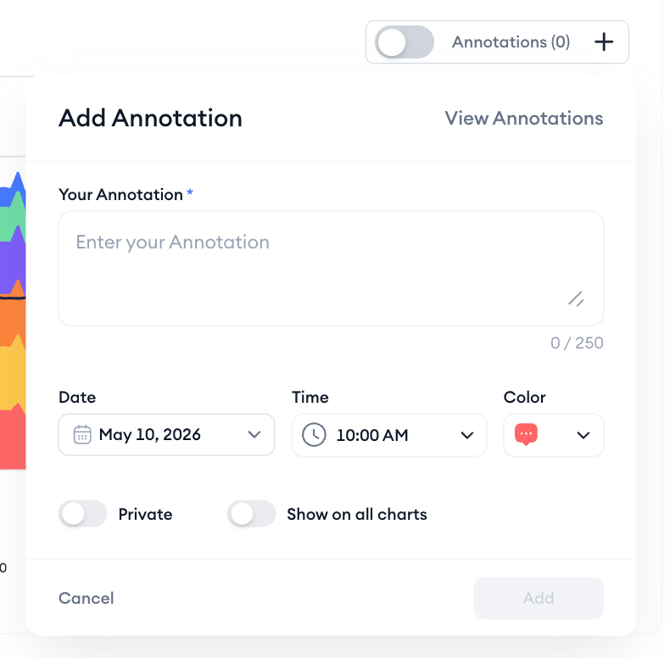
The **Annotations** toggle shows or hides any annotations you or your team have added to the chart. Click the + button next to Annotations to add a new one. Each annotation requires a date, time, and a short label up to 250 characters. You can mark it as private (visible only to you) or use **Show on all charts** to display it across every chart in ASO Report for the same app.
### Reading the keyword table
Below the chart, the keyword table lists every keyword in the selected pool with supporting metrics. Each row shows the keyword, its Type tag, Volume, Max Reach, Conversion Rate, Installs, Chance, and Ranked Apps.
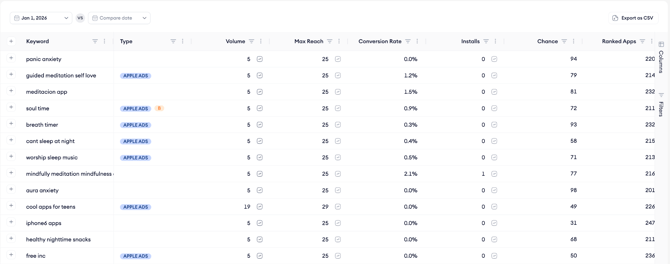
The **Type** column uses tags to classify keywords. **Apple Ads** indicates the keyword is running in an active Apple Ads campaign. **B** marks brand keywords. **M** marks metadata keywords; terms that appear in your app's title, subtitle, or keyword field.
Each metric cell has a small icon that opens a popup explaining what that metric measures and how to interpret it. The **date picker** above the table sets the date for the data shown.
The **Compare date** option switches the table to compare mode. In compare mode, the table shows the keyword’s rank on each date in separate columns and adds two more columns: **Movement** and **Anomaly**.
The **Movement** column shows how many positions the keyword moved between the two dates, with an arrow for the direction. **Out** means the keyword dropped out of the ranking range on the second date.

Click **Columns** on the right edge of the table to show or hide columns. Click **Filters** to narrow the table by keyword type, volume range, ranking band, or other criteria.
### Reading the Anomaly score
The Anomaly score measures how significant a keyword’s ranking change is between the two dates you compare. It considers where the change happened in the search results, not just how many positions the keyword moved.
Changes near the top of the search results carry much more weight than changes further down. A move from rank 1 to rank 2 scores far higher than a move from rank 100 to rank 110, because movement at the top has a much bigger effect on visibility and traffic.
The score runs from 0 to 100. A higher score means a more notable shift. The score does not show direction, so a sharp rise and a sharp drop can have similar scores. Check the **Movement** column to see which way the keyword moved.
Keywords that enter or drop out of the ranking range are scored as if they sat just past the edge of that range. For example, a keyword that moves from unranked to rank 1 receives a very high score.
Behind the score, each rank is converted into a weighted value that increases sharply toward the top positions. The difference between the two weighted values is then scaled to a 0 to 100 range.
### After you finish
If you notice a ranking band shrinking (particularly the 1–10 range) cross-reference the change against the App Updates timeline to see whether a version release preceded the shift.
If you find keywords in the 101+ band that you are not currently tracking, use the + button in the table to add them to Keyword Tracking and monitor whether they recover.
### Related links
[About ASO Report](https://helpcenter.mobileaction.co/en/about-aso-report?hsLang=en)
[Understand Tracked Keywords and All Ranked Keywords](https://helpcenter.mobileaction.co/en/understand-tracked-keywords-and-all-ranked-keywords?hsLang=en)
[Analyze keyword performance by volume](https://helpcenter.mobileaction.co/en/analyze-keyword-performance-by-volume?hsLang=en)
[Review brand keyword performance](https://helpcenter.mobileaction.co/en/review-brand-keyword-performance?hsLang=en)
[Compare keyword rankings against competitors](https://helpcenter.mobileaction.co/en/compare-keyword-rankings-against-competitors?hsLang=en)
[Export and share ASO Report data](https://helpcenter.mobileaction.co/en/export-and-share-aso-report-data?hsLang=en)
---
### Need more help?
If you have further questions on the process, contact your dedicated Customer Success Manager or contact the support team via live chat.
- [Quick Guide to MobileAction](https://helpcenter.mobileaction.co/en/quick-guide-to-mobileaction?hsLang=en)
- [MobileAction CMP](https://helpcenter.mobileaction.co/en/mobileaction-cmp?hsLang=en#main-content)
- [Apple Ads Integration](https://helpcenter.mobileaction.co/en/mobileaction-cmp?hsLang=en#apple-ads-integration)
- [AI Assistant](https://helpcenter.mobileaction.co/en/mobileaction-cmp?hsLang=en#ai-assistant)
- [Overview](https://helpcenter.mobileaction.co/en/mobileaction-cmp?hsLang=en#overview)
- [Ads Manager](https://helpcenter.mobileaction.co/en/mobileaction-cmp?hsLang=en#ads-manager)
- [Automations](https://helpcenter.mobileaction.co/en/mobileaction-cmp?hsLang=en#automations)
- [CPP A/B Testing](https://helpcenter.mobileaction.co/en/mobileaction-cmp?hsLang=en#cpp-a-b-testing)
- [AI Keyword Planner](https://helpcenter.mobileaction.co/en/mobileaction-cmp?hsLang=en#ai-keyword-planner)
- [AI Smart Bidding](https://helpcenter.mobileaction.co/en/mobileaction-cmp?hsLang=en#ai-smart-bidding)
- [Budget Allocation](https://helpcenter.mobileaction.co/en/mobileaction-cmp?hsLang=en#budget-allocation)
- [Benchmarks](https://helpcenter.mobileaction.co/en/mobileaction-cmp?hsLang=en#benchmarks)
- [Market Finder](https://helpcenter.mobileaction.co/en/mobileaction-cmp?hsLang=en#market-finder)
- [App Performance](https://helpcenter.mobileaction.co/en/mobileaction-cmp?hsLang=en#app-performance)
- [MMP Integration](https://helpcenter.mobileaction.co/en/mobileaction-cmp?hsLang=en#mmp-integration)
- [ASO Intelligence](https://helpcenter.mobileaction.co/en/aso-intelligence?hsLang=en#main-content)
- [Metadata Optimizer](https://helpcenter.mobileaction.co/en/aso-intelligence?hsLang=en#metadata-optimizer)
- [App Update Timeline](https://helpcenter.mobileaction.co/en/aso-intelligence?hsLang=en#app-update-timeline)
- [Creative Monitoring](https://helpcenter.mobileaction.co/en/aso-intelligence?hsLang=en#creative-monitoring)
- [Localization](https://helpcenter.mobileaction.co/en/aso-intelligence?hsLang=en#localization)
- [Keyword Tracking](https://helpcenter.mobileaction.co/en/aso-intelligence?hsLang=en#keyword-tracking)
- [Competitor Keywords](https://helpcenter.mobileaction.co/en/aso-intelligence?hsLang=en#competitor-keywords)
- [Keyword Inspector](https://helpcenter.mobileaction.co/en/aso-intelligence?hsLang=en#keyword-inspector)
- [Keyword Trends](https://helpcenter.mobileaction.co/en/aso-intelligence?hsLang=en#keyword-trends)
- [Keyword Translator](https://helpcenter.mobileaction.co/en/aso-intelligence?hsLang=en#keyword-translator)
- [Organic CPP Results](https://helpcenter.mobileaction.co/en/aso-intelligence?hsLang=en#organic-cpp-results)
- [ASO Report](https://helpcenter.mobileaction.co/en/aso-intelligence?hsLang=en#aso-report)
- [Visibility Report](https://helpcenter.mobileaction.co/en/aso-intelligence?hsLang=en#visibility-report)
- [Download Share](https://helpcenter.mobileaction.co/en/aso-intelligence?hsLang=en#download-share)
- [Store Analytics](https://helpcenter.mobileaction.co/en/store-analytics?hsLang=en#main-content)
- [Revenue Snapshot](https://helpcenter.mobileaction.co/en/store-analytics?hsLang=en#revenue-snapshot)
- [Organic Acquisition Dashboard](https://helpcenter.mobileaction.co/en/store-analytics?hsLang=en#organic-acquisition-dashboard)
- [Download Report](https://helpcenter.mobileaction.co/en/store-analytics?hsLang=en#download-report)
- [Conversion Funnel View](https://helpcenter.mobileaction.co/en/store-analytics?hsLang=en#conversion-funnel-view)
- [Analytics Overview](https://helpcenter.mobileaction.co/en/store-analytics?hsLang=en#analytics-overview)
- [Search Ads Intelligence](https://helpcenter.mobileaction.co/en/search-ads-intelligence?hsLang=en#main-content)
- [Search Result/App](https://helpcenter.mobileaction.co/en/search-ads-intelligence?hsLang=en#search-result-app)
- [Search Result/Keyword](https://helpcenter.mobileaction.co/en/search-ads-intelligence?hsLang=en#search-result-keyword)
- [Search Result/Competitor](https://helpcenter.mobileaction.co/en/search-ads-intelligence?hsLang=en#search-result-competitor)
- [Today Tab](https://helpcenter.mobileaction.co/en/search-ads-intelligence?hsLang=en#today-tab)
- [Search Tab](https://helpcenter.mobileaction.co/en/search-ads-intelligence?hsLang=en#search-tab)
- [Product Pages](https://helpcenter.mobileaction.co/en/search-ads-intelligence?hsLang=en#product-pages)
- [Top Advertisers](https://helpcenter.mobileaction.co/en/search-ads-intelligence?hsLang=en#top-advertisers)
- [CPP by Keyword](https://helpcenter.mobileaction.co/en/search-ads-intelligence?hsLang=en#cpp-by-keyword)
- [CPP by App](https://helpcenter.mobileaction.co/en/search-ads-intelligence?hsLang=en#cpp-by-app)
- [CPP by Category](https://helpcenter.mobileaction.co/en/search-ads-intelligence?hsLang=en#cpp-by-category)
- [CPP on Ad Networks](https://helpcenter.mobileaction.co/en/search-ads-intelligence?hsLang=en#cpp-on-ad-networks)
- [App Intelligence](https://helpcenter.mobileaction.co/en/app-intelligence?hsLang=en#main-content)
- [Compass Explore](https://helpcenter.mobileaction.co/en/app-intelligence?hsLang=en#compass-explore)
- [Compass Trace](https://helpcenter.mobileaction.co/en/app-intelligence?hsLang=en#compass-trace)
- [Compass Impact](https://helpcenter.mobileaction.co/en/app-intelligence?hsLang=en#compass-impact)
- [App Profile](https://helpcenter.mobileaction.co/en/app-intelligence?hsLang=en#app-profile)
- [Publisher Profile](https://helpcenter.mobileaction.co/en/app-intelligence?hsLang=en#publisher-profile)
- [Featured Apps](https://helpcenter.mobileaction.co/en/app-intelligence?hsLang=en#featured-apps)
- [Category Rankings](https://helpcenter.mobileaction.co/en/app-intelligence?hsLang=en#category-rankings)
- [Reviews](https://helpcenter.mobileaction.co/en/app-intelligence?hsLang=en#reviews)
- [AI Review Reply](https://helpcenter.mobileaction.co/en/app-intelligence?hsLang=en#ai-review-reply)
- [Ratings](https://helpcenter.mobileaction.co/en/app-intelligence?hsLang=en#ratings)
- [Similar Apps](https://helpcenter.mobileaction.co/en/app-intelligence?hsLang=en#similar-apps)
- [In-App Events](https://helpcenter.mobileaction.co/en/app-intelligence?hsLang=en#in-app-events)
- [Promotional Content](https://helpcenter.mobileaction.co/en/app-intelligence?hsLang=en#promotional-content)
- [Top Charts](https://helpcenter.mobileaction.co/en/app-intelligence?hsLang=en#top-charts)
- [Biggest Movers](https://helpcenter.mobileaction.co/en/app-intelligence?hsLang=en#biggest-movers)
- [Biggest Losers](https://helpcenter.mobileaction.co/en/app-intelligence?hsLang=en#biggest-losers)
- [Ad Intelligence](https://helpcenter.mobileaction.co/en/ad-intelligence?hsLang=en#main-content)
- [Creative Analysis](https://helpcenter.mobileaction.co/en/ad-intelligence?hsLang=en#creative-analysis)
- [Advertiser Analysis](https://helpcenter.mobileaction.co/en/ad-intelligence?hsLang=en#advertiser-analysis)
- [Ad Publisher Analysis](https://helpcenter.mobileaction.co/en/ad-intelligence?hsLang=en#ad-publisher-analysis)
- [Developer Analysis](https://helpcenter.mobileaction.co/en/ad-intelligence?hsLang=en#developer-analysis)
- [Top Advertisers](https://helpcenter.mobileaction.co/en/ad-intelligence?hsLang=en#top-advertisers)
- [Top Ad Publishers](https://helpcenter.mobileaction.co/en/ad-intelligence?hsLang=en#top-ad-publishers)
- [Top Creatives](https://helpcenter.mobileaction.co/en/ad-intelligence?hsLang=en#top-creatives)
- [Top Developers](https://helpcenter.mobileaction.co/en/ad-intelligence?hsLang=en#top-developers)
- [App Collections](https://helpcenter.mobileaction.co/en/ad-intelligence?hsLang=en#app-collections)
- [Creative Collections](https://helpcenter.mobileaction.co/en/ad-intelligence?hsLang=en#creative-collections)
- [Troubleshooting](https://helpcenter.mobileaction.co/en/troubleshooting?hsLang=en#main-content)
- [MobileAction CMP Troubleshooting](https://helpcenter.mobileaction.co/en/troubleshooting?hsLang=en#mobileaction-cmp-troubleshooting)
- [ASO Intelligence Troubleshooting](https://helpcenter.mobileaction.co/en/troubleshooting?hsLang=en#aso-intelligence-troubleshooting)
- [Search Ads Intelligence Troubleshooting](https://helpcenter.mobileaction.co/en/troubleshooting?hsLang=en#search-ads-intelligence-troubleshooting)
- [Integrations](https://helpcenter.mobileaction.co/en/integrations?hsLang=en#main-content)
- [MobileAction Integrations](https://helpcenter.mobileaction.co/en/integrations?hsLang=en#mobileaction-integrations)
- [SearchAds.com Integrations](https://helpcenter.mobileaction.co/en/integrations?hsLang=en#searchads-com-integrations)
- [SSO Configuration](https://helpcenter.mobileaction.co/en/integrations?hsLang=en#sso-configuration)
- [Settings](https://helpcenter.mobileaction.co/en/settings?hsLang=en#main-content)
- [MobileAction Settings](https://helpcenter.mobileaction.co/en/settings?hsLang=en#mobileaction-settings)
- [SearchAds.com Settings](https://helpcenter.mobileaction.co/en/settings?hsLang=en#searchads-com-settings)
- [Single Sign-On Configuration Guides](https://helpcenter.mobileaction.co/en/settings?hsLang=en#single-sign-on-configuration-guides)
[](https://www.mobileaction.co)
Build app store marketing on AI, automation and expertise
Copyright © 2025, MobileAction