
Metadata Optimizer lets you compare your draft title, subtitle, and description against your current live metadata to check how much of the character limit you are using and how often specific keywords appear in your copy.
If you have not scored your metadata yet, go to Score and optimize your app's title and subtitle first.
Before you start
Character Analysis and Keyword Density are available for the title, subtitle, and description fields. Both tabs appear within each field after you have entered draft copy. You do not need tracked keywords or an App Store Connect integration to use either feature, they work with whatever copy is currently in the draft fields.
How to use Character Analysis
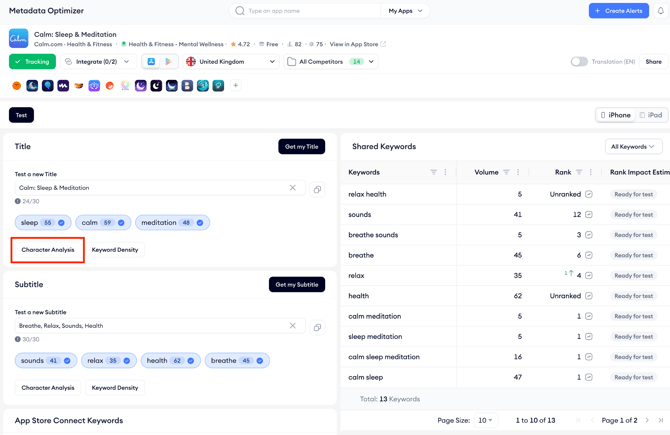
2. Below the field, click the Character Analysis tab. A panel opens showing rows: your competitors and your current live version on the App Store.
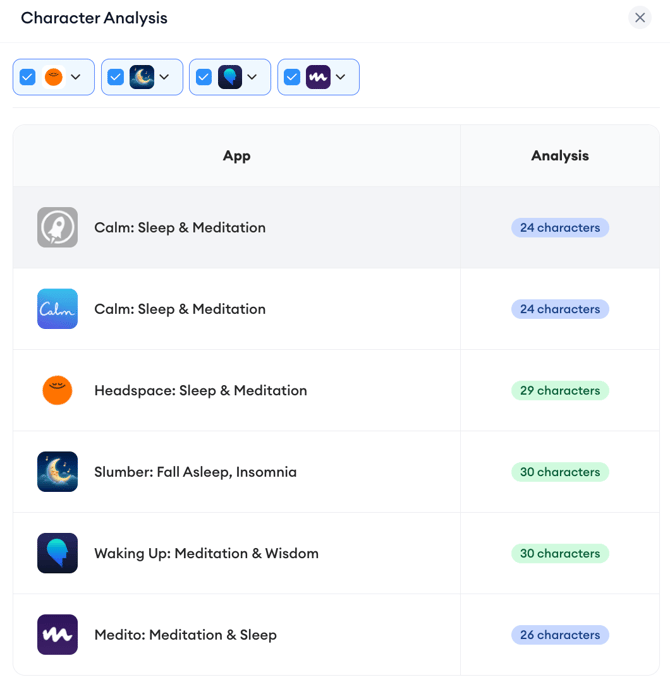
3. Compare the character counts between the rows. The count shown for each app is the total number of characters used in that field.
4. Repeat this process for each field you are updating: title, subtitle, and description each have their own Character Analysis tab.
How to use Keyword Density
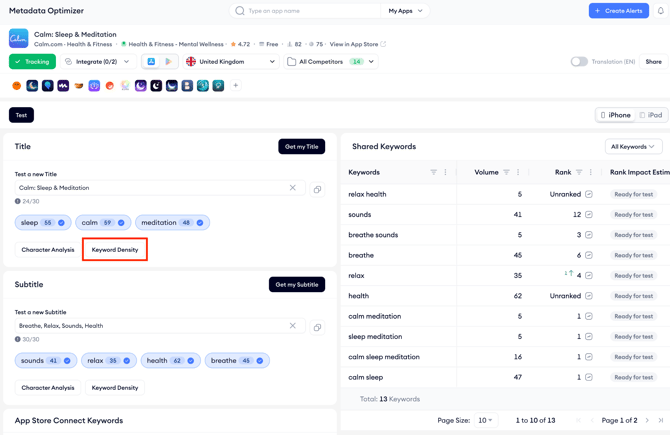
1. In the same field, click the Keyword Density tab. A table opens showing every keyword detected in your draft and live metadata.
2. Review the four columns: Draft App shows how many times the keyword appears in your draft and its frequency as a count; your live app shows the same for your current published metadata; Current Average (%) shows what percentage of your live metadata's total word count that keyword represents; and Draft Average (%) shows the same for your draft.
3. Use the draft and current columns side by side to see whether your new copy introduces, removes, or changes the frequency of any keyword compared to what you currently have live.
4. Repeat this process for each field you are updating.
Note: Keyword density does not affect your ASO performance in the App Store. Use the Keyword Density tab to understand how your copy is structured, not to optimize for frequency.
After you finish
Once you are satisfied with your draft copy across all fields, apply your changes in App Store Connect. If you want to cross-reference your choices against your full set of tracked keywords before publishing, go to Use Shared Keywords to inform your metadata.
Related links
Need more help?
If you have further questions on the process, contact your dedicated Customer Success Manager or contact the support team via live chat.