
You can add apps to an App Collection from several places across Ad Intelligence. This article covers each entry point.
To create a collection first, see Create and manage App Collections.
From Developer Analysis
1. Open Developer Analysis and load the developer whose app you want to add.
2. Click the app icon in the row of the app you want to save.
3. The Saving to App Collection panel opens. It shows your existing collections with their current app counts.
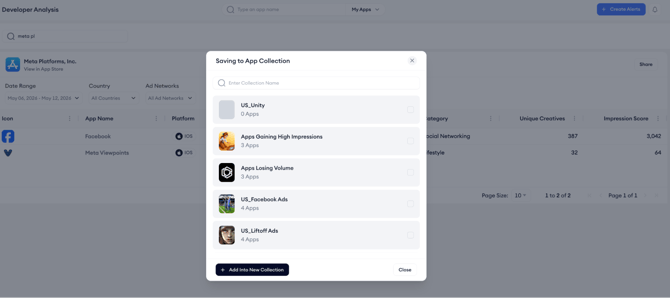
4. Check the box next to one or more collections to add the app to them.
5. To add the app to a new collection, click Add Into New Collection at the bottom of the panel and enter a name.
From the Top Advertisers list
1. Open the Top Advertisers view from Ad Intelligence.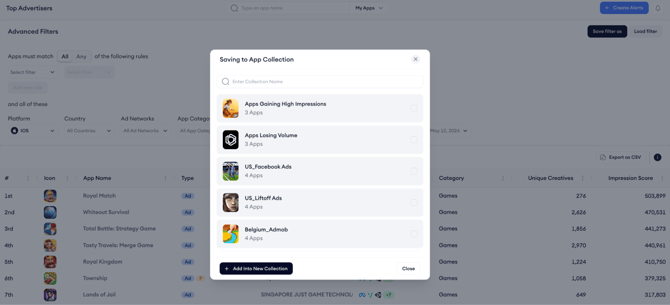
3. The same Saving to App Collection panel opens. Follow the same steps as above.
From the Top Publishers list
1. Open the Top Publishers view from Ad Intelligence.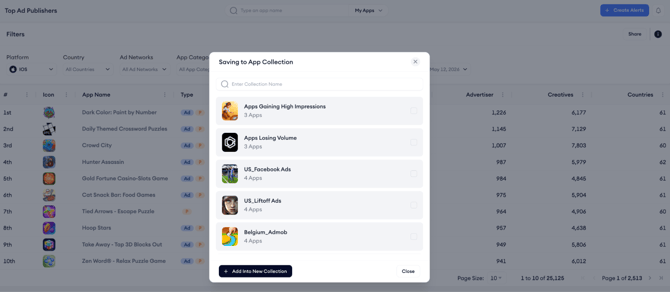
3. The Saving to App Collection panel opens. Select an existing collection or create a new one.
Add to multiple collections at once
The Saving to App Collection panel lets you check multiple collections at the same time. An app can belong to more than one collection simultaneously.
Related links
Need more help?
If you have further questions on the process, contact your dedicated Customer Success Manager or contact the support team via live chat.