
Ads Manager is the campaign management and reporting tool inside the MobileAction campaign management platform. It gives you a single place to monitor, analyze, and manage all your Apple Ads campaigns across every level of your account, from campaign groups down to individual keywords, without switching between tools or tabs.
This article explains what Ads Manager is and what you can do with it. If you're ready to start using it, go to the Ads Manager overview for a full list of articles organized by topic.
How Ads Manager is organized
Your Apple Ads account is structured in layers, and Ads Manager reflects that structure directly. At the top of every page, a navigation bar lets you move between Campaign Groups, Apps, Campaigns, Ad Groups, Keywords, Search Terms, Ads, Custom Product Pages, and Negative Keywords.
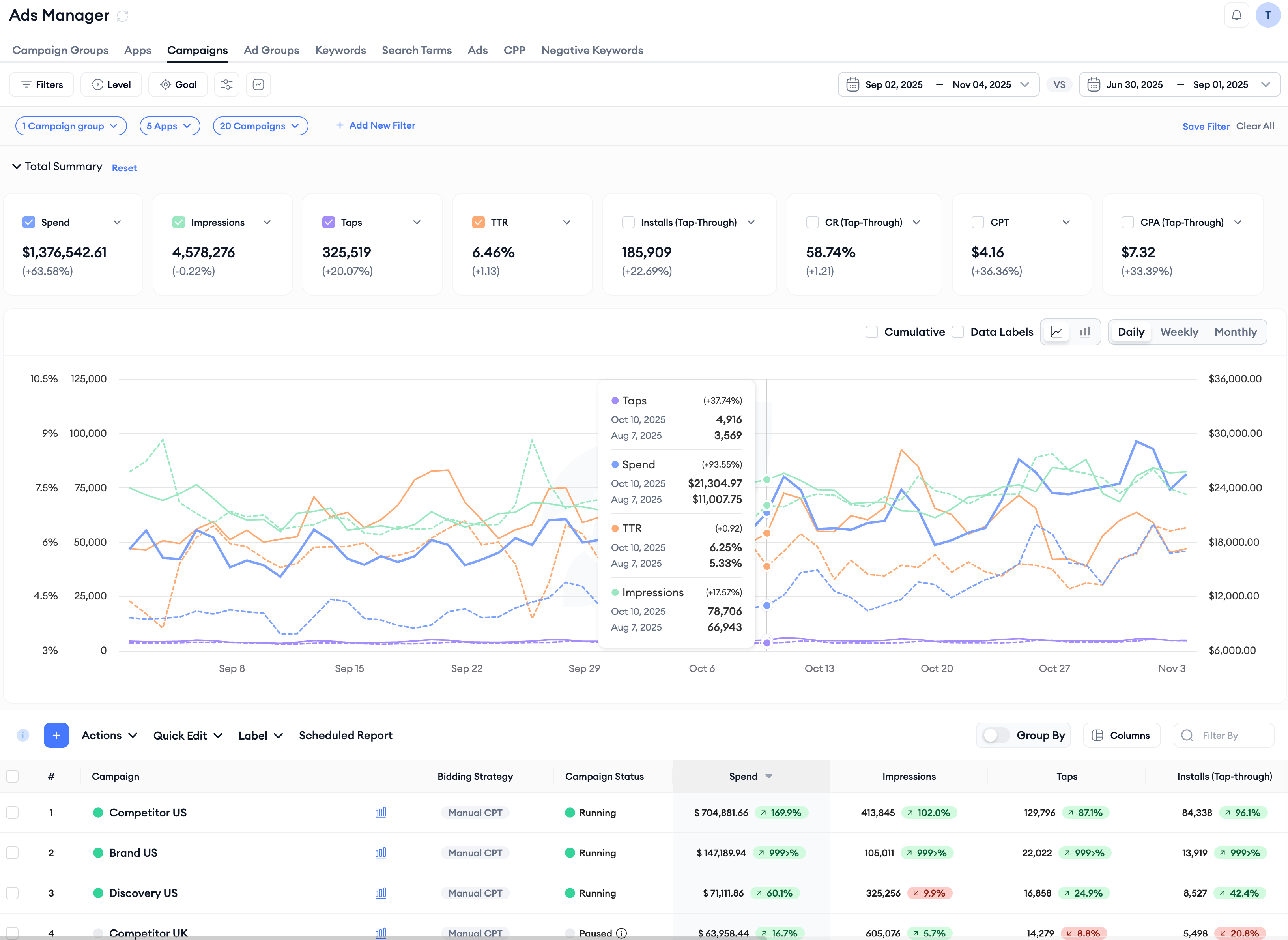
Each layer has its own table view with the metrics most relevant to that level, so you can move from a campaign-level summary down to individual keyword performance without losing context.
Above the table, a graph tracks metric trends over time. You can switch between daily, weekly, and monthly granularity, choose which metrics to plot using the Total Summary cards, and compare two time periods side by side. The Total Summary cards above the graph give you an aggregate view of the selected period across whichever layer you're currently on, and control which metrics appear on the graph.
What you can do in Ads Manager
Monitor and report on performance
By default, Ads Manager displays the core Apple Ads performance metrics: Spend, Impressions, Taps, Tap-through Rate, Installs, Conversion Rate, and Average CPA, among others.
You can customize the table to show exactly the columns you need, save those configurations as presets so your view stays consistent, and create custom columns with your own formulas for calculations that go beyond the standard metric set.
- For teams that need to go deeper, Ads Manager also supports cohort metrics, in-app conversion tracking, and MMP-attributed data alongside Apple's native attribution.
- Data segmentation lets you break down performance by campaign structure, storefront, ad placement, label, or time, giving you a more granular view of what's driving results without needing to export data first.
- When you need to share results with teammates or stakeholders who don't log into the platform, Scheduled Reports let you set up automated exports delivered by email or Slack on a recurring schedule. Reports are delivered as CSV files and can be configured to cover specific date ranges, data views, and column sets.
Edit and manage campaigns
Any change you would make in Apple Ads, updating a campaign name, adjusting a daily budget, editing targeting settings on an ad group, or pausing a keyword, can be done directly from Ads Manager.
You can edit items one at a time through the edit wizard, make inline updates to budgets directly in the table, or apply changes across multiple campaigns or ad groups at once using the Actions menu and Quick Edit. Quick Edit is available at the Campaigns and Ad Groups levels and lets you update fields like name, budget, bid, and targeting across multiple rows without opening each item individually.
The Actions menu gives you access to a broader set of operations, including duplicating campaigns, uploading keywords in bulk, and downloading data at every layer of the account.
A note on automation and bidding
Ads Manager also connects to the broader MobileAction platform, where AI Smart Bidding, Automations, and AI-powered optimization tools are accessible. These are separate features with their own workflows, but they are visible from within Ads Manager. The Strategies column in the Ad Groups table, for example, shows at a glance whether AI Smart Bidding or an automation rule is active for a given ad group, so you always have full visibility into what is running and what is not.
Who Ads Manager is for
Ads Manager is built for UA managers, app growth teams, and anyone responsible for running Apple Ads campaigns at scale. Whether you manage a small number of campaigns or hundreds across multiple storefronts, the multi-layer structure, bulk editing tools, and reporting features are designed to reduce time spent on routine tasks so more attention can go toward strategy and optimization.
Related links
- Ads Manager overview
- How to view campaign layers in Ads Manager
- Understand metrics in Ads Manager
- Edit your campaigns in Ads Manager
- Build scheduled reports in Ads Manager
Need more help?
If you have further questions, contact your dedicated Customer Success Manager or reach out via live chat.