
The App Events tab shows live and ended in-app events for a selected app.
It helps with monitoring how frequently your app or a competitor runs events, which event types they favor, and how their creative assets and messaging evolve over time.
Open the App Events view
- Open In-App Events from the App Intelligence menu.
- Select the app you want to analyze, or pick one from the My Apps dropdown.
- Make sure the App Events tab is selected at the top of the page.
Set the region and date range
- Open the country selector in the top bar to switch the storefront.
- Open the date picker at the top right to set the date range you want to analyze.
- The feed reloads with events detected for the selected app in that market and window.
What you see in the feed
Events are split into three sections: Live Events at the top, Ended Events and Available Events below. Each event card shows:
- The event type label (such as Special Event, Challenge, Major Update, or Live Event).
- The event title and banner image.
- The start and end date and time.
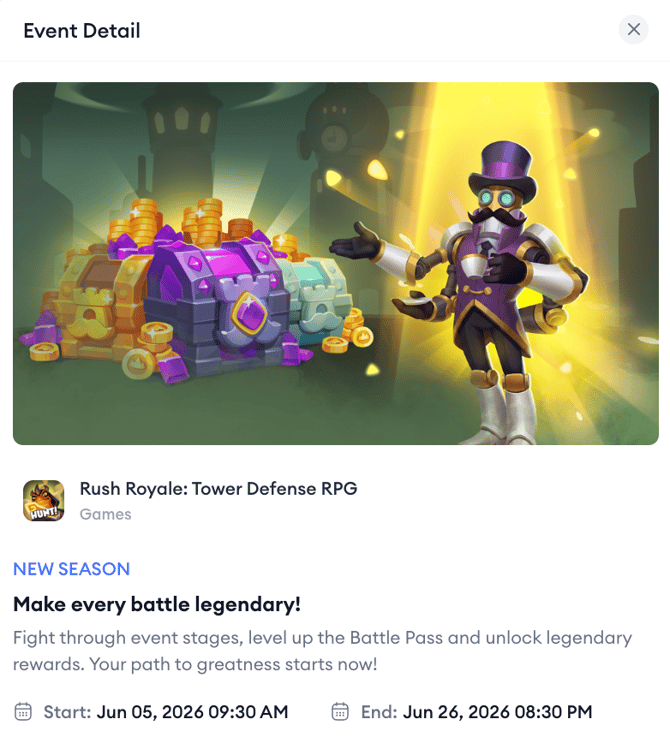
Click any event card to open its detail view, where you can read the full event description and see the exact messaging and timeframe Apple displayed on the App Store.
Keep in mind!
If you don’t see any in-app events in the tool, first check if you have the right store selected.
Related articles
Need more help?
If you have further questions or run into any issues, reach out to your dedicated Customer Success Manager or contact the support team via live chat.