
The performance metrics section in Overview shows the key upper funnel metrics for your selected app and date range. This article explains what each metric measures and how to interpret the data shown alongside it.
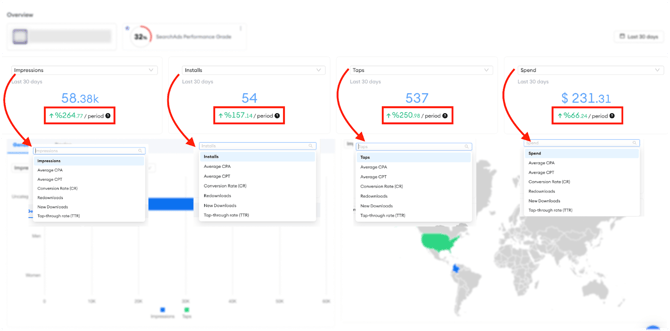
Available metrics
|
Metric |
What it measures |
|
Impressions |
The number of times your ads were shown to users during the selected period. |
|
Taps |
The number of times users tapped on your ads during the selected period. |
|
Installs |
The total number of app installs attributed to your Apple Ads campaigns during the selected period. |
|
Spend |
The total amount spent on your Apple Ads campaigns during the selected period. |
|
Average CPA |
Your average cost per acquisition, calculated as total spend divided by total installs, across all campaigns. |
|
Average CPT |
Your average cost per tap, calculated as total spend divided by total taps, across all campaigns. |
|
Tap-through rate (TTR) |
The percentage of impressions that resulted in a tap. Calculated as taps divided by impressions. |
|
Conversion rate (CR) |
The percentage of taps that resulted in an install. Calculated as installs divided by taps. |
|
New downloads |
Installs from users who are downloading your app for the first time. |
|
Redownloads |
Installs from users who have previously downloaded and deleted your app and are installing it again. |
How to read the percentage change figures
Each metric card in the Overview dashboard displays the value for the selected period alongside a percentage change figure. This figure shows the difference between the selected period and the equivalent previous period.
A green percentage means the metric improved compared to the previous period. A red percentage means it declined. The direction of improvement depends on the metric: for spend and CPA, a decrease is generally positive, while for installs and taps, an increase is generally positive.
The previous period is always the same length as the selected period. For example:
- If you select last day, the comparison is against the day before.
- If you select last 7 days, the comparison is against the 7 days before that.
- If you select last 30 days, the comparison is against the 30 days before that.
Best practice: Use the percentage change figures alongside absolute values, not in isolation. A large percentage increase in installs means less if the absolute number is still very low. Always check both figures together to get an accurate picture of performance.
Related links
Need more help?
If you have further questions on the process, contact your dedicated Customer Success Manager or contact the support team via live chat.