
This article explains how to open the Overview dashboard, select the app you want to review, and set the date range for your data.
Before you begin
- You must have an Apple Ads account integrated with MobileAction Campaign Management Platform (CMP). See Integrate your Apple Ads account with Apple Ads CMP.
- You must have at least one campaign in your Apple Ads account for your app to appear in the MobileAction CMP.
Open Overview
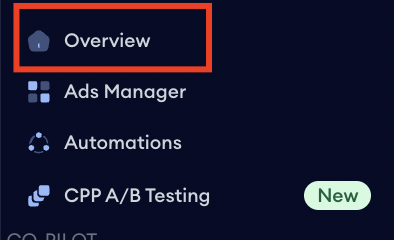
Log in to your SearchAds.com account. Overview is the first item in the sidebar on the left side of the dashboard. Click it to open the Overview page.
Select your app
Once you are on the Overview page, use the app selector at the top of the page to choose which app you want to review. All apps that are integrated with your SearchAds.com account will appear in this selector.
If you manage more than one app, you can switch between their individual Overview dashboards by changing the selection here. Each app has its own separate Overview with its own performance data, grade, and competitor insights.
Set the date range
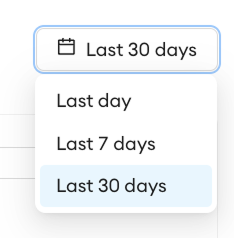
Use the date range selector to choose the time period you want to review. Three options are available:
- Last day: shows performance data for the most recent 24-hour period.
- Last 7 days: shows performance data for the past week.
- Last 30 days: shows performance data for the past month.
All sections on the Overview page update to reflect the selected date range, including the performance metrics, breakdowns, competitor data, and top keywords and ad groups.
Note: The percentage change figures shown alongside each metric compare the selected period against the equivalent previous period. For example, if you select last 7 days, the comparison is against the 7 days before that.
Related links
- Performance metrics in Overview
- Competitor insights in Overview
- Top keywords and ad groups in Overview
Need more help?
If you have further questions on the process, contact your dedicated Customer Success Manager or contact the support team via live chat.