
Compass Trace helps you compare app performance across KPIs, competitors, countries, and storefronts.
Use this article to learn how to select an app, add competitors, choose an analysis type, select KPIs, and prepare your Trace analysis.
Search for an app
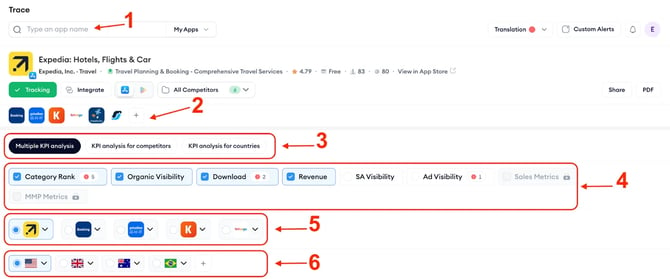
Start by choosing the app you want to analyze.
- Open Trace.
- Use the app search bar to search for an app.
- Select the app you want to review.
The selected app becomes the main app for your Trace analysis. You can change it at any time by using the search bar again.
Add or remove competitors
You can add competitors to compare your selected app with other apps.
Note: Set it here, set it everywhere else. Changes made in the app header apply platform-wide across all tools. This action includes adding, removing competitors, creating cohorts and changing the competitor order.
- Add competitors
- Select the + button in the competitor area.
- Search for the competitor app you want to add.
- Select the app.
- Repeat these steps to add more competitors.
Trace may also suggest competitor apps that can improve your competitor list.
- Remove competitors
- Select the + button in the competitor area.
- Deselect the competitor apps you want to remove.
After you remove a competitor, it no longer appears in the selected comparison.
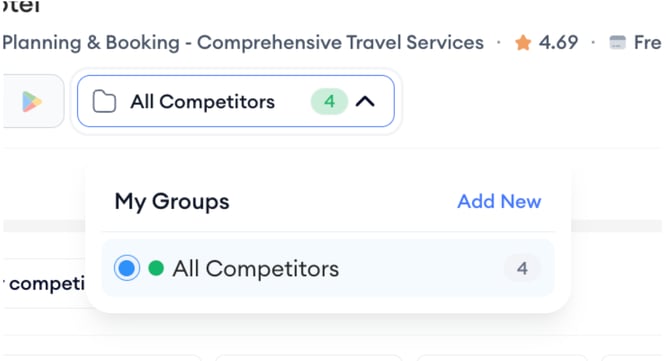
Create competitor cohorts
Competitor cohorts help you organize competitors into groups.
- Open the All Competitors dropdown.
- Select Add New.
- Create the competitor cohort you want to use.
Use competitor cohorts when you want to compare different groups of competitors without rebuilding your competitor list each time.
Choose an analysis type
Trace includes three analysis types. Choose the one that matches what you want to compare.
Multiple KPI analysis
Use Multiple KPI analysis to compare more than one KPI for the selected app.
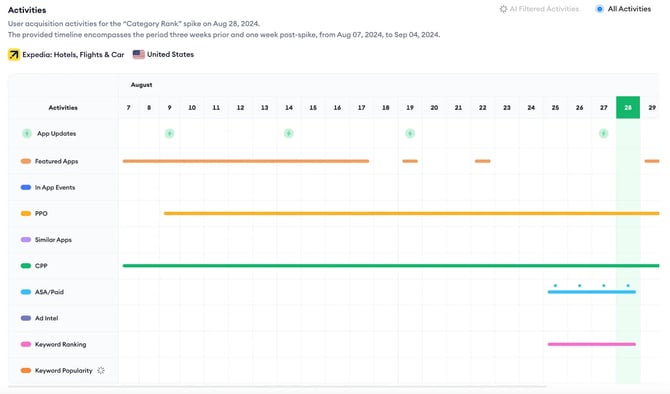
This tab can help you determine whether different performance signals moved in the same direction during the same period. After you set up this analysis type, use the Trace chart to review KPI movement, spike points, and related activities. For more details, see Understand KPI charts and activities in Trace.
For example, you can compare:
- Category Rank
- Organic Visibility
- Download
- Revenue
Use this analysis type when your question is:
“Which KPIs changed for this app during this period?”
KPI analysis for competitors
Use KPI analysis for competitors when you want to compare multiple apps for one KPI.
This analysis type can help you understand how your selected app performs against competitors for the same metric. After you set up this analysis type, use the Trace chart to compare KPI movement across apps over time. For more details, see Understand KPI charts and activities in Trace.
Use this analysis type when your question is:
“How does this KPI compare across my app and competitors?”
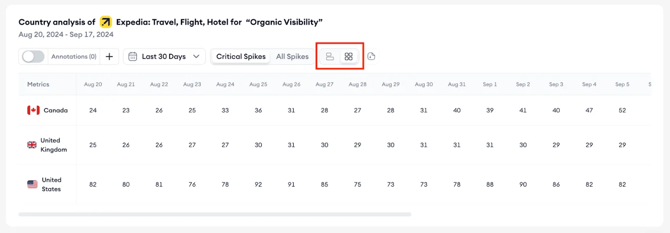
KPI analysis for countries
Use KPI analysis for countries when you want to compare one app and one KPI across multiple countries or storefronts.
This analysis type can help you understand whether a KPI changed in one market or across several markets. After you set up this analysis type, use the Trace chart to compare KPI movement across selected countries or storefronts. For more details, see Understand KPI charts and activities in Trace.
Use this analysis type when your question is:
“How does this KPI perform across countries for this app?”
Select KPIs
After you choose the analysis type, select the KPI or KPIs you want to analyze.
Available KPI options include:
- Category Rank
- Organic Visibility
- Apple Ads Visibility
- Ad Visibility
- Sales Metrics
- MMP Metrics
Some KPI options may be unavailable depending on your account setup or access.
Select apps
Use the app selection area to choose which apps appear in the analysis.
If you are using KPI analysis for competitors, you can select multiple apps to compare the same KPI across your competitive set.
Select countries or storefronts
Use the country or storefront selection area to choose where you want to analyze performance.
If you are using KPI analysis for countries, you can select multiple countries or storefronts to compare one app and one KPI across markets.
Export or share your analysis
After you set up your analysis, you can export or share the results.
To export Trace data:
- Set up your Trace analysis.
- Review the chart or table.
- Select Export as CSV.
- Download the file.
To share or export the full analysis:
- Set up your Trace analysis.
- Select Share or Export as PDF.
- Share the analysis with your team or download the report.
The available export options may depend on the current view and selected data.
Related links
Need more help?
If you have questions about setting up Compass Trace, contact your Customer Success Manager or reach the support team through live chat.