---
title: How to use App Profile
description: Use App Profile to review an app’s high-level performance, store listing information, user review activity, organic visibility, paid acquisition signals, and ad intelligence data in one place.
---
[Skip to content](https://helpcenter.mobileaction.co/en/how-to-use-app-profile#main-content)
[](https://www.mobileaction.co/)
- [Website](https://www.mobileaction.co/)
- [Help Center](https://helpcenter.mobileaction.co/en)
Open main navigation
Close main navigation
- [Website](https://www.mobileaction.co/)
- [Help Center](https://helpcenter.mobileaction.co/en)
Advice and answers from the MobileAction Team
- There are no suggestions because the search field is empty.
1. [Help Center](https://helpcenter.mobileaction.co/en?hsLang=en)
2. [App Intelligence](https://helpcenter.mobileaction.co/en/app-intelligence?hsLang=en)
3. [App Profile](https://helpcenter.mobileaction.co/en/app-intelligence?hsLang=en#app-profile)
# How to use App Profile
Use App Profile to review an app’s high-level performance, store listing information, user review activity, organic visibility, paid acquisition signals, and ad intelligence data in one place.
App Profile is designed as a starting point for app-level analysis. You can use it to quickly understand how an app is positioned in the store, how users are reacting to it, and where to continue for deeper analysis in MobileAction.
### Open App Profile
To open App Profile, go to:
**App Intelligence → App Profile**
Use the app search field at the top of the page to find the app you want to analyze. You can also use the **My Apps** menu to work with apps connected to your account.
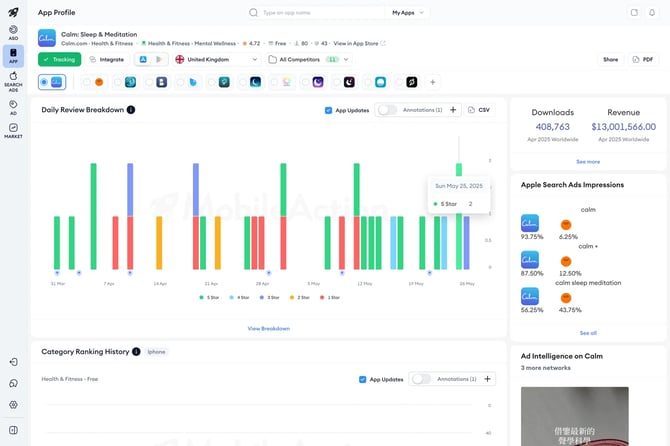
After selecting an app, choose the relevant:
- Store
- Country
- Competitor set, if available
The selected context affects the data shown across the page.
### Select the app context
At the top of App Profile, you can review the selected app and its basic app information.
Depending on the app, the header area may show information such as:
- App name
- Publisher
- Category
- Rating
- Price
- App store link
- Selected country
- Selected store
- Competitor selection
You may also see page actions such as **Share**, **Export as PDF**, or other available controls.
### Review the App Profile dashboard
After selecting an app, scroll through the dashboard to review the available sections.
App Profile gives you a quick overview first. You do not need to open every detailed report immediately. Start by reviewing the visible cards and sections, then use the available links or buttons to continue where needed.
The sections available on the page may change depending on the selected app, country, store, and data availability.
### Review app store listing information
Use the store listing sections to understand how the app presents itself to users in the selected storefront.
These sections may include:
- **Subtitle**
- **Description**
- **Screenshots**
- **Video previews**
- **App events**
- **Artworks**
- **About**
- **Versions**
- **Top in-app purchases**
Review these areas to understand the app’s messaging, visual positioning, feature communication, and recent store presence.
For example, the **Subtitle** and **Description** sections help you review how the app explains its value proposition. The **Screenshots** and **Video Previews** sections help you evaluate how the app communicates gameplay, features, or benefits visually.
The **App Events** section can help you review active or recent promotional events shown on the App Store. The **Versions** section helps you check recent app updates, while **Top In-App Purchases** can provide additional context on monetization.
### Review user review activity
The **Daily Review Breakdown** section helps you check review activity over time.
In this section, you may see controls such as:
- App Updates
- Annotations
- CSV export
- Review breakdown data
Use this view when you want to understand how review volume and rating distribution change over time. You can also compare review activity with app updates or annotations to investigate possible changes in user sentiment.
### Review most recent reviews
The **Most Recent Reviews** section shows recent user reviews for the selected app and storefront.
Use this section to quickly understand what users are currently mentioning. Recent reviews can help you identify recurring complaints, positive feedback, technical issues, pricing concerns, or feature requests before moving into a deeper review analysis.
### Review ratings
The **Review Ratings** card summarizes rating distribution for the selected app.
Depending on the available data, you may see:
- Recent rating breakdown
- Overall review rating
- Total rating or review count
- Distribution by star rating
Use this section to understand the app’s overall review health and whether recent ratings are mostly positive, negative, or mixed.
### Review category ranking history
The **Category Ranking History** section helps you review the movement of app rankings in a selected category.
Use this section to understand how the app’s category position changes over time. Ranking movement can help you evaluate organic visibility, category competitiveness, and the possible impact of app updates, campaigns, or competitor activity.
### Review organic visibility
The **Organic Visibility Score** section helps you understand the app’s organic visibility trend.
Use this card as a high-level indicator of how visible the app is organically in the selected country and store. If you notice a major increase or decrease, you can continue your analysis in more detailed ASO or keyword intelligence reports.
### Review competitors and similar apps
App Profile can include competitor or similar app context depending on the selected setup.
Use competitor-related areas to compare the selected app with other apps in the same market, category, or competitive set. This can help you understand how the app is positioned against similar apps and where you may need deeper competitor analysis.
You can also use the competitor selector at the top of the page to adjust the competitive context when available.
### Review downloads and revenue
The App Profile sidebar can show high-level **Downloads** and **Revenue** cards.
Use these cards as quick summary indicators. If you need a broader performance or revenue-focused view, continue to related reports such as [**Analytics Overview**](https://helpcenter.mobileaction.co/_hcms/analytics/search/conversion?redirect=aHR0cHM6Ly9oZWxwY2VudGVyLm1vYmlsZWFjdGlvbi5jby9lbi9hbmFseXRpY3Mtb3ZlcnZpZXctaHVi&ct=SEARCH&pid=5119197&cid=214736405903&t=YW5hbHl0aWNzIG92ZXJ2aWV3&d=helpcenter.mobileaction.co&c=5&rp=2&ab=false&opcid=&rs=UNKNOWN&hs-expires=1812718534&hs-version=1&hs-signature=APUk-v7trGQC55rigcEJBgbIdFhhFszeow&hsLang=en) or [**Revenue Snapshot**](https://helpcenter.mobileaction.co/en/revenue-snapshot-overview?hsLang=en).
### Review paid user acquisition data
If paid user acquisition data is available, App Profile can show paid acquisition-related insights.
For example, the **Apple Ads Impressions** card can show paid keyword impression information. Use this section to understand which paid keywords or competitors may be connected to the selected app’s Apple Ads visibility.
You can use available links such as **See all** or related buttons to continue into a more detailed Search Ads Intelligence analysis.
### Review ad insights
The App Profile sidebar can also include an **Ad Intelligence** section for the selected app.
Use this section as an entry point to review ad creatives, networks, media types, and recent ad activity when data is available. For deeper creative or network analysis, continue to Ad Intelligence.
### Move to detailed analysis
App Profile helps you move from a high-level overview to more detailed MobileAction intelligence tools.
Use the available buttons and links on the page to open deeper analysis areas. For example, you can continue from paid keyword data to Search Ads Intelligence, from review data to Ratings, or from performance indicators to Analytics Overview.
### Related links
- [About App Profile](https://helpcenter.mobileaction.co/en/about-app-profile?hsLang=en)
- [Publisher Profile](https://helpcenter.mobileaction.co/_hcms/analytics/search/conversion?redirect=aHR0cHM6Ly9oZWxwY2VudGVyLm1vYmlsZWFjdGlvbi5jby9lbi9wdWJsaXNoZXItcHJvZmlsZS1vdmVydmlldw%3D%3D&ct=SEARCH&pid=5119197&cid=214590950917&t=cHVibGlzaGVyIHByb2ZpbGU%3D&d=helpcenter.mobileaction.co&c=5&rp=2&ab=false&opcid=&rs=UNKNOWN&hs-expires=1812718578&hs-version=1&hs-signature=APUk-v6gaBcvpi0AfsGd57LkkD_7mUp9cA&hsLang=en)
- [Ratings](https://helpcenter.mobileaction.co/en/ratings-overview?hsLang=en)
- [Analytics Overview](https://helpcenter.mobileaction.co/_hcms/analytics/search/conversion?redirect=aHR0cHM6Ly9oZWxwY2VudGVyLm1vYmlsZWFjdGlvbi5jby9lbi9hbmFseXRpY3Mtb3ZlcnZpZXctaHVi&ct=SEARCH&pid=5119197&cid=214736405903&t=YW5hbHl0aWNzIG92ZXJ2aWV3&d=helpcenter.mobileaction.co&c=5&rp=2&ab=false&opcid=&rs=UNKNOWN&hs-expires=1812718534&hs-version=1&hs-signature=APUk-v7trGQC55rigcEJBgbIdFhhFszeow&hsLang=en)
- [App Update Timeline](https://helpcenter.mobileaction.co/_hcms/analytics/search/conversion?redirect=aHR0cHM6Ly9oZWxwY2VudGVyLm1vYmlsZWFjdGlvbi5jby9lbi9hcHAtdXBkYXRlLXRpbWVsaW5lLW92ZXJ2aWV3&ct=SEARCH&pid=5119197&cid=214788405423&t=YXBwIHVwZGF0ZSB0aW1lbGluZQ%3D%3D&d=helpcenter.mobileaction.co&c=5&rp=2&ab=true&opcid=&rs=UNKNOWN&hs-expires=1812718623&hs-version=1&hs-signature=APUk-v4RjY4XGNRkxV0vnwQiujbyrzWnaA&hsLang=en)
---
### Need more help?
If you have further questions on the process, contact your dedicated Customer Success Manager or contact the support team via live chat.
- [Quick Guide to MobileAction](https://helpcenter.mobileaction.co/en/quick-guide-to-mobileaction?hsLang=en)
- [MobileAction CMP](https://helpcenter.mobileaction.co/en/mobileaction-cmp?hsLang=en#main-content)
- [Apple Ads Integration](https://helpcenter.mobileaction.co/en/mobileaction-cmp?hsLang=en#apple-ads-integration)
- [AI Assistant](https://helpcenter.mobileaction.co/en/mobileaction-cmp?hsLang=en#ai-assistant)
- [Overview](https://helpcenter.mobileaction.co/en/mobileaction-cmp?hsLang=en#overview)
- [Ads Manager](https://helpcenter.mobileaction.co/en/mobileaction-cmp?hsLang=en#ads-manager)
- [Automations](https://helpcenter.mobileaction.co/en/mobileaction-cmp?hsLang=en#automations)
- [CPP A/B Testing](https://helpcenter.mobileaction.co/en/mobileaction-cmp?hsLang=en#cpp-a-b-testing)
- [AI Keyword Planner](https://helpcenter.mobileaction.co/en/mobileaction-cmp?hsLang=en#ai-keyword-planner)
- [AI Smart Bidding](https://helpcenter.mobileaction.co/en/mobileaction-cmp?hsLang=en#ai-smart-bidding)
- [Budget Allocation](https://helpcenter.mobileaction.co/en/mobileaction-cmp?hsLang=en#budget-allocation)
- [Benchmarks](https://helpcenter.mobileaction.co/en/mobileaction-cmp?hsLang=en#benchmarks)
- [Market Finder](https://helpcenter.mobileaction.co/en/mobileaction-cmp?hsLang=en#market-finder)
- [App Performance](https://helpcenter.mobileaction.co/en/mobileaction-cmp?hsLang=en#app-performance)
- [MMP Integration](https://helpcenter.mobileaction.co/en/mobileaction-cmp?hsLang=en#mmp-integration)
- [ASO Intelligence](https://helpcenter.mobileaction.co/en/aso-intelligence?hsLang=en#main-content)
- [Metadata Optimizer](https://helpcenter.mobileaction.co/en/aso-intelligence?hsLang=en#metadata-optimizer)
- [App Update Timeline](https://helpcenter.mobileaction.co/en/aso-intelligence?hsLang=en#app-update-timeline)
- [Creative Monitoring](https://helpcenter.mobileaction.co/en/aso-intelligence?hsLang=en#creative-monitoring)
- [Localization](https://helpcenter.mobileaction.co/en/aso-intelligence?hsLang=en#localization)
- [Keyword Tracking](https://helpcenter.mobileaction.co/en/aso-intelligence?hsLang=en#keyword-tracking)
- [Competitor Keywords](https://helpcenter.mobileaction.co/en/aso-intelligence?hsLang=en#competitor-keywords)
- [Keyword Inspector](https://helpcenter.mobileaction.co/en/aso-intelligence?hsLang=en#keyword-inspector)
- [Keyword Trends](https://helpcenter.mobileaction.co/en/aso-intelligence?hsLang=en#keyword-trends)
- [Keyword Translator](https://helpcenter.mobileaction.co/en/aso-intelligence?hsLang=en#keyword-translator)
- [Organic CPP Results](https://helpcenter.mobileaction.co/en/aso-intelligence?hsLang=en#organic-cpp-results)
- [ASO Report](https://helpcenter.mobileaction.co/en/aso-intelligence?hsLang=en#aso-report)
- [Visibility Report](https://helpcenter.mobileaction.co/en/aso-intelligence?hsLang=en#visibility-report)
- [Download Share](https://helpcenter.mobileaction.co/en/aso-intelligence?hsLang=en#download-share)
- [Store Analytics](https://helpcenter.mobileaction.co/en/store-analytics?hsLang=en#main-content)
- [Revenue Snapshot](https://helpcenter.mobileaction.co/en/store-analytics?hsLang=en#revenue-snapshot)
- [Organic Acquisition Dashboard](https://helpcenter.mobileaction.co/en/store-analytics?hsLang=en#organic-acquisition-dashboard)
- [Download Report](https://helpcenter.mobileaction.co/en/store-analytics?hsLang=en#download-report)
- [Conversion Funnel View](https://helpcenter.mobileaction.co/en/store-analytics?hsLang=en#conversion-funnel-view)
- [Analytics Overview](https://helpcenter.mobileaction.co/en/store-analytics?hsLang=en#analytics-overview)
- [Search Ads Intelligence](https://helpcenter.mobileaction.co/en/search-ads-intelligence?hsLang=en#main-content)
- [Search Result/App](https://helpcenter.mobileaction.co/en/search-ads-intelligence?hsLang=en#search-result-app)
- [Search Result/Keyword](https://helpcenter.mobileaction.co/en/search-ads-intelligence?hsLang=en#search-result-keyword)
- [Search Result/Competitor](https://helpcenter.mobileaction.co/en/search-ads-intelligence?hsLang=en#search-result-competitor)
- [Today Tab](https://helpcenter.mobileaction.co/en/search-ads-intelligence?hsLang=en#today-tab)
- [Search Tab](https://helpcenter.mobileaction.co/en/search-ads-intelligence?hsLang=en#search-tab)
- [Product Pages](https://helpcenter.mobileaction.co/en/search-ads-intelligence?hsLang=en#product-pages)
- [Top Advertisers](https://helpcenter.mobileaction.co/en/search-ads-intelligence?hsLang=en#top-advertisers)
- [CPP by Keyword](https://helpcenter.mobileaction.co/en/search-ads-intelligence?hsLang=en#cpp-by-keyword)
- [CPP by App](https://helpcenter.mobileaction.co/en/search-ads-intelligence?hsLang=en#cpp-by-app)
- [CPP by Category](https://helpcenter.mobileaction.co/en/search-ads-intelligence?hsLang=en#cpp-by-category)
- [CPP on Ad Networks](https://helpcenter.mobileaction.co/en/search-ads-intelligence?hsLang=en#cpp-on-ad-networks)
- [App Intelligence](https://helpcenter.mobileaction.co/en/app-intelligence?hsLang=en#main-content)
- [Compass Explore](https://helpcenter.mobileaction.co/en/app-intelligence?hsLang=en#compass-explore)
- [Compass Trace](https://helpcenter.mobileaction.co/en/app-intelligence?hsLang=en#compass-trace)
- [Compass Impact](https://helpcenter.mobileaction.co/en/app-intelligence?hsLang=en#compass-impact)
- [App Profile](https://helpcenter.mobileaction.co/en/app-intelligence?hsLang=en#app-profile)
- [Publisher Profile](https://helpcenter.mobileaction.co/en/app-intelligence?hsLang=en#publisher-profile)
- [Featured Apps](https://helpcenter.mobileaction.co/en/app-intelligence?hsLang=en#featured-apps)
- [Category Rankings](https://helpcenter.mobileaction.co/en/app-intelligence?hsLang=en#category-rankings)
- [Reviews](https://helpcenter.mobileaction.co/en/app-intelligence?hsLang=en#reviews)
- [AI Review Reply](https://helpcenter.mobileaction.co/en/app-intelligence?hsLang=en#ai-review-reply)
- [Ratings](https://helpcenter.mobileaction.co/en/app-intelligence?hsLang=en#ratings)
- [Similar Apps](https://helpcenter.mobileaction.co/en/app-intelligence?hsLang=en#similar-apps)
- [In-App Events](https://helpcenter.mobileaction.co/en/app-intelligence?hsLang=en#in-app-events)
- [Promotional Content](https://helpcenter.mobileaction.co/en/app-intelligence?hsLang=en#promotional-content)
- [Top Charts](https://helpcenter.mobileaction.co/en/app-intelligence?hsLang=en#top-charts)
- [Biggest Movers](https://helpcenter.mobileaction.co/en/app-intelligence?hsLang=en#biggest-movers)
- [Biggest Losers](https://helpcenter.mobileaction.co/en/app-intelligence?hsLang=en#biggest-losers)
- [Ad Intelligence](https://helpcenter.mobileaction.co/en/ad-intelligence?hsLang=en#main-content)
- [Creative Analysis](https://helpcenter.mobileaction.co/en/ad-intelligence?hsLang=en#creative-analysis)
- [Advertiser Analysis](https://helpcenter.mobileaction.co/en/ad-intelligence?hsLang=en#advertiser-analysis)
- [Ad Publisher Analysis](https://helpcenter.mobileaction.co/en/ad-intelligence?hsLang=en#ad-publisher-analysis)
- [Developer Analysis](https://helpcenter.mobileaction.co/en/ad-intelligence?hsLang=en#developer-analysis)
- [Top Advertisers](https://helpcenter.mobileaction.co/en/ad-intelligence?hsLang=en#top-advertisers)
- [Top Ad Publishers](https://helpcenter.mobileaction.co/en/ad-intelligence?hsLang=en#top-ad-publishers)
- [Top Creatives](https://helpcenter.mobileaction.co/en/ad-intelligence?hsLang=en#top-creatives)
- [Top Developers](https://helpcenter.mobileaction.co/en/ad-intelligence?hsLang=en#top-developers)
- [App Collections](https://helpcenter.mobileaction.co/en/ad-intelligence?hsLang=en#app-collections)
- [Creative Collections](https://helpcenter.mobileaction.co/en/ad-intelligence?hsLang=en#creative-collections)
- [Troubleshooting](https://helpcenter.mobileaction.co/en/troubleshooting?hsLang=en#main-content)
- [MobileAction CMP Troubleshooting](https://helpcenter.mobileaction.co/en/troubleshooting?hsLang=en#mobileaction-cmp-troubleshooting)
- [ASO Intelligence Troubleshooting](https://helpcenter.mobileaction.co/en/troubleshooting?hsLang=en#aso-intelligence-troubleshooting)
- [Search Ads Intelligence Troubleshooting](https://helpcenter.mobileaction.co/en/troubleshooting?hsLang=en#search-ads-intelligence-troubleshooting)
- [Integrations](https://helpcenter.mobileaction.co/en/integrations?hsLang=en#main-content)
- [MobileAction Integrations](https://helpcenter.mobileaction.co/en/integrations?hsLang=en#mobileaction-integrations)
- [SearchAds.com Integrations](https://helpcenter.mobileaction.co/en/integrations?hsLang=en#searchads-com-integrations)
- [SSO Configuration](https://helpcenter.mobileaction.co/en/integrations?hsLang=en#sso-configuration)
- [Settings](https://helpcenter.mobileaction.co/en/settings?hsLang=en#main-content)
- [MobileAction Settings](https://helpcenter.mobileaction.co/en/settings?hsLang=en#mobileaction-settings)
- [SearchAds.com Settings](https://helpcenter.mobileaction.co/en/settings?hsLang=en#searchads-com-settings)
- [Single Sign-On Configuration Guides](https://helpcenter.mobileaction.co/en/settings?hsLang=en#single-sign-on-configuration-guides)
[](https://www.mobileaction.co)
Build app store marketing on AI, automation and expertise
Copyright © 2025, MobileAction