
Campaign Wizard is a guided setup inside Ads Manager that builds a structured set of Apple Ads campaigns for your app in three steps. Instead of configuring each campaign manually, you provide your app, storefront, daily budget, brand keyword, competitors, and target keywords and Campaign Wizard creates the campaign structure for you.
This article explains how to use Campaign Wizard. If you need to build a campaign manually with full control over each setting, see Create a campaign in Ads Manager.
Before you start
Campaign Wizard focuses on Brand, Competitor, and Generic campaign types. It is best suited for apps launching Apple Ads for the first time or for teams that want to set up a full campaign structure quickly. You can adjust the generated settings after creation.
Open Campaign Wizard
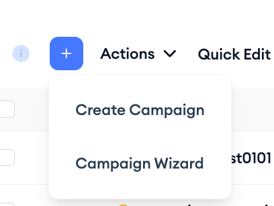
Open Ads Manager and select the Campaigns tab. Click the + button above the table. From the options that appear, select Campaign Wizard.
Step 1: Set up your app and budget
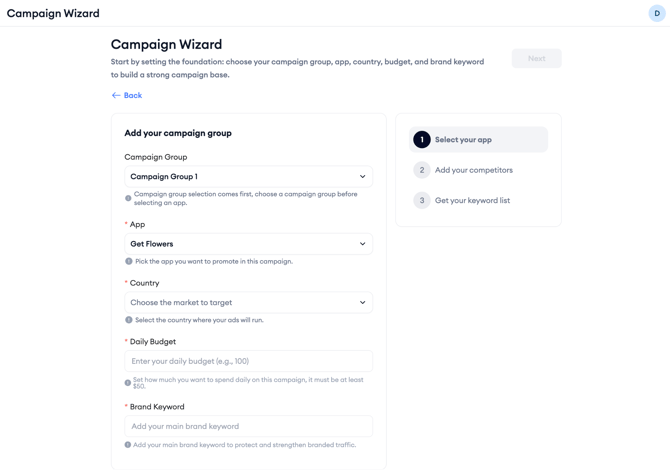
On the first screen, fill in the following:
Campaign Group: Select the campaign group this set of campaigns will belong to.
App: Select the app you want to promote.
Storefront: Select the country or region where you want to run your ads.
Daily Budget: Enter your daily spend limit (min. $50). Campaign Wizard distributes this across the campaigns it creates.
Brand Keyword: Enter the primary keyword that represents your app or brand.
Select Next to continue.
Step 2: Add your competitors
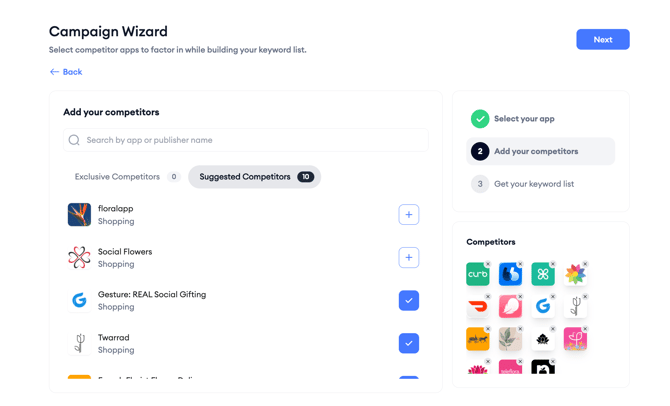
Campaign Wizard suggests competitors based on your app's category.
You will see two tabs: Suggested Competitors and Exclusive Competitors. Select the apps you want to target. Selected competitors appear in the panel on the right side of the screen. Add at least 5 competitors before continuing. For best results, include 10 competitors to get the most accurate keyword suggestions.
To remove a competitor, click the X on their app icon in the right panel. When you are done, select Next.
Step 3: Select your keywords
Campaign Wizard's algorithm suggests relevant keywords based on your app and selected competitors.
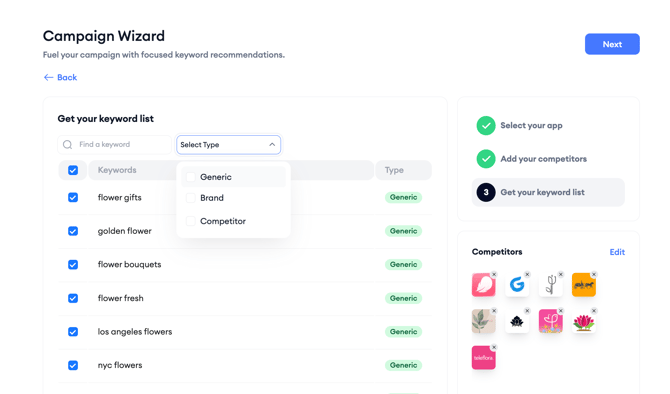
The list shows each keyword with its suggested campaign type: Generic, Brand, or Competitor.
Select the keywords you want to target by clicking them. A checkmark appears on the left of each selected keyword. You can also search for specific keywords using the search bar, or filter by campaign type using the All Types dropdown.
When you are satisfied with your keyword list, select Next to move to the review screen.
Review and create
The review screen shows your campaign structure, one row per campaign type, along with the suggested budget, number of keywords, and average CPT bid for each. You can adjust these values before creating.
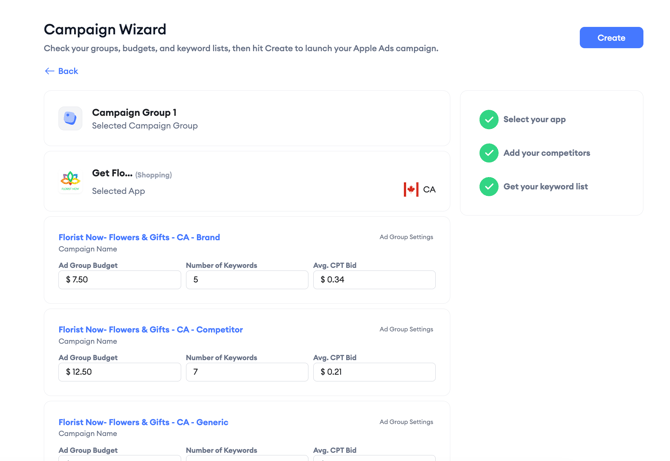
Once you are ready, select Create. Campaign Wizard builds your campaigns and takes you back to Ads Manager where you can monitor them immediately.
After you finish
After creation, you can edit any of the generated campaigns, ad groups, or keyword bids directly in Ads Manager.
To adjust targeting or audience settings on the ad groups created by Campaign Wizard, see Edit your campaigns in Ads Manager.
Related links
- Create a campaign in Ads Manager
- Add keywords to an ad group
- Edit your campaigns in Ads Manager
- Ads Manager overview
Need more help?
If you have further questions, contact your dedicated Customer Success Manager or reach out via live chat.