---
title: Create a campaign in Ads Manager
description: This article explains how to create an Apple Ads campaign from the MobileAction campaign management platform.
---
[Skip to content](https://helpcenter.mobileaction.co/en/create-a-campaign-in-ads-manager#main-content)
[](https://www.mobileaction.co/)
- [Website](https://www.mobileaction.co/)
- [Help Center](https://helpcenter.mobileaction.co/en)
Open main navigation
Close main navigation
- [Website](https://www.mobileaction.co/)
- [Help Center](https://helpcenter.mobileaction.co/en)
Advice and answers from the MobileAction Team
- There are no suggestions because the search field is empty.
1. [Help Center](https://helpcenter.mobileaction.co/en?hsLang=en)
2. [MobileAction CMP](https://helpcenter.mobileaction.co/en/mobileaction-cmp?hsLang=en)
3. [Ads Manager](https://helpcenter.mobileaction.co/en/mobileaction-cmp?hsLang=en#ads-manager)
# Create a campaign in Ads Manager
This article explains how to create an Apple Ads campaign from the MobileAction campaign management platform. The campaign creation flow covers the campaign settings, ad group settings, and ad creative in a single page, with each section unlocking as you complete the one above it.
### Before you start
You need to have at least one campaign group and one connected app in your account before creating a campaign. If you haven't connected your Apple Ads account yet, see [Apple Ads Integration Overview](https://helpcenter.mobileaction.co/en/apple-ads-integration-overview?hsLang=en)**.**
Campaign Type is always optional and does not affect where your ad runs. It is a label you can use to organize campaigns by strategy.
#### Create the campaign
Open Ads Manager from the left navigation and select the **Campaigns** tab. Click the **+** button above the table to open the **Create Campaign** page.
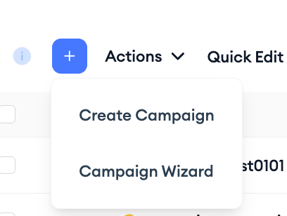
The page is organized into three sections: Campaign, Ad Group, and Ad. Each section becomes available once the required fields above it are filled in.
### Campaign settings
The first thing you select is which campaign group and app this campaign belongs to. The **Apply to** field at the top of the page shows the campaign group and app already in context. If you need to change either, click the field to update your selection.

Under **Ad Placement & Settings**, select where your ad will run. You can choose one or more of the following placements: Search Results, Search Tab, Today Tab, and Product Pages. Each placement you select will generate a separate campaign, so selecting three placements creates three campaigns with the same base settings.
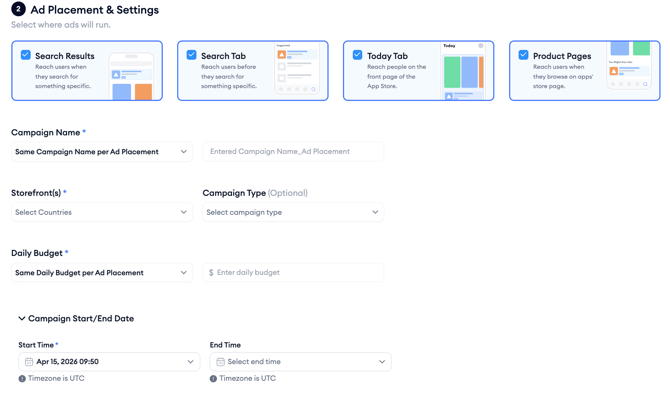
After selecting your placements, fill in the following fields:
**Campaign Name** is required. By default the platform sets the same campaign name per ad placement, appending the placement type automatically. You can change this to a custom name.
**Storefront(s)** is required. Select one or more countries or regions where your ad will run.
**Campaign Type** is optional. Use it to categorize your campaign by strategy, such as Brand, Generic, or Competitor. This label appears in the platform but has no effect on delivery.
**Daily Budget** is required. By default the same daily budget applies across all selected placements. Enter the amount you want to spend per day per placement.
**Campaign Start/End Date** is expanded by default and shows a start time set to the current date and time in UTC. End time is optional. If you leave it blank, the campaign runs until you pause or stop it.
You can also optionally add **Campaign Negative Keywords** at this stage by clicking the link below the date fields. This step is not required to continue.
### Ad Group settings
Once the campaign section is complete, the **Ad Group** section becomes available.
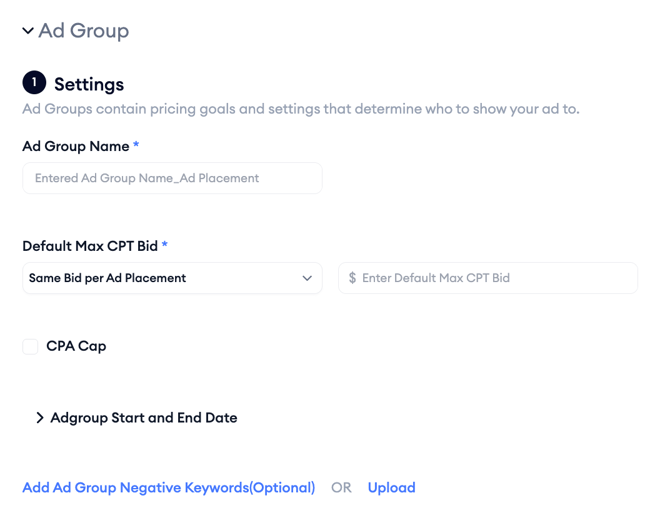
Fill in the following:
**Ad Group Name** is required.
**Default Max CPT Bid** is required. This is the maximum amount you are willing to pay for a tap. If you are running multiple placements, you can set the same bid across all or set a different bid per placement.
**CPA Cap** is optional. Enter a target cost per acquisition if you want Apple Ads to limit bids to stay within a cost-per-install threshold.
**Ad Group Start and End Date** is optional. If left blank, the ad group inherits the campaign dates.
You can optionally add **Ad Group Negative Keywords** inline or by uploading a CSV file before moving to the next section.
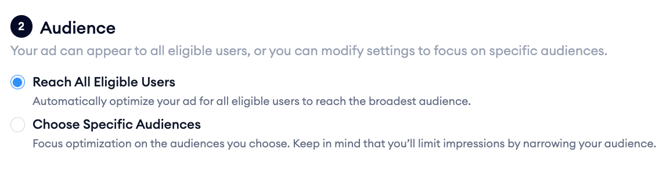
Under **Audience**, choose between **Reach All Eligible Users**, which lets Apple Ads optimize broadly, or **Choose Specific Audiences** to narrow targeting by device, location, demographic, or customer type. Keep in mind that narrowing your audience reduces your potential impressions.
**Search Match** is off by default. When turned on, Apple Ads automatically matches your ad to relevant searches without requiring you to add keywords manually. This is useful when starting out, but most campaigns benefit from a defined keyword list.

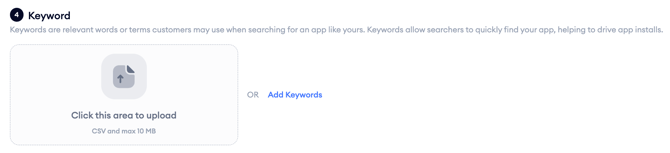
Under **Keyword**, you can either upload a CSV file or click **Add Keywords** to open the keyword selection panel and choose from organic, paid, and ASO-tracked suggestions. You can also enter keywords manually.
See [Add keywords to an ad group](https://helpcenter.mobileaction.co/en/add-keywords-to-an-ad-group?hsLang=en) for a full walkthrough of the keyword panel.
### Ad settings
Once the ad group section is complete, the **Ad** section becomes available. You first select the placement type, then configure the creative source for that placement.
The Ad section shows four placement tabs at the top: **search result**, **Search tab**, **Today tab**, and **product pages**. Each tab corresponds to one of the ad placements you selected earlier in the campaign section. You need to set up the ad creative for each placement separately.
Select a placement tab to configure the ad for that placement. A live preview on the left updates as you make your selections, showing you exactly how the ad will appear to users in that placement context.
For **search result** **ads**, select your creative source:
**Default** uses assets from your default product page. This is the standard option for most campaigns.
**Custom** uses assets from a custom product page created and takes users to that page when they tap the ad.
For **Search tab** ads, select a product page to use as the tap destination for your ad. Click **Create Ad** to confirm the selection for this placement.
For **Today tab** and **product pages** ads, the creative is drawn from your product page assets. Select the product page you want to use as the tap destination and confirm.
Across all placements, you can adjust the **Device**, **Display Type**, and **Language** settings in the preview panel to see how the ad renders across different configurations before saving.
**Note:** Ratings and prices shown in the preview do not reflect actual numbers. Pre-order labels are not included in the preview. If your app uses different icons across storefronts, the preview may differ from what users see.
When you are ready, select **Continue** to review your campaign before it goes live.
### After you finish
Once your campaign is created, you are directed to Ads Manager where you can monitor its status and performance. Your campaign will appear in the Campaigns table with its status, daily budget, and key metrics.
If you want to add keywords after creation, go to [Add keywords to an ad group](https://helpcenter.mobileaction.co/en/add-keywords-to-an-ad-group?hsLang=en).
To edit campaign settings after creation, go to [Edit your campaigns in Ads Manager](https://helpcenter.mobileaction.co/en/edit-your-campaigns-in-ads-manager?hsLang=en).
### Related links
- [Add keywords to an ad group](https://helpcenter.mobileaction.co/en/add-keywords-to-an-ad-group?hsLang=en)
- [Create an ad group in Ads Manager](https://helpcenter.mobileaction.co/en/create-an-ad-group-in-ads-manager-?hsLang=en)
- [Edit your campaigns in Ads Manager](https://helpcenter.mobileaction.co/en/edit-your-campaigns-in-ads-manager?hsLang=en)
- [Ads Manager overview](https://helpcenter.mobileaction.co/en/ads-manager-overview?hsLang=en)
---
### Need more help?
If you have further questions, contact your dedicated Customer Success Manager or reach out via live chat.
- [Quick Guide to MobileAction](https://helpcenter.mobileaction.co/en/quick-guide-to-mobileaction?hsLang=en)
- [MobileAction CMP](https://helpcenter.mobileaction.co/en/mobileaction-cmp?hsLang=en#main-content)
- [Apple Ads Integration](https://helpcenter.mobileaction.co/en/mobileaction-cmp?hsLang=en#apple-ads-integration)
- [AI Assistant](https://helpcenter.mobileaction.co/en/mobileaction-cmp?hsLang=en#ai-assistant)
- [Overview](https://helpcenter.mobileaction.co/en/mobileaction-cmp?hsLang=en#overview)
- [Ads Manager](https://helpcenter.mobileaction.co/en/mobileaction-cmp?hsLang=en#ads-manager)
- [Automations](https://helpcenter.mobileaction.co/en/mobileaction-cmp?hsLang=en#automations)
- [CPP A/B Testing](https://helpcenter.mobileaction.co/en/mobileaction-cmp?hsLang=en#cpp-a-b-testing)
- [AI Keyword Planner](https://helpcenter.mobileaction.co/en/mobileaction-cmp?hsLang=en#ai-keyword-planner)
- [AI Smart Bidding](https://helpcenter.mobileaction.co/en/mobileaction-cmp?hsLang=en#ai-smart-bidding)
- [Budget Allocation](https://helpcenter.mobileaction.co/en/mobileaction-cmp?hsLang=en#budget-allocation)
- [Benchmarks](https://helpcenter.mobileaction.co/en/mobileaction-cmp?hsLang=en#benchmarks)
- [Market Finder](https://helpcenter.mobileaction.co/en/mobileaction-cmp?hsLang=en#market-finder)
- [App Performance](https://helpcenter.mobileaction.co/en/mobileaction-cmp?hsLang=en#app-performance)
- [MMP Integration](https://helpcenter.mobileaction.co/en/mobileaction-cmp?hsLang=en#mmp-integration)
- [ASO Intelligence](https://helpcenter.mobileaction.co/en/aso-intelligence?hsLang=en#main-content)
- [Metadata Optimizer](https://helpcenter.mobileaction.co/en/aso-intelligence?hsLang=en#metadata-optimizer)
- [App Update Timeline](https://helpcenter.mobileaction.co/en/aso-intelligence?hsLang=en#app-update-timeline)
- [Creative Monitoring](https://helpcenter.mobileaction.co/en/aso-intelligence?hsLang=en#creative-monitoring)
- [Localization](https://helpcenter.mobileaction.co/en/aso-intelligence?hsLang=en#localization)
- [Keyword Tracking](https://helpcenter.mobileaction.co/en/aso-intelligence?hsLang=en#keyword-tracking)
- [Competitor Keywords](https://helpcenter.mobileaction.co/en/aso-intelligence?hsLang=en#competitor-keywords)
- [Keyword Inspector](https://helpcenter.mobileaction.co/en/aso-intelligence?hsLang=en#keyword-inspector)
- [Keyword Trends](https://helpcenter.mobileaction.co/en/aso-intelligence?hsLang=en#keyword-trends)
- [Keyword Translator](https://helpcenter.mobileaction.co/en/aso-intelligence?hsLang=en#keyword-translator)
- [Organic CPP Results](https://helpcenter.mobileaction.co/en/aso-intelligence?hsLang=en#organic-cpp-results)
- [ASO Report](https://helpcenter.mobileaction.co/en/aso-intelligence?hsLang=en#aso-report)
- [Visibility Report](https://helpcenter.mobileaction.co/en/aso-intelligence?hsLang=en#visibility-report)
- [Download Share](https://helpcenter.mobileaction.co/en/aso-intelligence?hsLang=en#download-share)
- [Store Analytics](https://helpcenter.mobileaction.co/en/store-analytics?hsLang=en#main-content)
- [Revenue Snapshot](https://helpcenter.mobileaction.co/en/store-analytics?hsLang=en#revenue-snapshot)
- [Organic Acquisition Dashboard](https://helpcenter.mobileaction.co/en/store-analytics?hsLang=en#organic-acquisition-dashboard)
- [Download Report](https://helpcenter.mobileaction.co/en/store-analytics?hsLang=en#download-report)
- [Conversion Funnel View](https://helpcenter.mobileaction.co/en/store-analytics?hsLang=en#conversion-funnel-view)
- [Analytics Overview](https://helpcenter.mobileaction.co/en/store-analytics?hsLang=en#analytics-overview)
- [Search Ads Intelligence](https://helpcenter.mobileaction.co/en/search-ads-intelligence?hsLang=en#main-content)
- [Search Result/App](https://helpcenter.mobileaction.co/en/search-ads-intelligence?hsLang=en#search-result-app)
- [Search Result/Keyword](https://helpcenter.mobileaction.co/en/search-ads-intelligence?hsLang=en#search-result-keyword)
- [Search Result/Competitor](https://helpcenter.mobileaction.co/en/search-ads-intelligence?hsLang=en#search-result-competitor)
- [Today Tab](https://helpcenter.mobileaction.co/en/search-ads-intelligence?hsLang=en#today-tab)
- [Search Tab](https://helpcenter.mobileaction.co/en/search-ads-intelligence?hsLang=en#search-tab)
- [Product Pages](https://helpcenter.mobileaction.co/en/search-ads-intelligence?hsLang=en#product-pages)
- [Top Advertisers](https://helpcenter.mobileaction.co/en/search-ads-intelligence?hsLang=en#top-advertisers)
- [CPP by Keyword](https://helpcenter.mobileaction.co/en/search-ads-intelligence?hsLang=en#cpp-by-keyword)
- [CPP by App](https://helpcenter.mobileaction.co/en/search-ads-intelligence?hsLang=en#cpp-by-app)
- [CPP by Category](https://helpcenter.mobileaction.co/en/search-ads-intelligence?hsLang=en#cpp-by-category)
- [CPP on Ad Networks](https://helpcenter.mobileaction.co/en/search-ads-intelligence?hsLang=en#cpp-on-ad-networks)
- [App Intelligence](https://helpcenter.mobileaction.co/en/app-intelligence?hsLang=en#main-content)
- [Compass Explore](https://helpcenter.mobileaction.co/en/app-intelligence?hsLang=en#compass-explore)
- [Compass Trace](https://helpcenter.mobileaction.co/en/app-intelligence?hsLang=en#compass-trace)
- [Compass Impact](https://helpcenter.mobileaction.co/en/app-intelligence?hsLang=en#compass-impact)
- [App Profile](https://helpcenter.mobileaction.co/en/app-intelligence?hsLang=en#app-profile)
- [Publisher Profile](https://helpcenter.mobileaction.co/en/app-intelligence?hsLang=en#publisher-profile)
- [Featured Apps](https://helpcenter.mobileaction.co/en/app-intelligence?hsLang=en#featured-apps)
- [Category Rankings](https://helpcenter.mobileaction.co/en/app-intelligence?hsLang=en#category-rankings)
- [Reviews](https://helpcenter.mobileaction.co/en/app-intelligence?hsLang=en#reviews)
- [AI Review Reply](https://helpcenter.mobileaction.co/en/app-intelligence?hsLang=en#ai-review-reply)
- [Ratings](https://helpcenter.mobileaction.co/en/app-intelligence?hsLang=en#ratings)
- [Similar Apps](https://helpcenter.mobileaction.co/en/app-intelligence?hsLang=en#similar-apps)
- [In-App Events](https://helpcenter.mobileaction.co/en/app-intelligence?hsLang=en#in-app-events)
- [Promotional Content](https://helpcenter.mobileaction.co/en/app-intelligence?hsLang=en#promotional-content)
- [Top Charts](https://helpcenter.mobileaction.co/en/app-intelligence?hsLang=en#top-charts)
- [Biggest Movers](https://helpcenter.mobileaction.co/en/app-intelligence?hsLang=en#biggest-movers)
- [Biggest Losers](https://helpcenter.mobileaction.co/en/app-intelligence?hsLang=en#biggest-losers)
- [Ad Intelligence](https://helpcenter.mobileaction.co/en/ad-intelligence?hsLang=en#main-content)
- [Creative Analysis](https://helpcenter.mobileaction.co/en/ad-intelligence?hsLang=en#creative-analysis)
- [Advertiser Analysis](https://helpcenter.mobileaction.co/en/ad-intelligence?hsLang=en#advertiser-analysis)
- [Ad Publisher Analysis](https://helpcenter.mobileaction.co/en/ad-intelligence?hsLang=en#ad-publisher-analysis)
- [Developer Analysis](https://helpcenter.mobileaction.co/en/ad-intelligence?hsLang=en#developer-analysis)
- [Top Advertisers](https://helpcenter.mobileaction.co/en/ad-intelligence?hsLang=en#top-advertisers)
- [Top Ad Publishers](https://helpcenter.mobileaction.co/en/ad-intelligence?hsLang=en#top-ad-publishers)
- [Top Creatives](https://helpcenter.mobileaction.co/en/ad-intelligence?hsLang=en#top-creatives)
- [Top Developers](https://helpcenter.mobileaction.co/en/ad-intelligence?hsLang=en#top-developers)
- [App Collections](https://helpcenter.mobileaction.co/en/ad-intelligence?hsLang=en#app-collections)
- [Creative Collections](https://helpcenter.mobileaction.co/en/ad-intelligence?hsLang=en#creative-collections)
- [Troubleshooting](https://helpcenter.mobileaction.co/en/troubleshooting?hsLang=en#main-content)
- [MobileAction CMP Troubleshooting](https://helpcenter.mobileaction.co/en/troubleshooting?hsLang=en#mobileaction-cmp-troubleshooting)
- [ASO Intelligence Troubleshooting](https://helpcenter.mobileaction.co/en/troubleshooting?hsLang=en#aso-intelligence-troubleshooting)
- [Search Ads Intelligence Troubleshooting](https://helpcenter.mobileaction.co/en/troubleshooting?hsLang=en#search-ads-intelligence-troubleshooting)
- [Integrations](https://helpcenter.mobileaction.co/en/integrations?hsLang=en#main-content)
- [MobileAction Integrations](https://helpcenter.mobileaction.co/en/integrations?hsLang=en#mobileaction-integrations)
- [SearchAds.com Integrations](https://helpcenter.mobileaction.co/en/integrations?hsLang=en#searchads-com-integrations)
- [SSO Configuration](https://helpcenter.mobileaction.co/en/integrations?hsLang=en#sso-configuration)
- [Settings](https://helpcenter.mobileaction.co/en/settings?hsLang=en#main-content)
- [MobileAction Settings](https://helpcenter.mobileaction.co/en/settings?hsLang=en#mobileaction-settings)
- [SearchAds.com Settings](https://helpcenter.mobileaction.co/en/settings?hsLang=en#searchads-com-settings)
- [Single Sign-On Configuration Guides](https://helpcenter.mobileaction.co/en/settings?hsLang=en#single-sign-on-configuration-guides)
[](https://www.mobileaction.co)
Build app store marketing on AI, automation and expertise
Copyright © 2025, MobileAction