
This article explains how to create a new Creative Collection, rename or remove an existing one, and use the filters and export options inside a collection.
To learn how to save creatives to a collection, see Add creatives to a collection.
Create a new collection
1. Open Creative Collections from the Ad Intelligence module in the navigation menu.
2. Click + New collection in the top left.
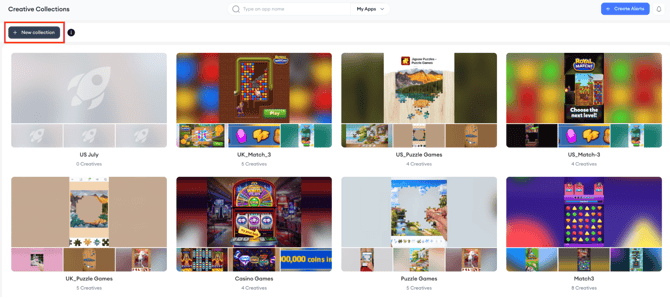
3. Enter a name in the Collection Name field.
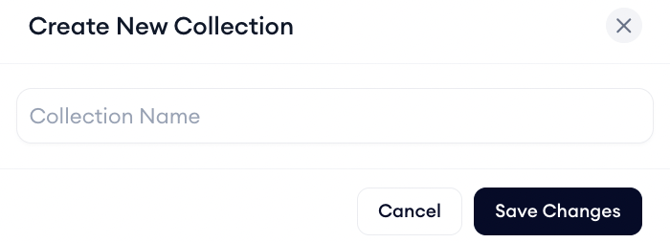
4. Click Save Changes. The new collection appears on the main Creative Collections page.
Rename or remove a collection
1. On the main Creative Collections page, hover over the collection card you want to edit.
2. Click the three-dot menu in the top right corner of the card.
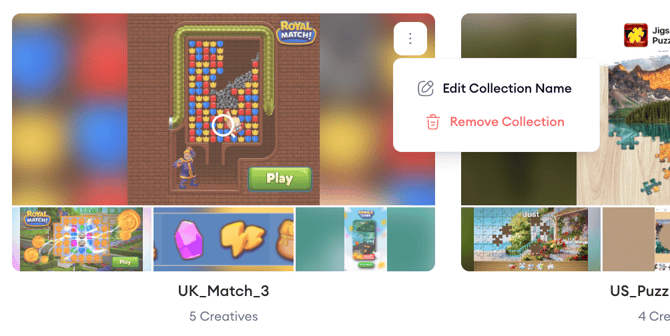
3. Select Edit Collection Name to rename it, or Remove Collection to delete it.
Use filters inside a collection
Opening a collection shows the creative grid. Three filters sit above the grid.
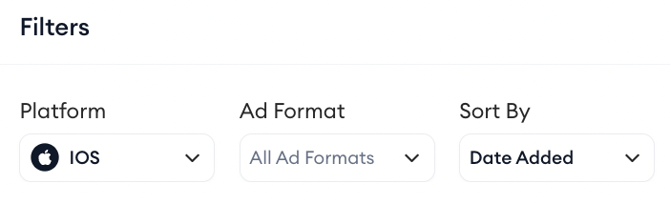
- Platform filters the grid by operating system, iOS or Android.
- Ad Format narrows the grid to a specific format: Video, Image, Interstitial, Banner, Interactive, or Rewarded.
- Sort By controls the order of creatives. Date Added is the default, showing the most recently saved creatives first.
Export and share a collection
Click Copy Link to generate a shareable link to the collection.
Click Show Top Creatives to go directly to a filtered view of the highest-performing creatives in this collection.
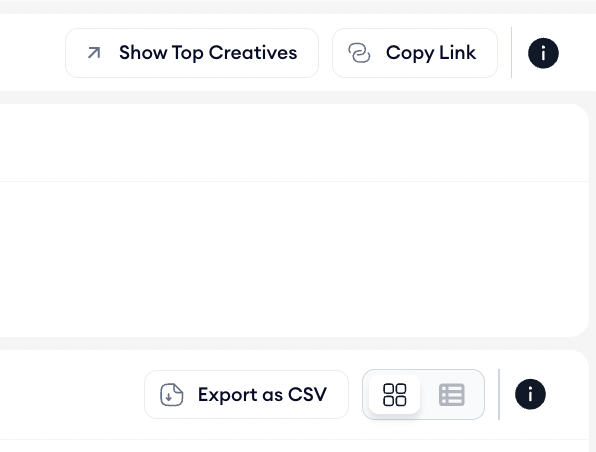
Click Export as CSV above the creative grid to download the collection data as a spreadsheet.
Related links
Need more help?
If you have further questions on the process, contact your dedicated Customer Success Manager or contact the support team via live chat.