
This article explains how to create a standalone ad group from the Ad Groups layer in Ads Manager.
If you are creating an ad group as part of a new campaign, the same fields are available inside the campaign creation flow, see Create a campaign in Ads Manager.
Before you start
You need an existing campaign to add an ad group to. The campaign must already be created before you can attach a new ad group to it.
Create the ad group
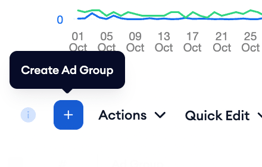
Open Ads Manager and select the Ad Groups tab. Click the + button above the table to open the Create Ad Group page.
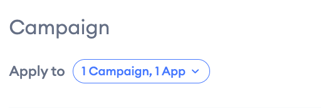
At the top of the page, the Apply to field shows the campaign this ad group will belong to. Click it to change the campaign if needed.
Settings
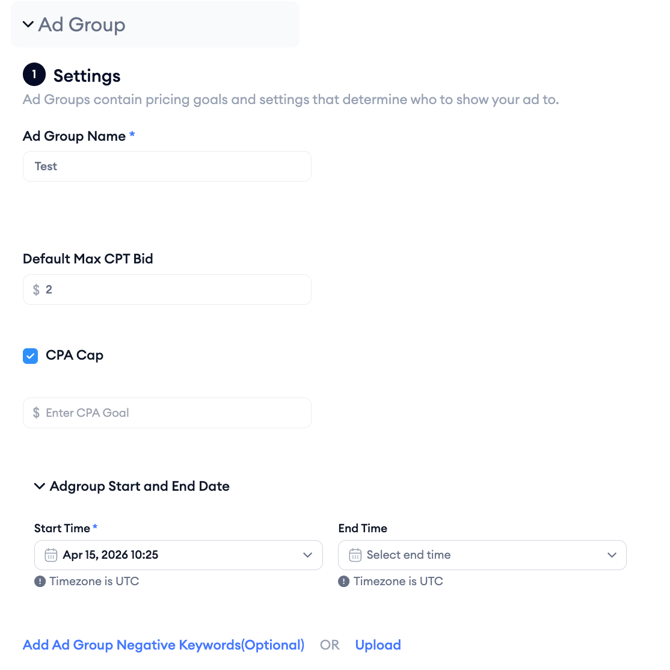
Ad Group Name is required. Give the ad group a clear name that reflects its targeting strategy or keyword theme.
Default Max CPT Bid is required. Enter the maximum amount you are willing to pay per tap. This bid applies to all keywords in the ad group unless you set custom bids per keyword.
CPA Cap is optional. If you want Apple Ads to limit spend based on a target cost per install, enter that value here.
Ad Group Start and End Date is optional. Click to expand the field and set a start and end time. If left blank, the ad group inherits the campaign's dates.
You can optionally add Ad Group Negative Keywords inline or upload them via CSV before continuing.
Audience
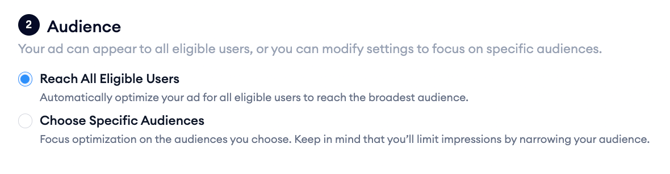
Your ad can appear to all eligible users, or you can narrow the audience to specific segments. Reach All Eligible Users is selected by default and lets Apple Ads optimize targeting broadly. If you select Choose Specific Audiences, you can define targeting by device, demographic, customer type, and more. Keep in mind that narrowing your audience will reduce your potential impressions.
Search Match
Search Match is off by default. When turned on, Apple Ads automatically matches your ad to searches relevant to your app without requiring a keyword list. It is useful when starting without keyword data, but a defined keyword list gives you more control over where your ad appears.

Keywords
The Keywords section becomes active once you have entered a Default Max CPT Bid. You can add keywords by uploading a CSV file or by clicking Add Keywords to open the keyword panel.
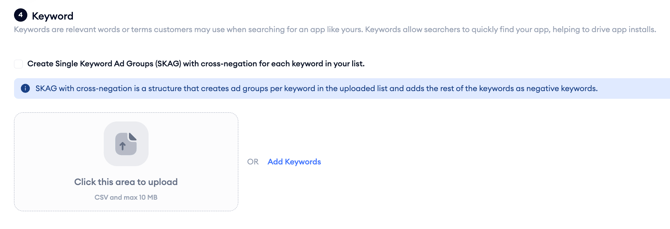
See Add keywords to an ad group for a full walkthrough of how to select and configure keywords from the panel.
Ad creatives
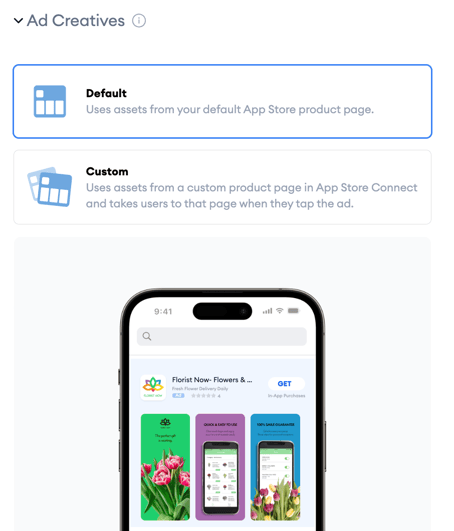
Select the creative source for your search result ad:
Default uses assets from your default App Store product page. This is the standard option and works across all placements.
Custom uses assets from a custom product page in App Store Connect and takes users to that specific page when they tap the ad.
A live preview updates on the right side as you make selections. You can change the Device, Display Type, and Language in the preview to see how the ad appears in different contexts.
When you are ready, select Continue to finalize the ad group.
After you finish
Your new ad group will appear in the Ad Groups table in Ads Manager. To add or edit keywords after creation, see Add keywords to an ad group.
To adjust targeting or bid settings, see Edit your campaigns in Ads Manager.
Related links
- Create a campaign in Ads Manager
- Add keywords to an ad group
- Add an ad in Ads Manager
- Edit your campaigns in Ads Manager
Need more help?
If you have further questions, contact your dedicated Customer Success Manager or reach out via live chat.