
Use this setup when you want to compare multiple custom product pages for a single ad group, with all variants running at the same time.
This article explains how to create a Parallel test for one ad group. If you want variants to run in separate periods instead, go to a Switch setup: Ad Group Switch test or Ad Switch test.
If you want to compare multiple ad groups for a single product page instead, learn how to create a multiple ad group Parallel test.
Before you start
Keep these points in mind:
- You select one ad group.
- You can select up to four different custom product pages (including the default product page).
- The original ad group is paused, and copies of it are made to start the test.
- Stabilize Traffic is enabled by default in this setup. You can disable it if your priority is to keep all variants live at all times.
- You choose a desired precision and the confidence level.
- Test duration is calculated based on your selected desired precision and confidence level.
To learn what “Stabilize Traffic” does, learn how traffic stabilization works in CPP A/B Testing.
Instructions
1. Navigate to the CPP A/B Testing item in the navigation menu.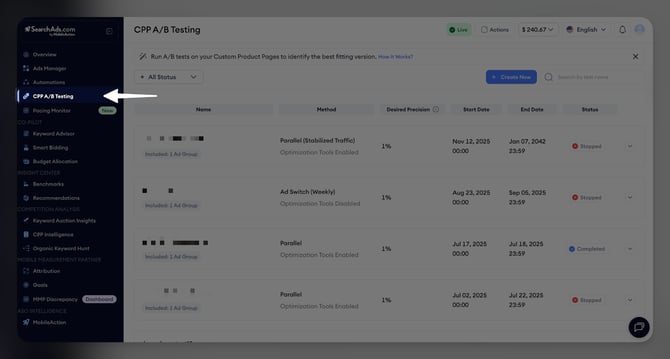
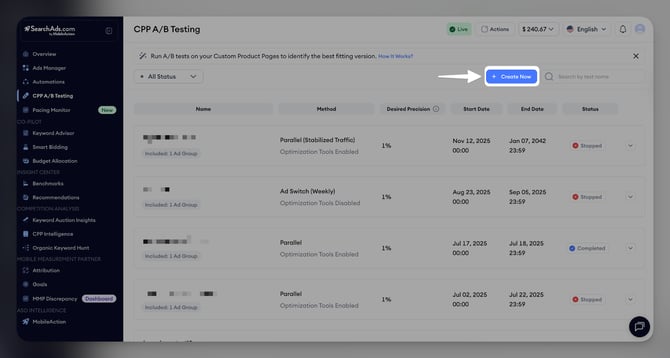
2. Click on the Create New button.
3. Select a single ad group.
4. Select up to four different product pages.
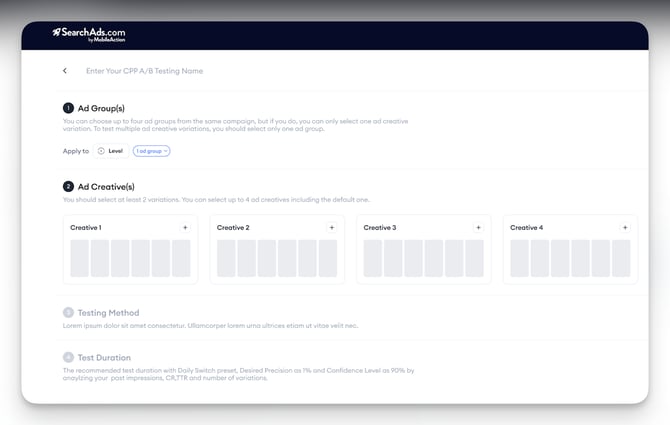
5. Select Parallel as the testing method.
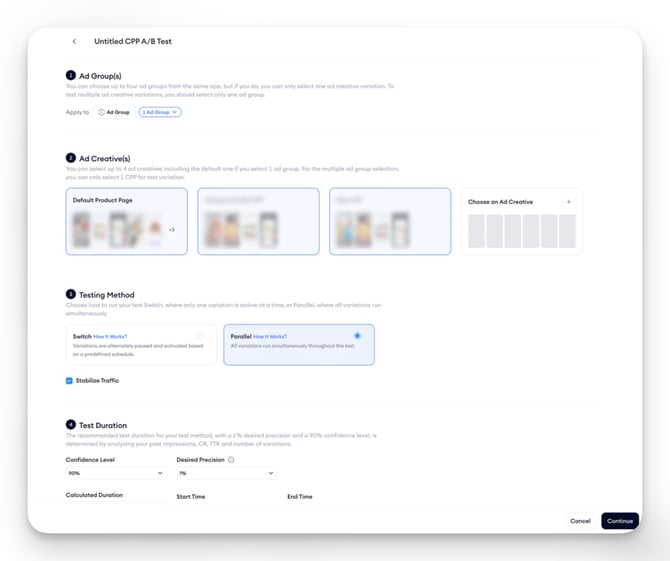
6. Stabilize Traffic is enabled by default. When enabled, the system monitors traffic hourly and temporarily pauses a variant if traffic becomes unbalanced (difference exceeds 25%). You can disable this feature if needed.
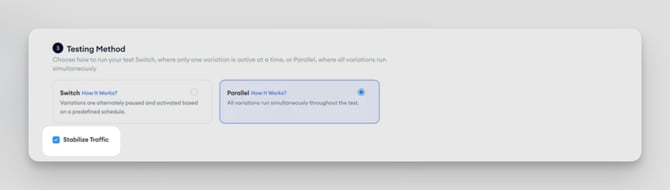
- The ad group’s past 28-day performance
- The selected precision level
- The selected confidence level
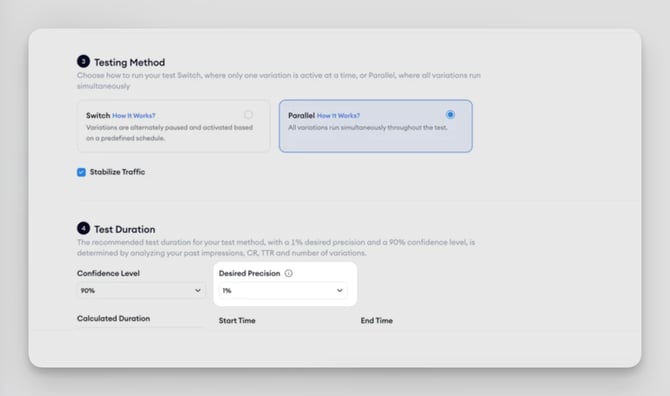
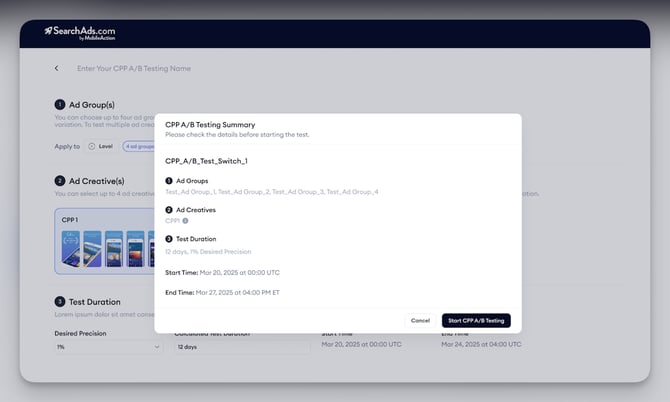
9. Your test is ready to be started. Confirm the summary and hit Start CPP A/B Testing.
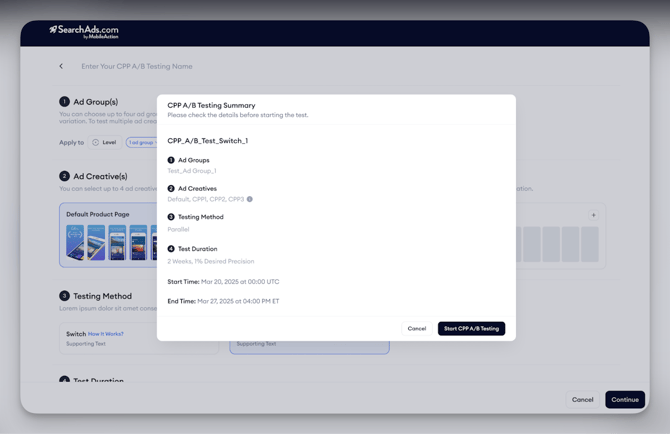
When the test ends (or is stopped early), the system automatically pauses the test variants and reactivates your original ad groups, including their previous automation strategies.
After you finish
Once your test is running, you can track its progress immediately.
- Navigate back to the CPP A/B Testing dashboard.
- Locate your test in the list to see its status (Running, Completed, Stopped) and its start/end dates.
- Click on the arrow in each line to monitor performance metrics such as Impressions, TTR, and CR. You can switch between table and chart view and review the test log for event history.
To learn more about monitoring, check out How do you monitor and interpret tests in CPP A/B Testing
Related links
- What is the Parallel method in CPP A/B Testing
- How traffic stabilization works in CPP A/B Testing
- What are the requirements and limits for CPP A/B Testing
- How do you monitor and interpret tests in CPP A/B Testing
Need more help?
If you have further questions on the process, contact your dedicated Customer Success Manager or contact the support team via live chat!