
The Performance Comparison tab in Keyword Inspector lets you enter up to five keywords and compare their volume history trends and Share of Voice data side by side, so you can see how terms stack up against each other before deciding which ones to prioritize.
If you want to analyze a single keyword in depth first, go to Analyze keyword metrics with Keyword Analysis.
Before you start
Performance Comparison works with any keywords you type in, you do not need to have them tracked in your account.
You can compare up to five keywords at once. Select the correct store and storefront using the toggles and country selector at the top right before entering keywords. If you are working with a non-English storefront, turn on the Translation (EN) toggle to display keyword text in English.
How to use it
1. Open Keyword Inspector and click the Performance Comparison tab. 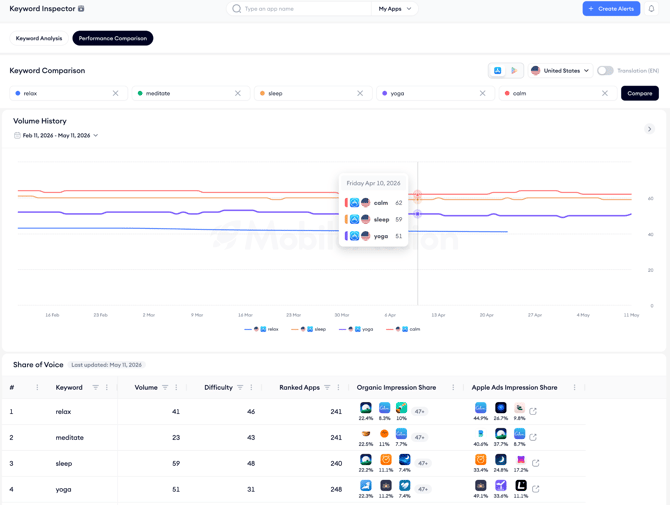
3. Click Compare. The Volume History chart and Share of Voice table load for all entered keywords.
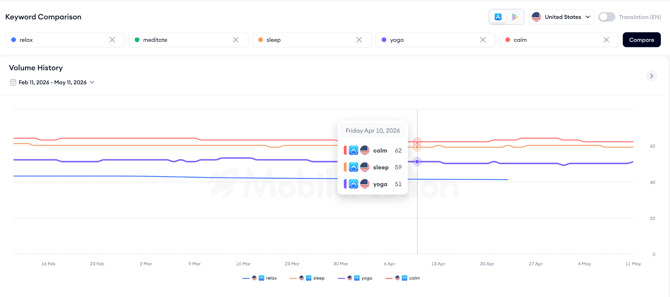
4. Review the Volume History chart. Each keyword appears as a separate color-coded line. Use the date range picker to adjust the time period. Hover over any point on the chart to see the exact volume value for each keyword on that date. Use this to compare whether keywords are trending in the same direction or diverging over time.
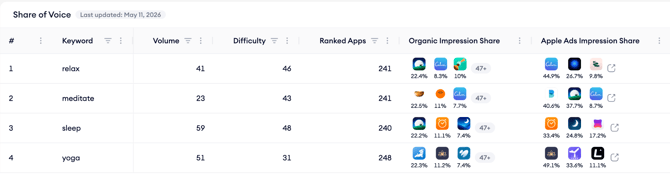
7. To remove a keyword from the comparison, click the X on its input field and click Compare again to refresh the results.
After you finish
Once you have identified the strongest keywords from your comparison, add them to Keyword Tracking to monitor your ranking progress over time. Go to Add keywords to Keyword Tracking to get started. If you want to dig deeper into any individual keyword's organic search results and category data, go to Analyze keyword metrics with Keyword Analysis.
Related links
Need more help?
If you have further questions on the process, contact your dedicated Customer Success Manager or contact the support team via live chat.