
Organic CPP Results lets you view any app's organic custom product page data, not just your own.
Switching to a competitor in the CPP by App view shows you which custom product pages they are running in organic search, which keywords are triggering them, and how long those pages have been active.
This article explains how to use the competitor view and what to look for. To understand the full scope of the tool before you start, see About Organic CPP Results.
Before you start
Competitor data in Organic CPP Results is available for any app on the App Store. You do not need to have the app tracked or integrated.
The view shows one competitor at a time and uses the same country, device, and date range filters as the rest of the tool.
Switch to a competitor's app
When you have an app open in the CPP by App view, the row of app icons below the app header shows the competitors associated with that app. Each icon represents a competing app.
1. Click the circle next to a competitor's app icon. The table updates to show that competitor's custom product pages for the country, device, and date range you currently have selected.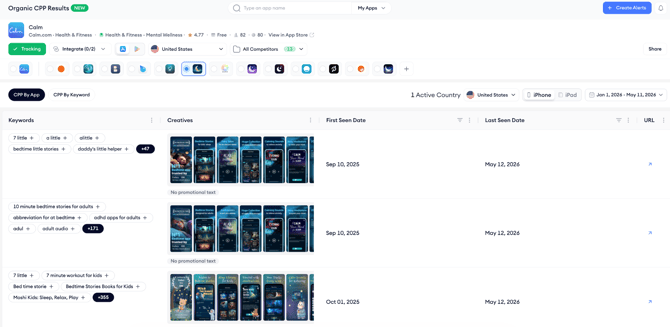
2. To return to your own app, click the circle next to your app's icon.
Note: Each competitor is viewed separately. The table shows one app at a time.
What to look for
The same columns apply as in the standard CPP by App view: keywords, creatives, first and last seen dates, and a link to the live App Store page.
The goal is to understand the competitor's custom product page strategy, which keywords they are targeting organically, what creative approaches they are using, and whether their pages are new or long-running.
First Seen Date tells you when a custom product page first appeared in organic search for this competitor within your selected period. A recent first seen date on a high-volume keyword suggests the competitor has recently launched or refreshed a page for that term. A page with an old first seen date and a recent last seen date has been consistently active, which indicates it is working well enough to keep running.
Keyword chips show which search terms are triggering each competitor page. If you see a high-volume keyword in a competitor's keyword column that you are not targeting with a custom product page, that is a gap worth evaluating. Click the chip to add that keyword to your tracked keywords list.
Creatives gives you a preview of the screenshots the competitor is using for each page. Combined with the keywords driving that page's appearances, this tells you how they are positioning the app for specific search intents.
Clicking the URL arrow opens the live App Store page so you can see the full experience.
Compare across storefronts
Competitors often run different custom product pages in different markets. Switch the country selector to see how a competitor's custom product page strategy varies by storefront.
A page that is active in one market but not another may indicate localization differences or market-specific testing.
After you finish
If you found keywords where a competitor is running custom product pages and you are not, use the CPP by Keyword view to see how many other apps are doing the same.
That gives you a fuller picture of how competitive a keyword is from a custom product page standpoint.
If a competitor's creative approach gives you ideas for your own pages, start by checking whether those keywords are already triggering any of your existing custom product pages. See Analyze custom product page performance by app.
Related links
Need more help?
If you have further questions on the process, contact your dedicated Customer Success Manager or contact the support team via live chat.