
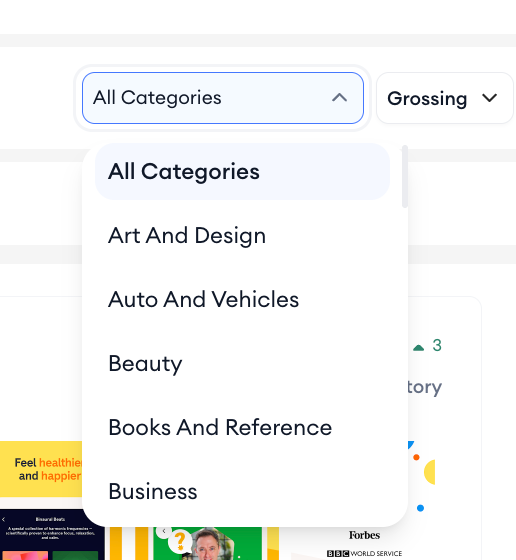
The Creatives by Category view in Creative Monitoring shows icons and screenshots from across the App Store and Google Play Store, so you can scan design trends, filter by category and see how apps in your market present themselves visually.
If you need to compare specific apps side by side instead, go to Compare competitor creatives by app.
Before you start
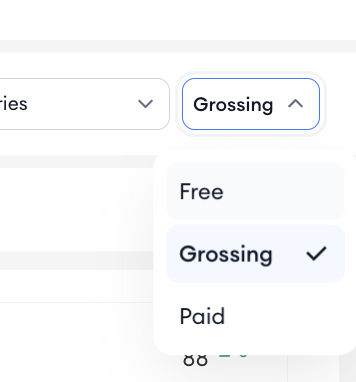
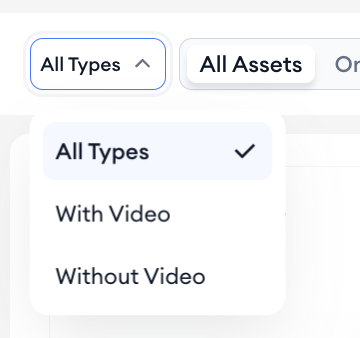
Creatives by Category loads all categories and all asset types by default when you open the tool. You do not need to select an app or have any tracked keywords to use this view. All filters can be combined freely to narrow the results to the segment you want to research.
How to use it
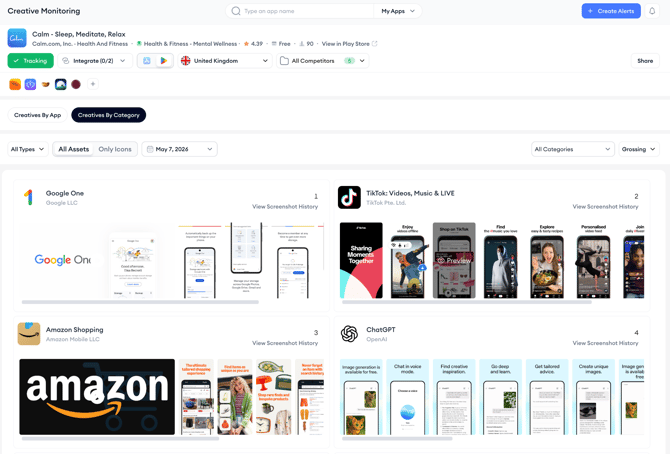
6. Use the date picker to set a specific date. The gallery updates to show creatives as they appeared on that date, so you can study how designs have changed over time. Click Today to return to the most recent data, then click Apply to confirm your selection.
7. Browse the gallery. Each app shows its icon and screenshots alongside its rank in the selected category. Click any creative to open a larger preview for a closer look.
8. To see more details about a specific app, click the app's name or icon. This takes you to that app's profile page in the MobileAction platform, where you can view additional performance data.
After you finish
If you want to go deeper on a specific app's creative history, use App Update Timeline to see how their screenshots and icons have changed across versions. If you want to save specific creatives for future reference, go to Create and manage creative collections.
Related links
Compare competitor creatives by app
Track app version updates with App Update Timeline
Need more help?
If you have further questions on the process, contact your dedicated Customer Success Manager or contact the support team via live chat.