
The CPP by App view in Organic CPP Results shows you every custom product page your app is displaying in organic App Store search, the keywords driving those appearances, and when each page was first and last seen. This article explains how to use the view and how to act on what you find.
To understand what CPP by App tracks and how it relates to the rest of the tool, see About Organic CPP Results.
Before you start
Organic CPP Results is available in the ASO Intelligence. No integration with App Store Connect is required to view your app's organic CPP data.
The view shows data for one storefront at a time. The country selector at the top controls which market's data is displayed. The Active Countries label next to it tells you how many storefronts have data for the app you are viewing.
The device toggle filters between iPhone and iPad results independently.
The date range controls the visibility window. First Seen Date and Last Seen Date reflect observations within the period you have selected.
Open the CPP by App view
1. Open Organic CPP Results from the ASO Intelligence section in the navigation menu.2. The tool opens in CPP by App by default. If you are on the CPP by Keyword tab, click CPP by App to switch.
3. Type your app name in the search bar at the top of the page and select it from the results. To switch between tracked apps quickly, use the My Apps dropdown.
Read the results table
Each row in the table represents one custom product page.
The table shows the keywords driving that page's organic appearances, a preview of the page's screenshots, the first date it appeared in organic search within the selected period, the last date it was seen, and a link to the live App Store page.
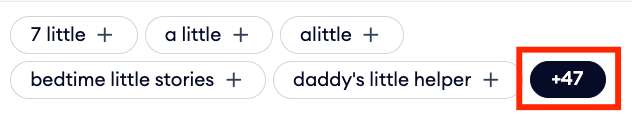
The Keywords column shows up to five keyword chips per row. Each chip displays the keyword and its search volume score. If a page is appearing for more keywords than fit in the row, a badge shows the remaining count. Click the “+number” to open the full keyword list for that page.
The URL arrow icon opens the App Store page for that custom product page directly, so you can preview the live storefront experience.
If a row shows No promotional text below the creatives preview, the custom product page does not include promotional text. This is expected and does not indicate missing data.
Work with the full keyword list
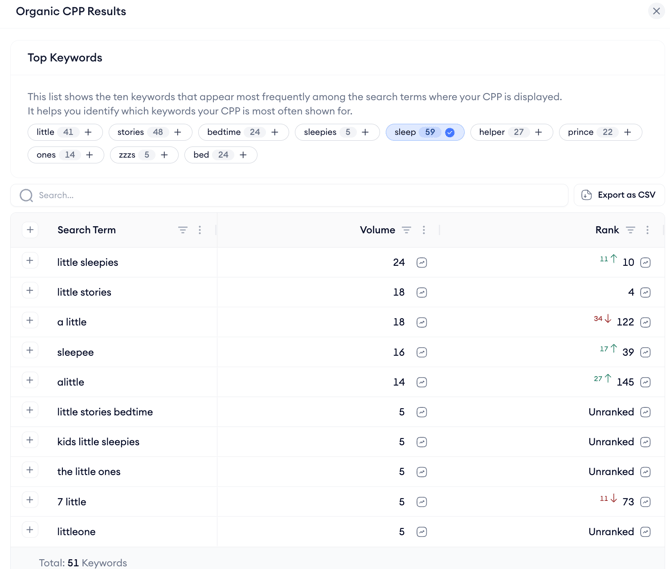
Clicking the “+number” count badge on any row opens a panel showing all keywords associated with that custom product page.
The panel lists each keyword's search volume score and the app's current organic rank for it. You can search within the panel to find a specific term and export the full list as a CSV.
The top of the panel shows the ten most frequent keywords as chips. Clicking any chip (either in the panel or directly in the table row) adds that keyword to your tracked keywords list. You can do this without leaving the Organic CPP Results view.
After you finish
If you identified keywords for which a custom product page consistently appears, adding them to your tracked keywords list lets you monitor their volume and ranking trends over time in the keyword tracking views in ASO Intelligence.
If you found creative patterns worth acting on, use the competitor view to see whether other apps are running similar pages for the same keywords. See Compare competitor custom product page strategies.
Related links
Need more help?
If you have further questions on the process, contact your dedicated Customer Success Manager or contact the support team via live chat.