
Advanced filters help you build more complex filter logic in Ads Manager, including multi-level comparisons, grouped conditions, and AND/OR operators.
https://www.loom.com/share/ca087aadd1f442aeb3cc3dea2bcc83f6
Before you begin
- Advanced filters support complex setups, such as:
- Defining conditions across different levels (for example, campaign, ad group, keyword)
- Grouped logic like (TTR > 10% AND CR > 5%) OR Installs > 50
- Comparing metrics across levels (for example, Keyword Spend > 90% of Campaign Spend)
If you want to filter by changes over time, see Trend filters: filter by changes over time.
Open advanced filters
- In Ads Manager, open the Filters dropdown.
- Select Create Advanced Filter.
-png.png?width=2867&height=2157&name=searchads-mobileaction-co_dashboard_campaigns%20(5)-png.png)
Understand the default logic
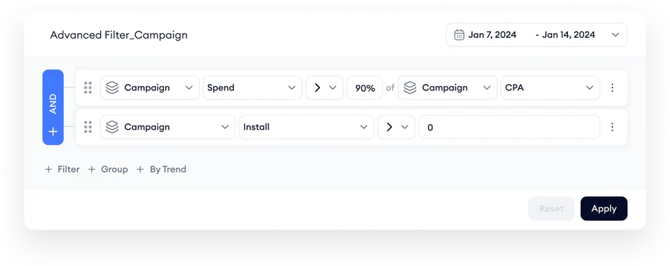
If you open advanced filters without selecting anything beforehand, Ads Manager applies this default logic:
- “Current Level” Spend > 90% of “Current Level” CPA
- AND “Current Level” Installs > 0
You can modify this logic, add groups, change levels, and save your setup.
Build your filter logic
In the builder, each condition appears as a separate line. Use the dropdowns to switch:
- levels, metrics, operators, and date comparisons
Add conditions, groups, and trends
Use these buttons to build layered logic:
- + Filter: Adds a new metric-based condition at the same level (example: Impressions > 100).
- + Group: Creates a sub-group of filters. This is useful for nested logic, like (TTR > 10% AND CR > 5%) OR Installs > 50.
- + By Trend: Adds a filter based on changes over time, inside your advanced filter logic (similar to the standard Trend Filters tab).
If you need help with trend logic and time comparisons, see Trend filters: filter by changes over time
Compare metrics and values
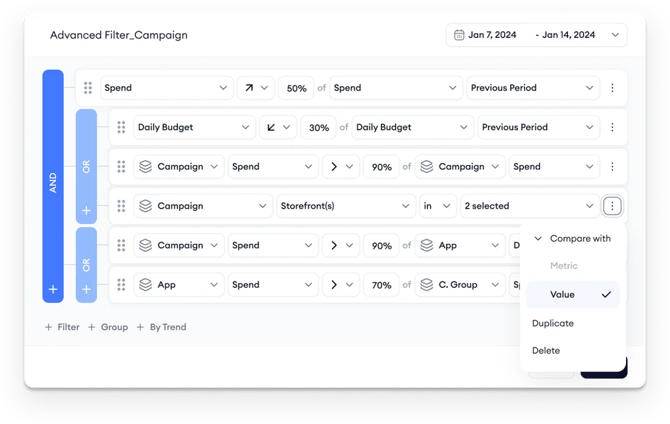
Some filters let you compare one metric or value against another. This option is under the Compare with menu (3-dot icon).
Examples and rules:
- Example: Keyword Spend > 90% of Campaign Spend
- Only compatible metrics can be compared (for example, money vs money, ratio vs ratio).
- If a comparison isn’t supported, a tooltip explains why.
- Note: A filter using trend or goal data can become inactive if the compare switch is turned off or if the goal is removed.
If an option is disabled and you’re not sure why, see Eligibility, limitations, and tooltips for advanced filters.
Reset your filter
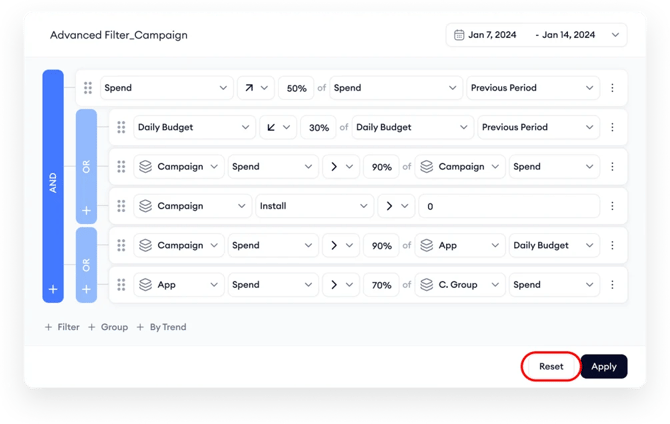
- Reset restores the default filter conditions for the current level.
- If you haven’t added any custom filters yet, Reset is inactive.
Save your setup for reuse
You can save any advanced filter setup for future use:
- Save updates the existing saved filter with your new logic or name changes.
- Save As creates a new copy based on your current configuration (useful to branch without overwriting).
%20copy-png.png?width=2859&height=2206&name=searchads-mobileaction-co_dashboard_campaigns%20(5)%20copy-png.png)
Saved filters appear under Saved Filters in the dropdown, so you can reapply them without rebuilding.
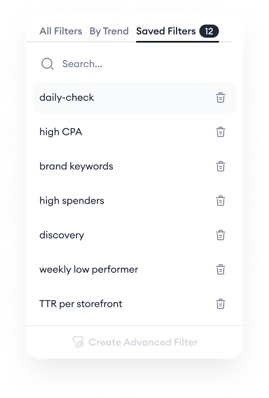
Saved filters are account-level and visible to other users in the same account.
To learn more, see Save, reuse, and delete filters.
Related links
Need more help?
If you’re unsure how to structure your filters or want to confirm they align with your campaign goals, reach out to your Customer Success Manager or start a conversation via live chat from the platform.