
The Similar Apps tab shows every app recommended in the “You May Also Like” section on the App Store or the “Similar Apps” section on Google Play Store under your product page.
Use it to track who you are being compared with and how those recommendations change across markets and over time.
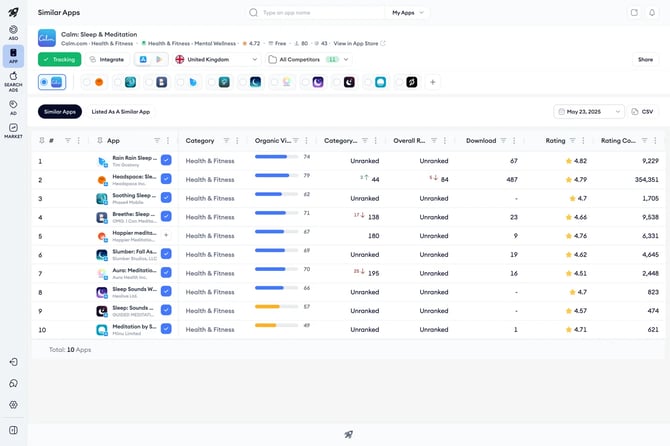
Open the view
- Open Similar Apps from the App Intelligence menu.
- Select your app, or choose one from the My Apps dropdown.
- Make sure the Similar Apps tab is selected at the top of the page.
- Use the App Store and Google Play Store toggle in the top bar to choose which store’s recommendations to view.
Read the table
Each row represents one app shown as similar under your product page. Columns include:
- App: The recommended app and its developer.
- Category: The App Store or Google Play Store category the recommended app belongs to.
- Organic Visibility: A score reflecting how visible the recommended app is across the store.
- Category Ranking: The recommended app’s rank within its category, with arrows showing recent movement.
- Overall Ranking: The recommended app’s rank across all categories, with arrows showing recent movement.
- Rating: The recommended app’s average rating.
- Rating Count: The total number of ratings the recommended app has received.
Set the region and date
- Open the country selector in the top bar and pick the storefront you want to analyze.
- Open the date picker at the top right and select the date you want to view.
- The table reloads with the similar apps shown under your product page in that market on that day.
Switch between tracked apps
Use the radio toggles below the app information section to switch which app’s similar apps you are viewing. Click the plus button to add a competitor to the toggle row.
Export the data
- Apply any country, date, and store selections you want included in the export.
- Click Export as CSV above the table.
- The CSV downloads to your device with the current view of the table.
Related articles
Need more help?
If you have further questions or run into any issues, reach out to your dedicated Customer Success Manager or contact the support team via live chat.