
In this article, we provide step-by-step instructions on how to integrate MobileAction with Okta using the OpenID Connect (OIDC) with Proof Key for Code Exchange (PKCE) flow.
What you need for the integration
To set up Single Sign-On (SSO) with Okta, you need to have an active Okta account and "Admin" access to the Okta dashboard.
Step-by-step integration
1. Create a new application in Okta
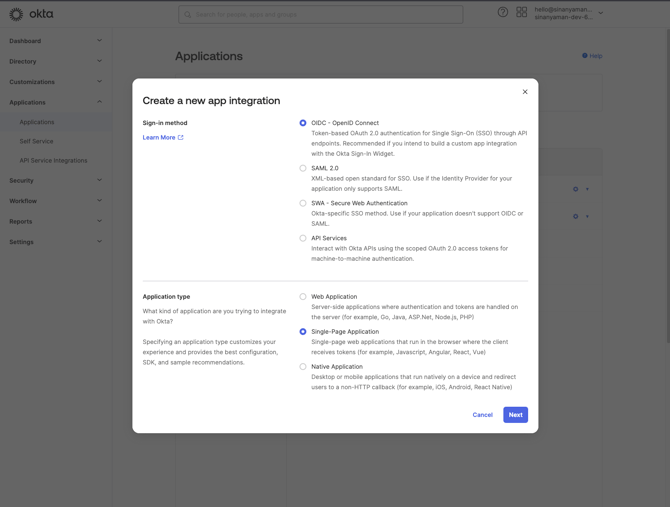
Start by logging in to your Okta dashboard. Then navigate to the Applications tab and click on Create App Integration. In this section, you need to choose the OIDC - OpenID Connect as the sign-in method. For the Application type, select Single-Page Application and then click Next.
2. Configure application settings
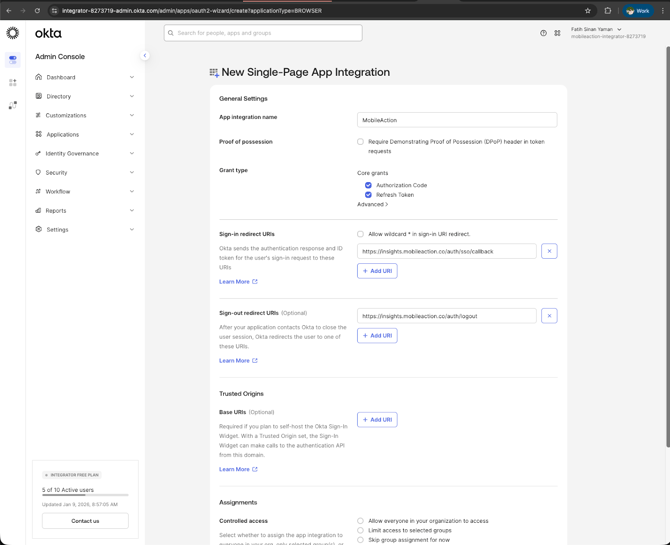
In this section, you need to start by providing a name for your application. After you give a name to your app, scroll down to the Grant type section and check the Authorization Code and Refresh Token checkboxes.
Then continue by entering MobileAction's redirect URI under the Sign-in redirect URIs,;
3. Configure universal logout endpoint (Optional)
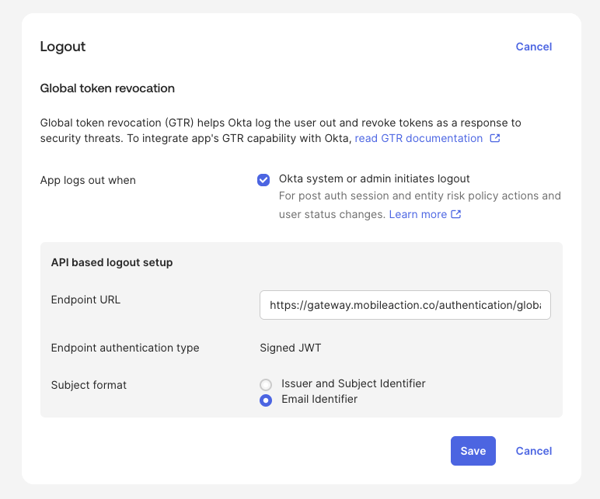
After saving the form and creating the application, you can enter the universal logout endpoint under the Logout heading. This is optional.
Endpoint URL: https://gateway.mobileaction.co/authentication/global-sign-out
4. Save and retrieve credentials
After you added the redirect URIs, click Save to create the application. Once the application is created, make sure to note down the Client ID from the General tab of your application.
4. Enable SSO on SearchAds.com
If you already enabled SSO on the MobileAction platform, you don’t need to take any action. SSO setup is shared between the MobileAction platform and the SearchAds.com platform by design. Turning it on in one place applies it everywhere, keeping access rules aligned and easier to manage across teams.
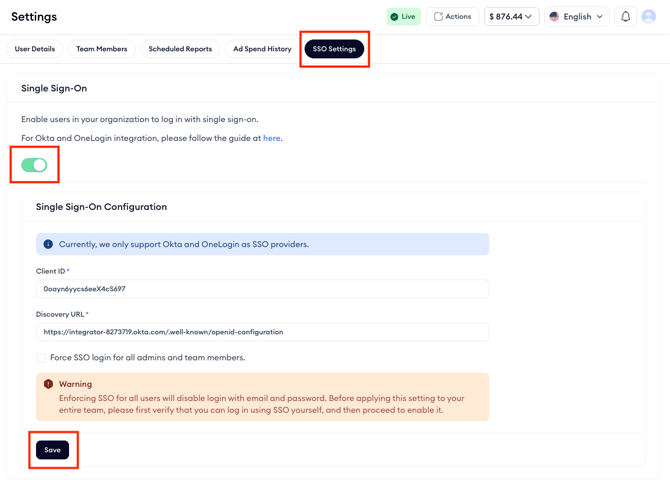
If you're only a SearchAds.com user, log in to your SearchAds.com account and go to Settings > Single Sign-On. Keep in mind that you need to have Admin access to be able to enable SSO.
Follow the steps below to enable SSO on SearchAds.com:
-
Switch the Single Sign-On toggle on.
-
Fill in the Client ID and the Well-Known OpenID Configuration URL (typically in the format https://[your-okta-domain]/oauth2/default/.well-known/openid-configuration) fields.
-
Click on Save to enable the SSO.
If you would like more detailed information on retrieving the Well-Known OpenID Configuration URL, check out this Okta documentation.
For any further questions or need for assistance, don’t hesitate to contact your dedicated Customer Success Manager or get in touch with us via the live chat!