
Integrating your selected MMP with SearchAds.com helps you receive more relevant data for your analysis and connecting it is easier and quicker than you think.
Integrating with Kochava takes just a couple of steps. Let's take a closer look at these steps and how you can complete your integration in minutes.
Getting the API Key from SearchAds.com
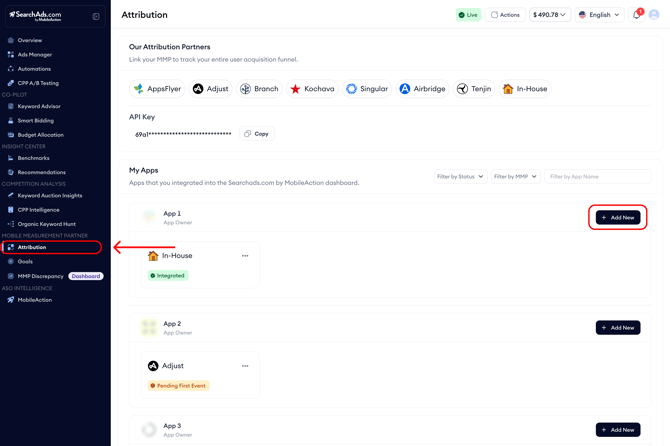
First of all, you need to obtain your API key from the SearchAds.com dashboard. Go to the SearchAds.com platform and locate the “Attributions” section at the end of the dashboard.
You'll find the API Key on this page right when you land on it. Click the “+Add new” button next to the app you have connected with the platform to start the integration process on the platform.
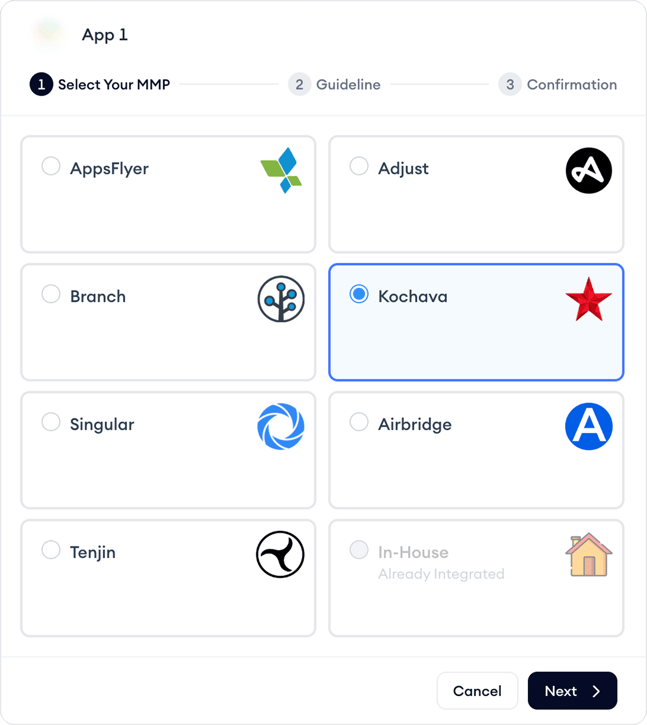
A 3-step pop-up with two steps will appear. Select Kochava from the options listed on the pop-up that appears and click Next.
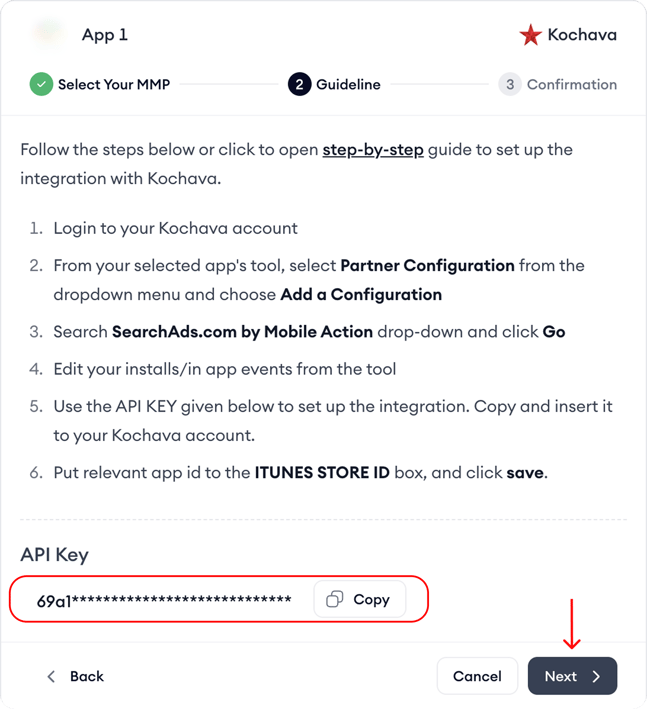
The next pop-up will provide instructions on how to set up the integration and also the API Key you need to use to complete the process.
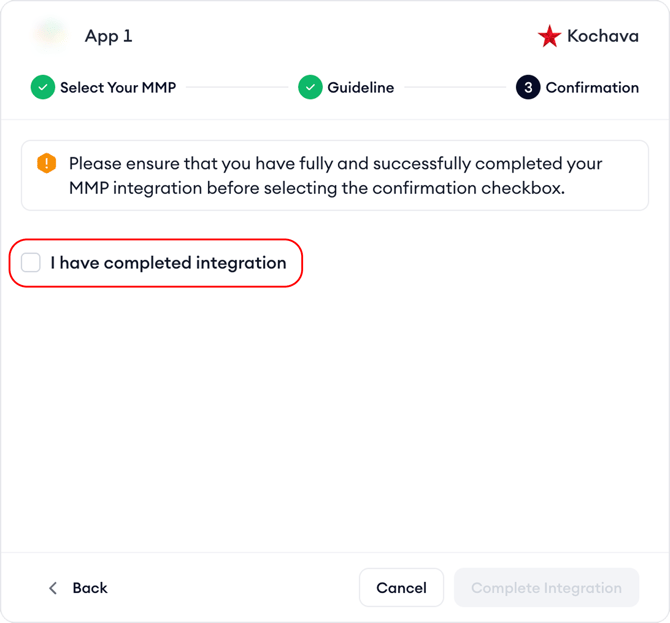
After you complete the integration in Kochava, remember to click on the "I have completed integration" checkbox and click the "Complete Integration" button.
To set up SearchAds.com on Kochava:
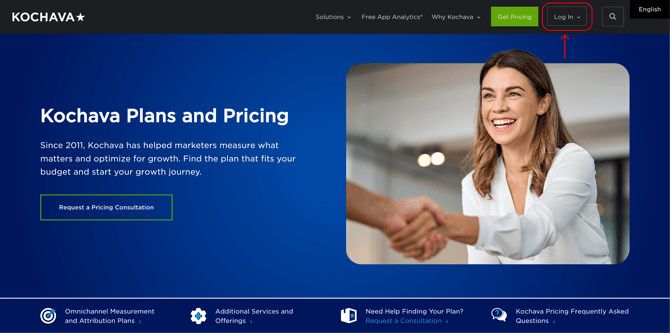
Start by logging in to your Kochava account.
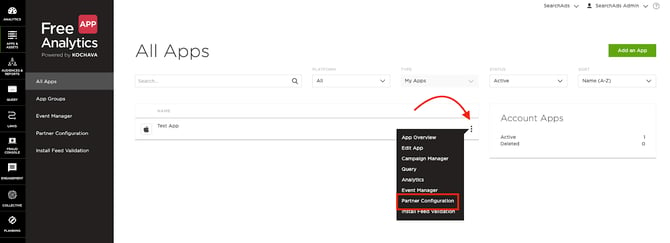
Select the app that you wish to optimize with SearchAds.com and then choose Partner Configuration from the drop-down menu.
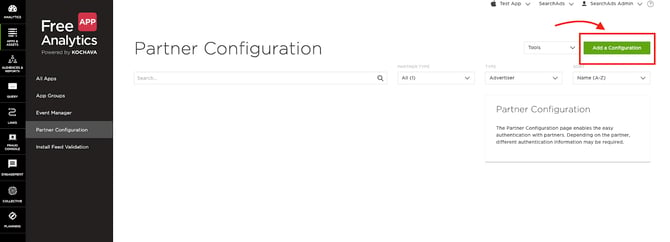
Once you are on the Partner Configuration page, click on Add a Configuration.
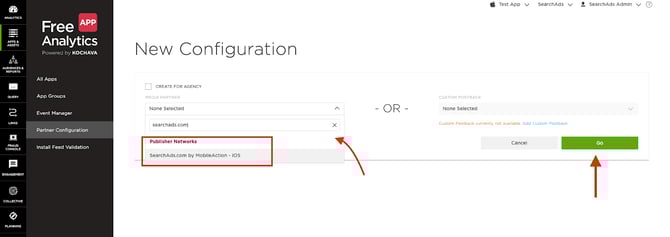
Search for SearchAds.com by MobileAction, select and click Go.
Configuring in-app event postbacks
After being redirected, click on the 3 dots on the right and choose Edit for the event listed. (Ex: Install)
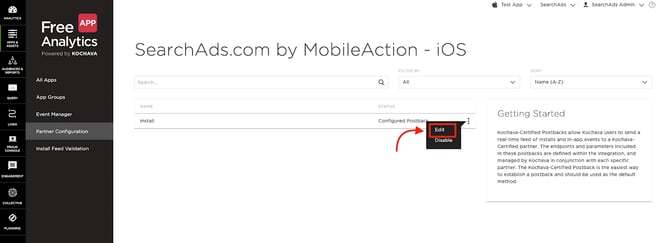
You need to repeat this step for every event you'd like to forward to SearchAds.com, especially if you wish to see any in-app events.
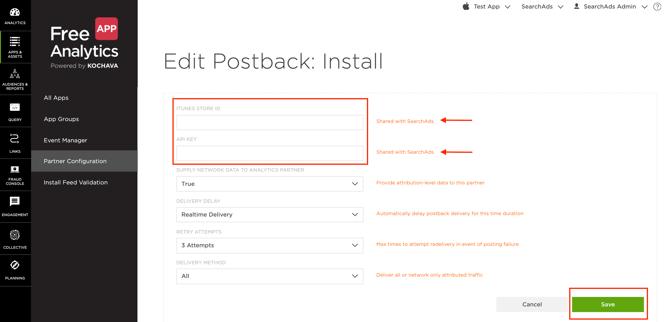
Fill in the following information to finish your configuration;
APP ID: This is the ID of your app in App Store Connect. You can find it by looking at the URL link.
API Key: API Key that you copied from SearchAds.com.
SUPPLY NETWORK DATA TO ANALYTICS PARTNER: True
DELIVERY DELAY: Real-time delivery
RETRY ATTEMPTS: 3 Attempts
DELIVERY METHOD: All
Once you’ve filled in the necessary information, click Save.
Congratulations! You’ve successfully integrated Kochava with SearchAds.com for your app.
Remember to repeat each of these steps for every app you want to integrate.
Once your events start flowing, you will be notified by email.