
Integrating your selected MMP with SearchAds.com is a breeze! You can do it in a couple of simple steps. Let's look into how you can complete the process within minutes.
Getting the API Key from SearchAds.com
First of all, you need to obtain your API key from the SearchAds.com dashboard. Go to the SearchAds.com platform and locate the “Attributions” section at the end of the dashboard.
You'll find the API Key on this page right when you land on it. Click the “+Add new” button next to the app you have connected with the platform to start the integration process on the platform.
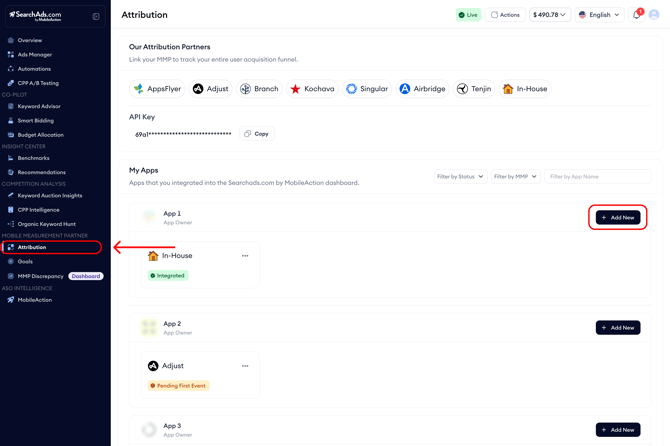
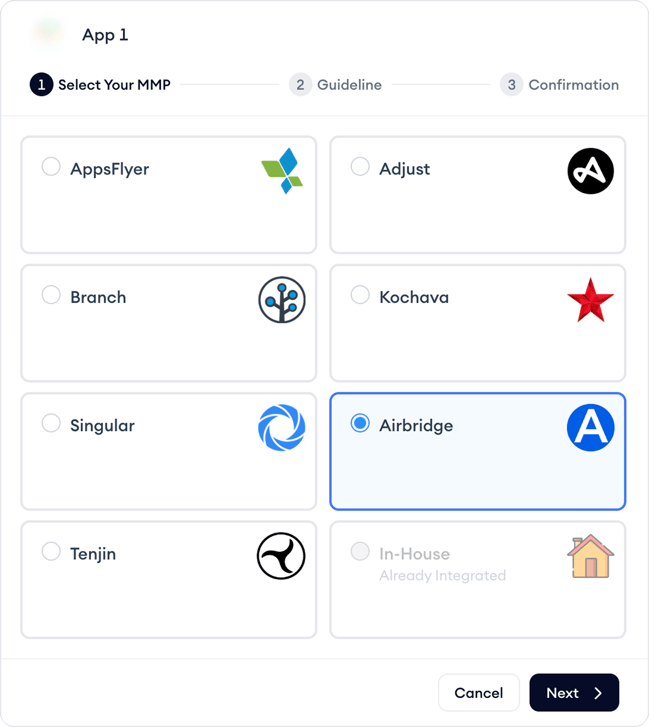
Then, select your MMP partner from the options listed on the pop-up that appears and click Next.
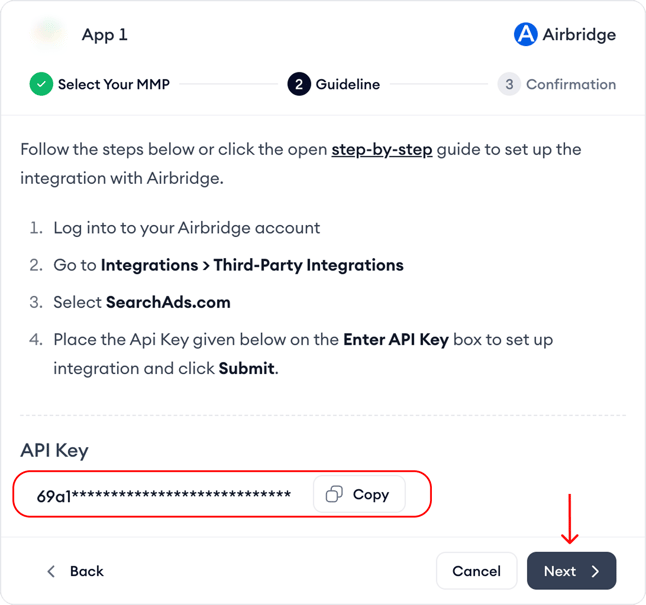
The next pop-up will provide instructions on how to set up the integration and also the API Key you need to use to complete the process.
Entering the API Key on Airbridge
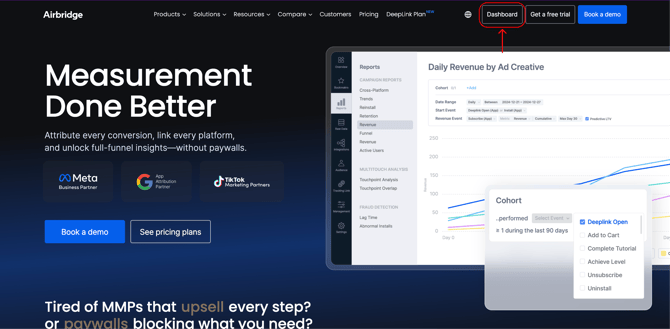
Log in to your Airbridge account by clicking on Get Started.
Under Integrations, select Third-Party Integrations and SearchAds.com.
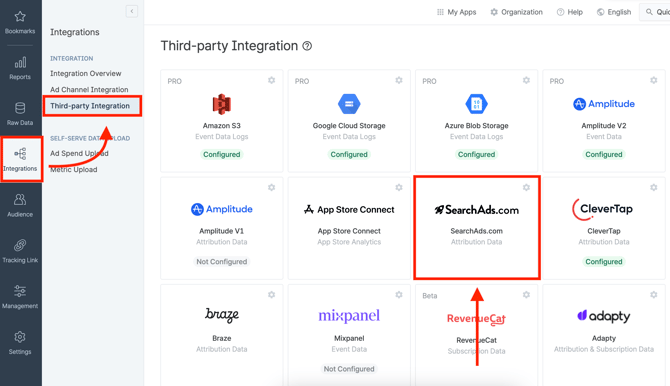
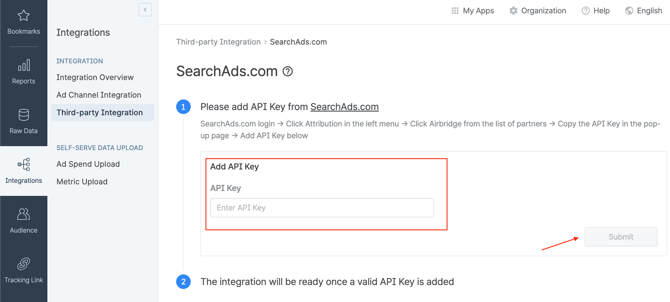
Copy the API Key and place it into the configuration window on Airbridge in the Enter API Key field, then click Submit.
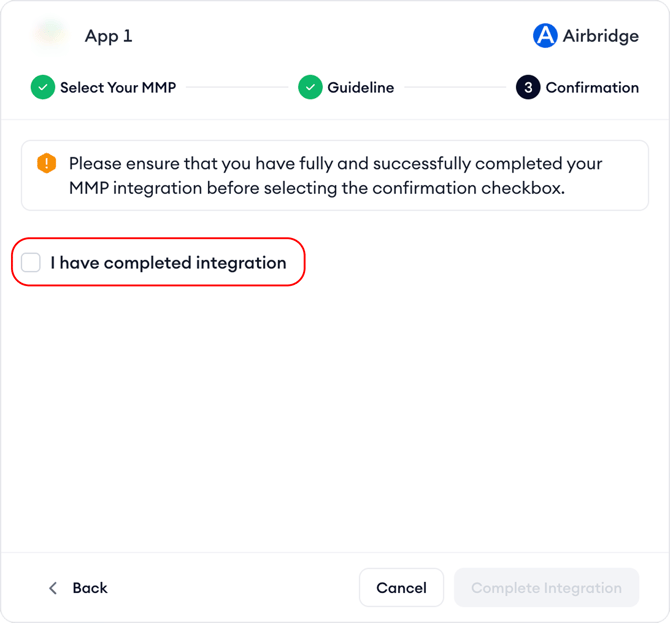
After completing the process on Airbridge, please confirm that you completed the integration. As soon as in-app events start coming through Airbridge, you will also be able to see them on the SearchAds.com dashboard.
Remember to repeat these steps for every app you want to integrate.
Once your events start flowing, you will be notified by email.