
Use Analytics Overview to review your connected app’s downloads, revenue, organic performance, conversion funnel overviews, and total ranked keywords from one dashboard.
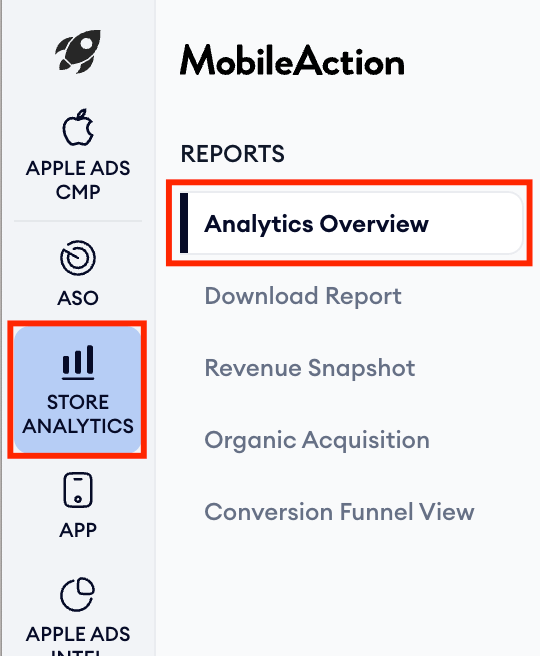
Analytics Overview is available under Store Analytics > Analytics Overview.
Before you begin
Before you begin, make sure your app is connected through at least one of these integrations:
- How to integrate your App Store Connect account for Analytics & Performance reports
- How to integrate your Google Play Console account for Analytics & Performance reports
- Apple Ads integration
After the integration is complete, your eligible apps appear automatically for selection.
Data availability depends on your integration type and the selected store.
Instructions
To open Analytics Overview, go to:
Store Analytics > Analytics Overview
1. Select an app
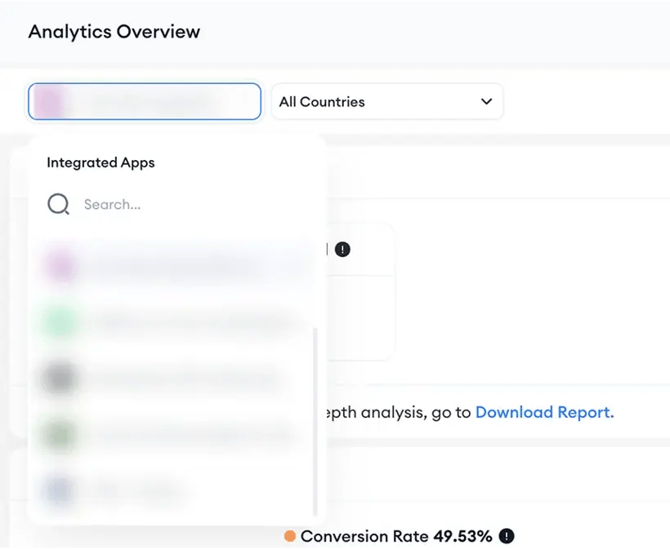
Use the app selector at the top of the page to choose the app you want to review.
The app selector shows your integrated apps. You can search for an app by name, then select it from the list.
Apps may show App Store or Google Play Store icons depending on the connected store source.
2. Select countries
Use the country filter to choose the countries you want to include in the analysis.
By default, the dashboard may open with All Countries selected. You can keep this view or narrow the dashboard to specific countries.
3. Select a date range
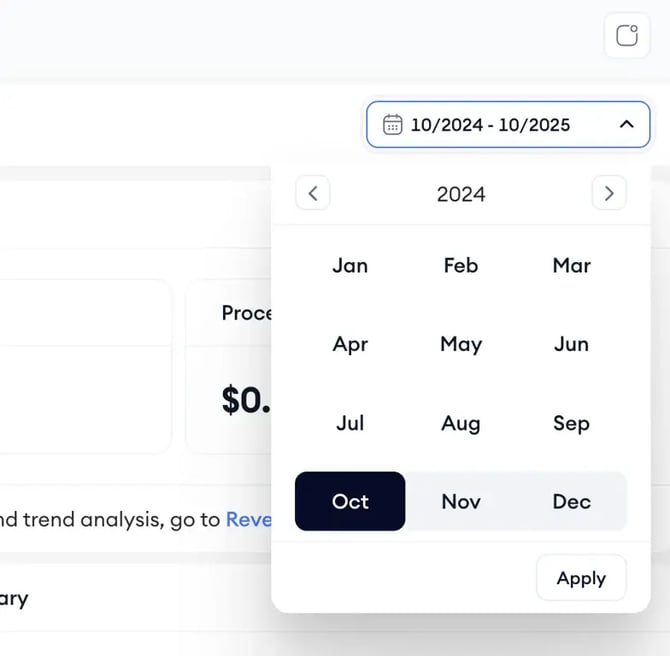
Use the date range selector in the top-right corner to choose the period you want to analyze.
After you change the app, country, or date range, the dashboard updates based on your selected filters.
4. Review Download Overview
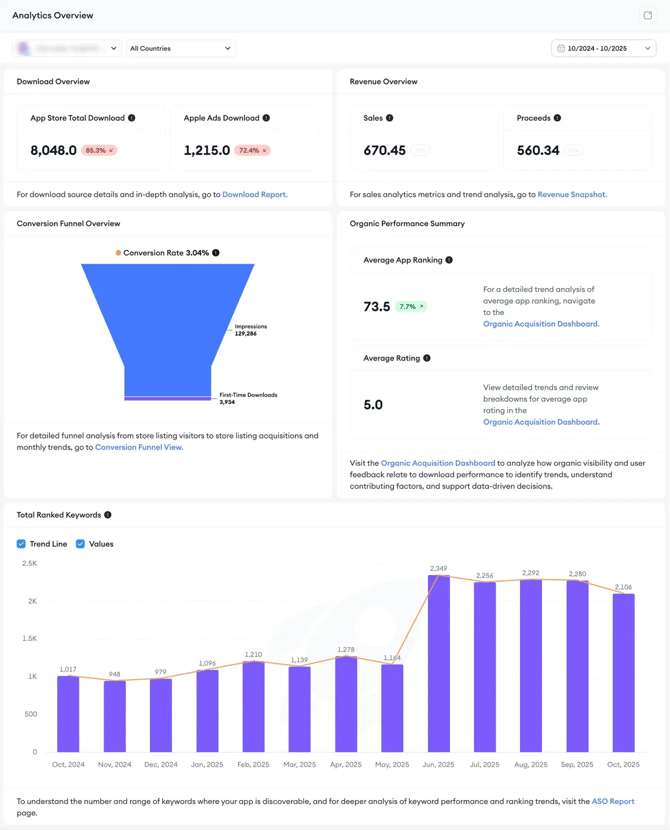
The Download Overview section shows download performance for the selected app, countries, and date range.
The metrics shown depend on the selected store and connected integrations.
|
Store or integration |
Metrics you may see |
|
App Store |
App Store Total Download |
|
Apple Ads |
Apple Ads Download |
|
Google Play Store |
Google Play Store Total Download |
To review download source details and deeper download trends, go to Download Report.
When Apple Ads data is connected, you can also review campaign performance in the Apple Ads Campaign Management Platform.
5. Review Revenue Overview
The Revenue Overview section shows revenue-related performance for the selected app and filters.
Metric names may change depending on the selected store.
|
Store |
Metrics you may see |
|
App Store |
Sales, Proceeds |
|
Google Play Store |
Revenue, Proceeds |
To review detailed revenue trends, go to Revenue Snapshot.
6. Review Conversion Funnel Overview
The Conversion Funnel Overview section shows how users move through key acquisition steps.
The funnel labels may change depending on the selected store and available data.
|
Store |
Funnel metrics you may see |
|
App Store |
Impressions, First-Time Downloads |
|
Google Play Store |
Store Listing Visitors, Store Listing Acquisitions |
The section also shows the conversion rate when the required funnel data is available.
To review detailed funnel performance and monthly trends, go to Conversion Funnel View.
7. Review Organic Performance Summary
The Organic Performance Summary section shows organic visibility and rating signals for the selected app.
This section includes:
|
Metric |
What it shows |
|
Average App Ranking |
Your app’s average ranking across ranked keywords |
|
Average Rating |
Your app’s average star rating, when available |
To review detailed ranking and rating trends, go to Organic Acquisition Dashboard.
8. Review Total Ranked Keywords
The Total Ranked Keywords chart shows how many keywords your app ranked for during the selected period.
You can use the chart options to show or hide:
|
Option |
What it does |
|
Trend Line |
Shows the keyword ranking trend across the selected period |
|
Values |
Shows keyword count values on the chart |
To review deeper keyword performance and ranking trends, go to ASO Report.
9. Create alerts
Use the Create Alerts button in the top-right corner to create alerts for important performance changes.
Alerts help you monitor changes without checking the dashboard manually every day.
Related links
- About Analytics Overview
- Understand Analytics Overview metrics
- Revenue Snapshot Overview
- Organic Acquisition Dashboard Overview
- How to integrate your App Store Connect account for Analytics & Performance reports
- How to integrate your Google Play Console account for Analytics & Performance reports
Need more help?
If you have questions about Analytics Overview, contact your Customer Success Manager or reach the support team through live chat.