
The Direct Comparison tab in Competitor Keywords uses a Venn diagram to show how your app's organic keyword set overlaps with one competitor's, so you can see exactly which keywords you share, which are unique to you, and which you are missing entirely.
If you want to compare your app against multiple competitors at the same time instead, go to Compare keyword overlap across multiple competitors.
Before you start
Direct Comparison works with one competitor at a time.
Your own app is selected automatically when you open the tool. You select the competitor using the app selector on the right side of the Venn diagram.
The comparison uses organic keyword data for the selected storefront, so make sure the correct storefront is selected at the top of the page before starting.
How to use it
1. Open Competitor Keywords from the MobileAction platform navigation menu. The tool opens on the Direct Comparison tab by default. 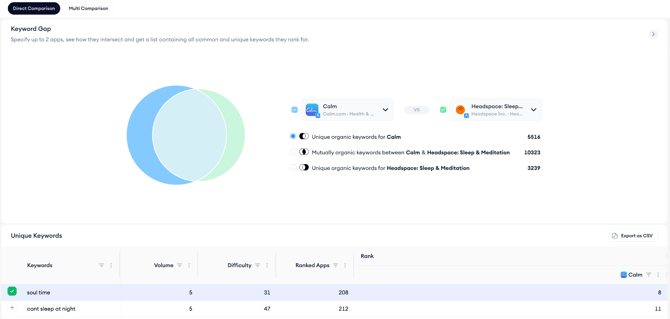
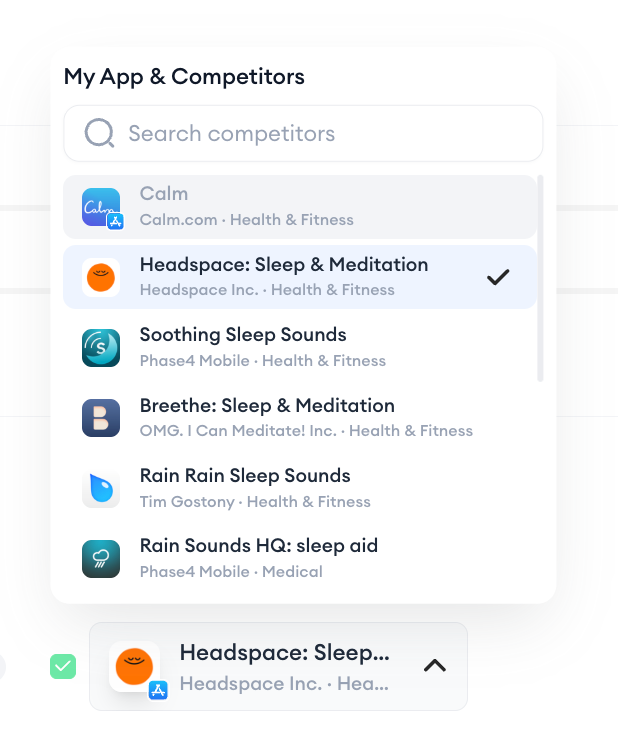
2. Your app appears on the left side of the Venn diagram automatically. On the right side, select the competitor you want to compare against using the app dropdown.
3. The Venn diagram updates to show three segments with keyword counts for each: unique organic keywords for your app, mutually organic keywords between both apps, and unique organic keywords for your competitor. The overlap area in the center represents keywords both apps rank for.
4. Click any of the three segments or their corresponding radio buttons to load that keyword set in the table below the diagram. The table heading updates to reflect which segment you are viewing, for example, Mutual Keywords when you select the shared segment.
5. Review the keyword table. The columns shown depend on the segment you have selected. For unique keywords (either yours or your competitor's), the table shows one Rank column for the app that owns that segment. For mutual keywords, both apps have a Rank column side by side so you can compare your position against your competitor's for every shared term. Volume, Difficulty, and Ranked Apps are shown for all segments.
6. To add a keyword from the table to your Keyword Tracking list, click the plus icon at the left of that keyword's row. The keyword is added to your tracked keywords immediately.
7. To export the keyword table for offline analysis, click Export as CSV at the top right of the table.
After you finish
Focus on the unique competitor keywords segment first; these are terms your competitor ranks for that you do not, and they represent the clearest keyword gaps to investigate. Add the most relevant ones to Keyword Tracking to monitor how your ranking for those terms develops over time. To see how you compare against multiple competitors on the same keyword set, go to Compare keyword overlap across multiple competitors.
Related links
Compare keyword overlap across multiple competitors
Add keywords to Keyword Tracking
Analyze keyword performance with Keyword Inspector
Need more help?
If you have further questions on the process, contact your dedicated Customer Success Manager or contact the support team via live chat.