
Create a budget allocation group to distribute one daily budget across selected Apple Ads campaigns based on CPA, CPI, or CPG performance.
Before you begin
Confirm that:
- Your Apple Ads integration is not read-only.
- The selected campaign group contains an app and at least one Running or On Hold campaign.
- The selected app has a Mobile Measurement Partner (MMP) connection if you plan to use CPI or CPG.
- Your daily budget can meet the minimum required for the campaigns you select.
A campaign cannot be added if it already belongs to another running or paused budget allocation group.
Budget Allocation does not take action on campaigns that contain ad groups under an active CPP A/B Test. If a selected campaign has an automation rule that changes its daily budget or pause status, those actions do not apply while the campaign is managed by Budget Allocation.
To compare KPI requirements before starting, see About Budget Allocation KPIs, goals, and attribution settings.
Start the creation flow
On the main Budget Allocation page, a creation prompt invites you to set a goal and let Budget Allocation distribute your budget.
- Open the Budget Allocation page.
- Select the campaign group you want to use.
- Click Create new budget allocation.
The Create New Budget Allocation page opens.
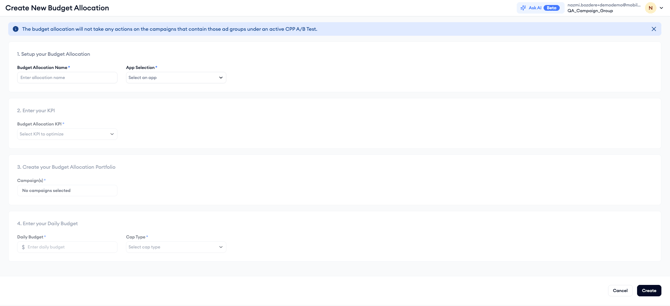
The Create New Budget Allocation page contains four setup sections. If you try to leave by selecting an item in the side menu, you see the below warning:
Are you sure you want to leave this page? You have unsaved changes that will be lost if you leave this page.
Select:
- Stay to continue editing.
- Leave to exit and discard your changes.
The same confirmation appears if you click Cancel after making changes.
The page also shows the following notice:
The budget allocation will not take any actions on the campaigns that contain those ad groups under an active CPP A/B Test.
You can dismiss the notice by clicking X.
Change the campaign group during setup
You can switch campaign groups while creating an allocation group, but doing so resets the form. When you select another campaign group, you see the following warning:
Switching the campaign group will reset all applied changes.
Select:
- Change to switch groups and reset every field.
- Cancel to keep the current campaign group and your existing entries.
After creation, the campaign group used in the form becomes the active campaign group on the main Budget Allocation page.
Complete the four setup steps
The creation form contains four steps:
- Set up your Budget Allocation
- Enter your KPI
- Create your Budget Allocation portfolio
- Enter your daily budget
The first step is available immediately.
Steps 2, 3, and 4 become active after you:
- Enter a Budget Allocation name.
- Select an app.
Step 1: Set up your Budget Allocation
Enter a Budget Allocation Name
Entering a name in the Budget Allocation name field is required to continue building the allocation group.
Select an app
- Open the app selector.
- Select an app from the apps available in the selected campaign group; app selection is required.
Note: If you change the selected app after completing other parts of the form, the other fields reset. Complete them again for the newly selected app.

Step 2: Enter your KPI
Select a KPI
- Open the KPI dropdown.
- Select one option:
- CPA
- CPI
- CPG
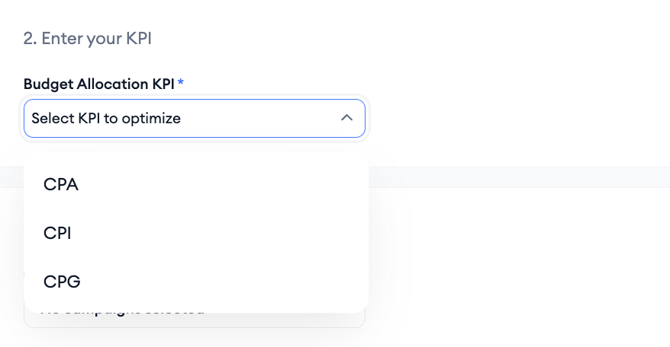
Selecting a KPI is required. If the selected app does not have an MMP connection, CPI and CPG are disabled. Hovering over either option shows the warning:
No attribution partner is connected for this app. Connect one from the attributions page or select a different app.
Configure CPA

When you select CPA:
- The Goal field shows Installs (tap-through).
- The Goal field is read-only.
- Attribution settings do not apply.
Configure CPI
When you select CPI:
- The Goal field shows Attributed Installs.
- The Goal field is read-only.
- Select an Attribution Type.
- Select a Claim Type.
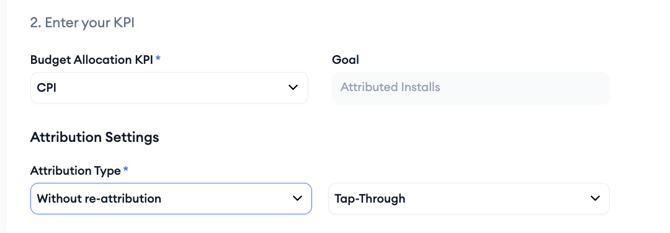
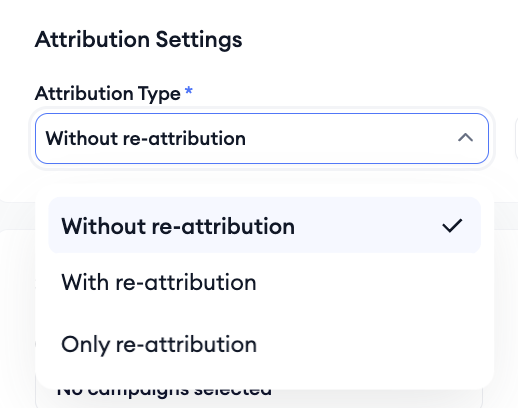
Available Attribution Type options are:
- Without Re-attribution, which is the default
- With Re-attribution
- Only Re-attribution
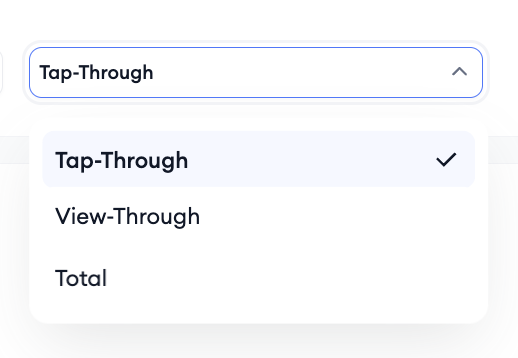
Available Claim Type options are:
- Tap-through, which is the default
- View-through
- Total
Configure CPG
When you select CPG:
- Select a goal from the Goal dropdown.
- If the app does not have a goal, click + Create Goal.
- Select an Attribution Type.
- Select a Claim Type.
- Select a Reporting Time.
- Select an Attribution Delay when available.
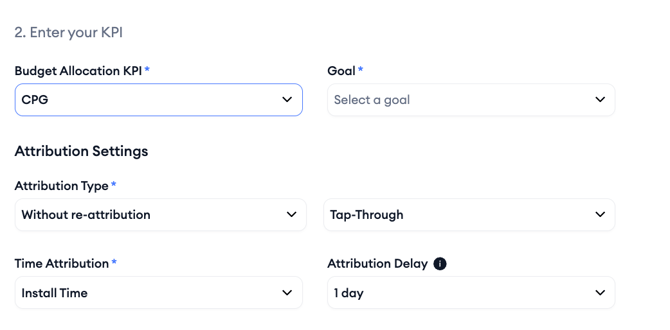
Selecting a goal is required for CPG.
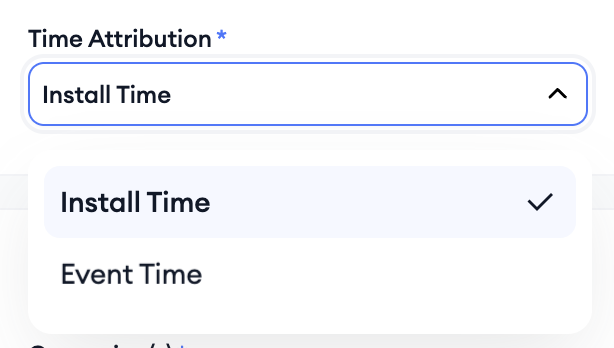
Reporting Time options are:
- Install time, which is the default
- Event time
Attribution Delay options are:
- 1 day, which is the default
- 3 days
- 7 days
- 14 days
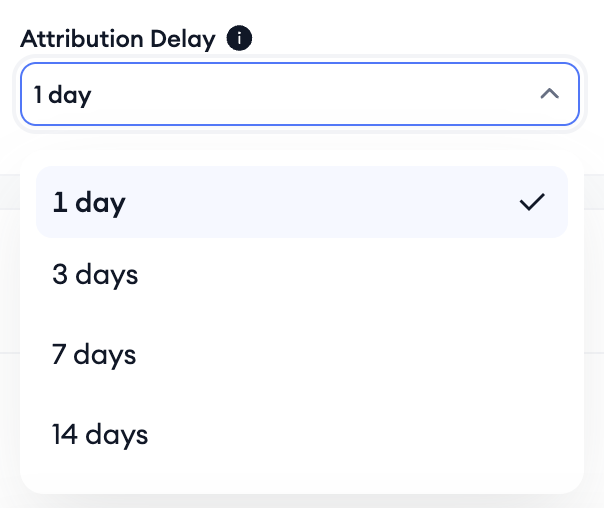
Attribution Delay is available when Reporting Time is set to Install time.
When Reporting Time is set to Event time, Attribution Delay is disabled and set to 1 day. Hovering over the field shows:
The attribution delay cannot be selected in Event time. It will take 1 day by default.
For complete definitions of these settings, see About Budget Allocation KPIs, goals, and attribution settings.
Step 3: Create your Budget Allocation Portfolio
Select the campaigns that Budget Allocation will manage.
- Open the campaign selector.
- Review the campaigns from the selected app and campaign group.
- Select at least one campaign.
The selector shows campaigns with these statuses:
- Running
- On Hold
Paused campaigns do not appear.
You can filter the campaign list by:
- All, which is the default
- Running
- On Hold
A campaign is disabled if it already belongs to another running or paused budget allocation group. Hovering over it shows:
This campaign cannot be selected because it is already in a budget allocation group.
You must select at least one campaign before creating the allocation group.
Step 4: Enter your daily budget
Enter the budget amount
Enter an amount in the daily budget field.

The amount uses the campaign group’s currency, must be greater than 0 and must meet the minimum required for the selected campaigns.
The minimum is calculated by taking the higher of each campaign’s highest Ad Group Default CPT bid and highest Keyword bid, then adding those campaign-level values together.
If your budget is below the required minimum, you see:
The total daily budget cannot be updated. You cannot enter a daily budget that is less than the sum of max Default CPT bids (<default cpt bid amount>).
Increase the amount before continuing.
For the full calculation, see About minimum daily budgets and bid safeguards.
Select a cap type
Select one of the following:
|
Cap type |
Behavior |
|
Daily cap |
Daily ad spend aligns closely with the daily budget. Budget Allocation may pause some campaigns and reactivate them the following day. |
|
Monthly cap |
Over the calendar month, average daily ad spend aligns closely with the daily budget. |
For more information, see About daily and monthly caps.
Create the budget allocation group
You can click Create at any point in the flow. MobileAction then checks the required fields.
Before creation can be completed, confirm that:
- A Budget Allocation name is entered.
- At least one campaign is selected.
- A valid daily budget is entered.
- A goal is selected for CPG.
If a required item is missing or invalid, the allocation group is not created.
High daily budget notice
If the entered daily budget is more than $10,000, or the equivalent amount converted to US dollars, you see:
Daily budget warning: For higher budgets, we recommend consulting with our Customer Success team to ensure optimal performance. Do you want to proceed?
Select Continue to create the allocation group or Cancel to return to the form. Selecting Continue does not otherwise change the creation process.
Existing automation rules
If a selected campaign has an automation rule with a daily budget or pause action, you see:
Selected campaigns already have automation rules: The selected campaigns have automation rules. Once you start budget allocation, automation rules with daily budget or pause actions will not take action for those campaigns. Are you sure you want to continue?
Select Yes, continue to proceed or No, cancel to return to the form. After the budget allocation starts, existing automation rules do not apply their daily budget or pause actions to those campaigns.
Creation results
Successful creation
When the allocation group is created, you see the “The budget allocation is successfully created. The campaign group used during setup remains selected on the main Budget Allocation page.” notice.
To review the allocation group, see View Budget Allocation performance and status.
Operational error
If the allocation group cannot be created because of an API or operational error, you’ll see the “The budget allocation cannot be created. Please try again later.” message.
Read-only Apple Ads integration
If the Apple Ads integration is read-only, you see the following warning:
Your Apple Ads integration is read-only, so you don't have permission to create budget allocation for the selected campaigns.
Budget allocation groups cannot be created for Apple Ads accounts with read-only API access. Read-only API access is a permissions setting on the Apple Ads side.
For more help with creation issues, see Troubleshoot Budget Allocation.
Related links
- View Budget Allocation performance and status
- About Budget Allocation KPIs, goals, and attribution settings
- About daily and monthly caps
- Troubleshoot Budget Allocation
Need more help?
If you have further questions on the process, contact your dedicated Customer Success Manager or contact the support team via live chat.