
Download Report lets you review your app’s download performance across connected sources.
Use it to monitor total downloads, compare organic and paid performance, understand which sources drive downloads, and export data for reporting or analysis.
What Download Report shows
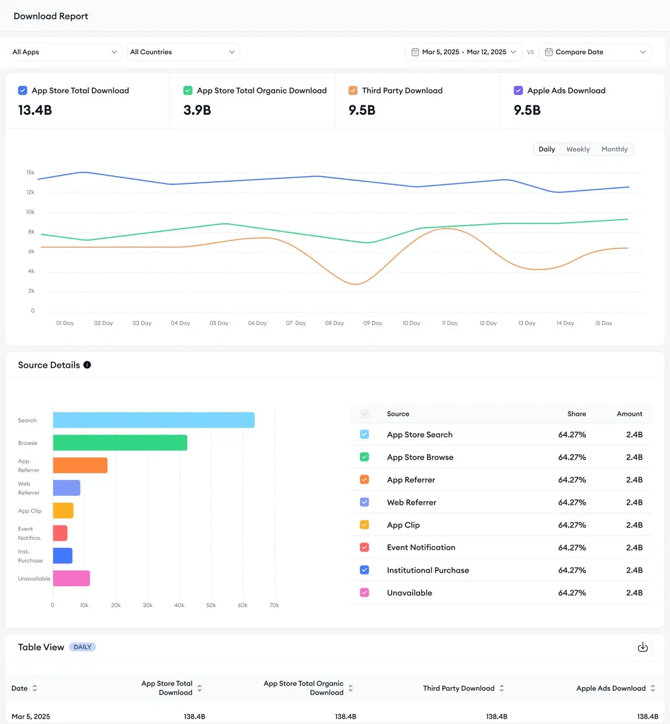
Download Report consolidates download data from connected integrations, including:
The dashboard helps you understand how your downloads are changing over time and which sources contribute to your total performance.
You can use Download Report to:
- Monitor total downloads across organic and paid channels.
- View source-level breakdowns, such as Search, Browse, App Referrer, and Web Referrer.
- Review Apple Ads-attributed installs when Apple Ads is connected.
- Compare performance across two date ranges.
- Segment your analysis by app and country.
- Export data by day, week, or month.
Before you begin
To access the Download Report, you must connect your App Store Connect account.
Other integrations are optional or store-specific, but they affect which data appears in the dashboard.
Keep in mind!
If only Apple Ads is connected, you’ll be prompted to connect App Store Connect.
Dashboard panels
Download Report is split into three main panels. Together, they give you a snapshot of downloads, sources, and daily trends.
Key metrics panel
For App Store apps, the panel can include:
|
Metric |
What it shows |
|
App Store Total Download |
Total App Store downloads |
|
App Store Organic Download |
Downloads from organic App Store sources |
|
Third-Party Download |
Downloads attributed to third-party sources |
|
Apple Ads Download |
Downloads attributed to Apple Ads |
For Google Play Store apps, the panel can include:
|
Metric |
What it shows |
|
Google Play Total Download |
Total Google Play Store downloads |
|
Google Play Organic Download |
Downloads from organic Google Play Store sources |
|
Third-Party Download |
Downloads attributed to third-party sources |
A line graph under the metrics shows how each source performed on the selected day.
Source Details panel
The Source Details panel shows which sources contribute to your downloads.
Sources can include for the App Store:
- Search
- Browse
- App Referrer
- Web Referrer
- App Clip
- Institutional Purchase
- Unavailable
Sources can include for the Google Play Store:
- Google Play Explore
- Google Play Search
- Ads and Referrals
- Other Downloads
Use this panel to understand where your downloads are coming from and which sources are strongest.
Total View panel
The Total View panel lists download data for the selected period.
For the App Store, it shows total, organic, paid, and Apple Ads download numbers side by side. For the Google Play Store, it shows total, organic and third-party downloads, making it easier to spot peaks, dips, and seasonal patterns.
Common ways to use Download Report
Monitor download trends over time
Use the line graph and Total View panel to see how downloads change across your selected date range.
You can review trends by day, week, or month, depending on your reporting needs.
Compare campaign or seasonal performance
Use date range comparison to compare two periods side by side. This approach can help you understand changes related to campaigns, seasonal activity, or growth shifts.
Review download sources
Use the Source Details panel to see which sources are driving downloads.
This panel helps you understand whether downloads are coming from sources such as Search, Browse, App Referrer, or Web Referrer.
Prepare team reports
Export Download Report data by day, week, or month to use in reports, presentations, or external analysis tools.
Related links
- View, compare, and export download data in Download Report
- Understand Download Report metrics and sources
- Fix access or missing data in Download Report
- How to integrate your App Store Connect account for Analytics & Performance reports
- How to integrate your Google Play Console account for Analytics & Performance reports
- Apple Ads Integration
Need more help?
If you have further questions on the process, contact your dedicated Customer Success Manager or contact the support team via live chat!