
Smart Bidding helps Apple Ads campaign managers keep keyword bids aligned with performance targets such as CPI, CPA, cost per goal (CPG), or ROAS. Instead of checking bids keyword by keyword, you set the target once and manage everything from a single page.
Smart Bidding can be applied to either single or multiple campaigns and ad groups, and it supports simultaneous optimization across multiple countries. The tool is designed to minimize side effects; it ensures that any bid adjustments made are carefully calculated to enhance campaign performance without disrupting overall traffic flow.
Smart Bidding setups are listed in one table so you can review what’s running, filter by strategy, and make changes without switching between pages.
Before you begin
To use Smart Bidding, you need access to Smart Bidding in your SearchAds.com plan. Also keep in mind that Smart Bidding can only be applied to campaigns and ad groups running search results ads.
Get started
Smart Bidding table view
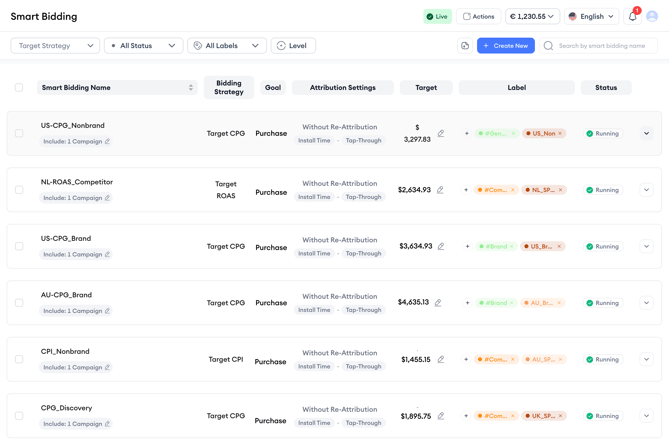
First, go to SearchAds.com > Smart Bidding. You’ll land on a table that lists all Smart Bidding setups in one view. For each setup, you can see the strategy, goal and target, attribution settings, labels, and current status.
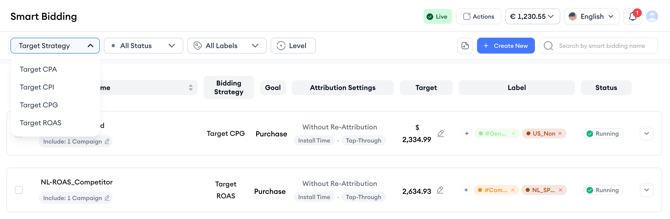
Use the Target Strategy filter to focus on the strategy you care about:
- Target CPI
- Target CPA
- Target CPG
- Target ROAS
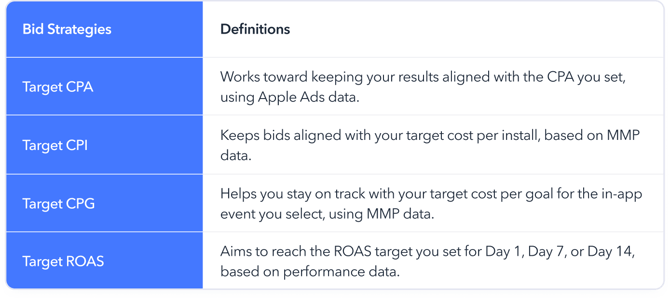
Below you can find what each of the strategy means:
This filter is especially helpful when you manage multiple Smart Bidding setups across different goals.
Here, you can also filter by Status and Labels. Use Status when you want to quickly see only the setups that are currently running, paused, or stopped.
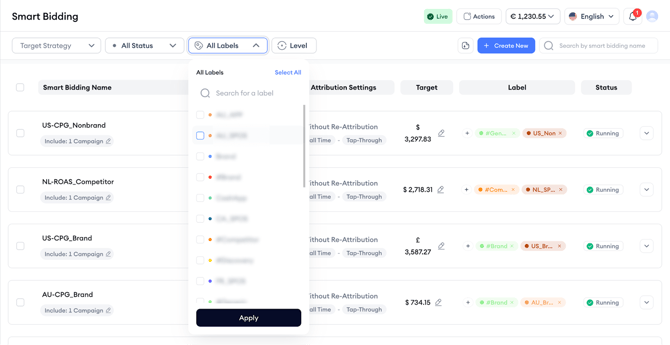
Use Labels to review Smart Bidding setups based on your own naming or structure (for example, Brand, Competitor, or market-specific groupings). You can search for a label, select multiple labels, and click Apply to filter the table.
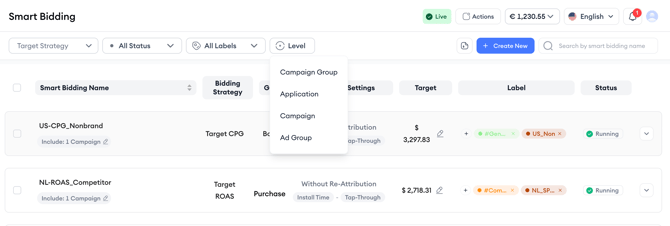
Or you can filter by Level to find what you’re looking for more easily.
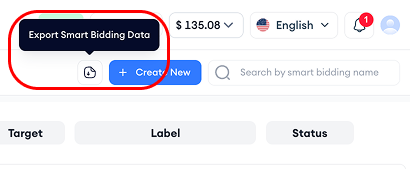
If you want to share results or review setups outside the platform, click Export Smart Bidding Data at the top of the page. This button downloads your Smart Bidding table data so you can keep a record of it, share it with your team, or use it in reporting.
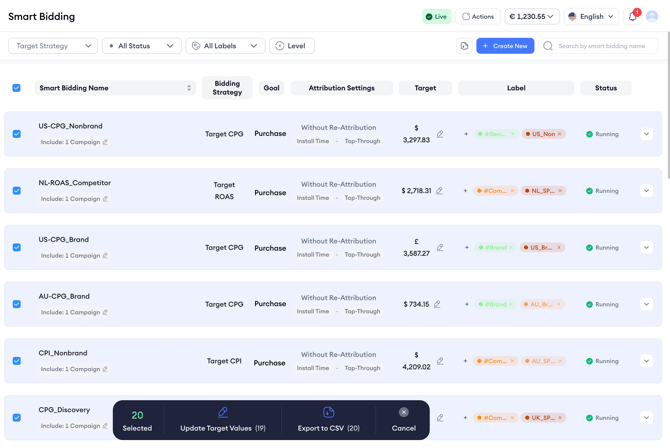
Each row in the table includes a checkbox, so you can select multiple Smart Bidding setups at once. After you select one or more rows, an action bar appears at the bottom of the page. From there, you can:
- Update Target Values for the setups you selected
- Export to CSV for just the selected setups
- Cancel to clear your selection
Pro Tip
Use filters first, then multi-select. For example, filter by Target Strategy = Target CPA and Status = Running, then select only the setups you want to adjust in one pass.
Keep in mind!
Multi-select actions support target value updates and export. Status controls like run, pause, or stop are managed per setup from the table.
How to create a Smart Bidding setup
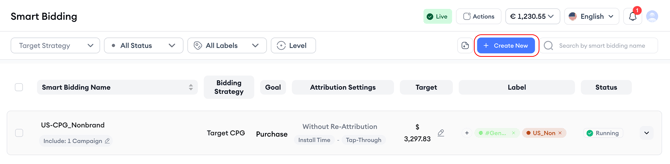
Click Create New to start a new setup.
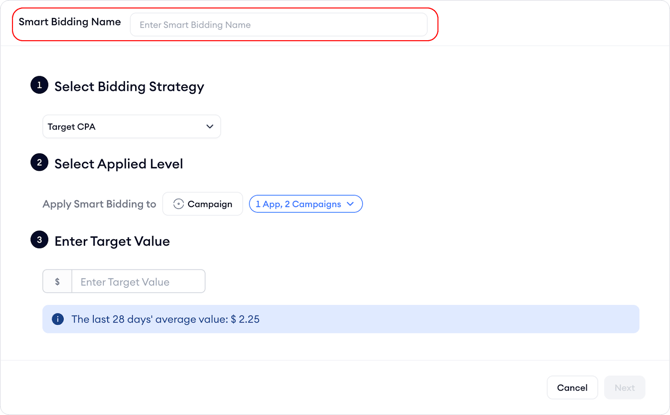
Start by giving your setup a clear name so it’s easy to recognize later. After that, choose the bidding strategy you want to optimize toward: Target CPI, Target CPA, Target CPG, or Target ROAS.
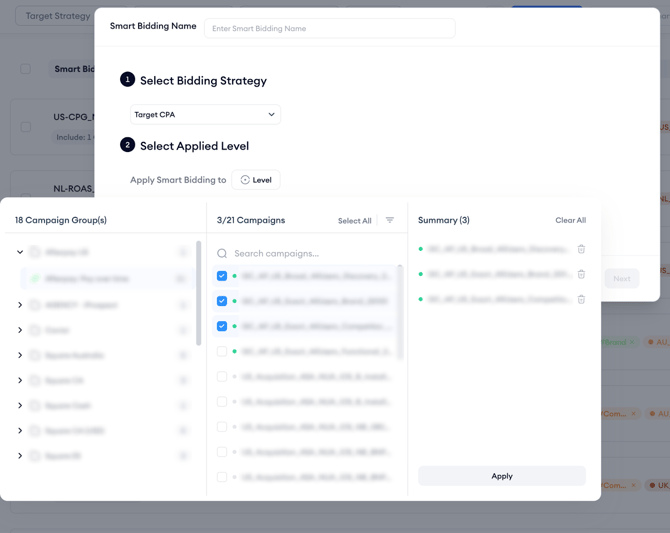
Next, select where Smart Bidding should apply. You can apply it at the Campaign level or the Ad Group level, depending on how you structure your account.
What changes is the set of options you’ll see under Enter Target Value because each strategy optimizes toward a different outcome.
Target CPA
If you select Target CPA, Smart Bidding focuses on keeping your cost per acquisition aligned with your target.
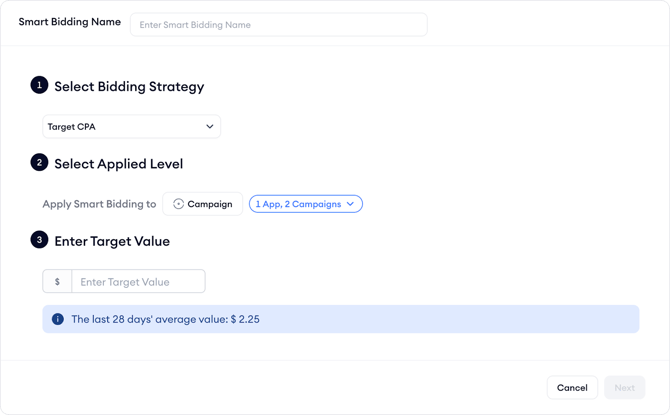
After you pick the applied level, you’ll enter a currency-based target value (for example, $10). Keep in mind that the currency is directly taken from the related campaign group. You’ll also see a reference line showing the last 28 days’ average value, which helps you decide whether your target is realistic for the selected campaign(s) or ad group(s).
Target CPI
If you select Target CPI, the setup includes a couple of extra choices that help define how installs are counted for the target.
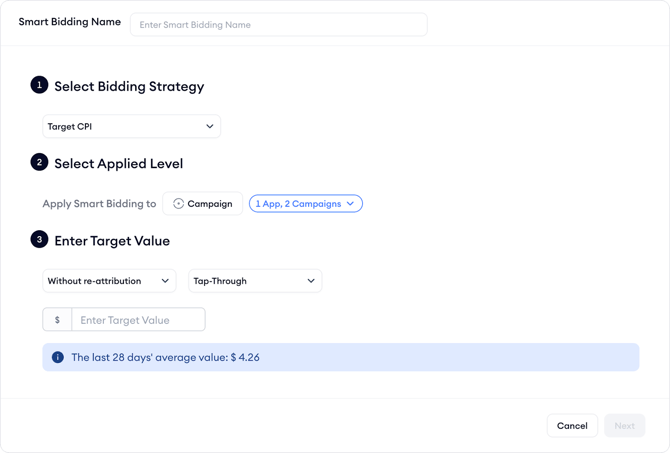
In addition to entering your currency-based target value, you’ll see attribution-related dropdowns (such as re-attribution handling and attribution type). These settings control which installs are counted toward the target, so it’s a good idea to keep them consistent across your setups when you’re comparing results.
Just like CPA, you’ll see the last 28 days’ average value as a reference.
Target CPG
If you select Target CPG, the setup becomes more specific because the target is tied to a post-install event (your “goal”).
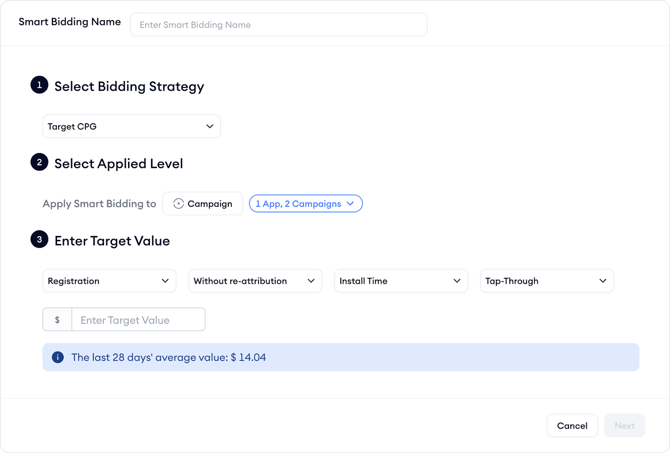
Before entering the target value, you’ll choose a few items that define how the goal is measured. For example, you may pick the event you care about, how re-attribution is handled, and how the timing is counted (such as install time), along with the attribution type.
After that, you’ll enter your currency-based target value, and you’ll still see the last 28 days’ average value line for reference.
Target ROAS
If you select Target ROAS, you’ll set a return-based target instead of a cost-based one.
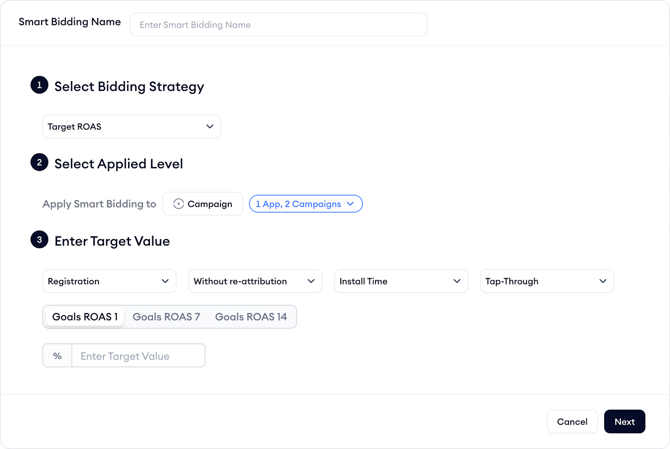
First, you’ll pick the measurement settings shown in the flow (such as event and attribution-related selections). Then, you’ll choose a ROAS window. In the setup, you’ll see options like Goals ROAS 1, Goals ROAS 7, and Goals ROAS 14, which let you decide which time window the target should be based on.
Finally, you’ll enter your target as a percentage (instead of a currency value).
Keep in mind!
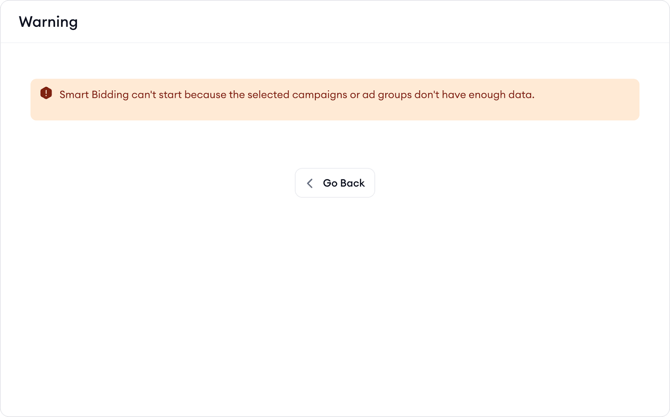
For all of the target modes, when you click Next, SearchAds.com checks whether there’s enough recent performance data for Smart Bidding to start. If there isn’t, you’ll see a message letting you know it can’t start yet, and you can go back and adjust your selection without losing what you entered.
Make changes after setup
From the table, you can edit key parts of an existing Smart Bidding setup, including its name, the selected portfolio, and the target value.
Keep in mind!
Strategy type and applied level can’t be changed after creation, so it’s worth taking a moment to pick the right setup structure from the start.
You can also control status directly from the table:
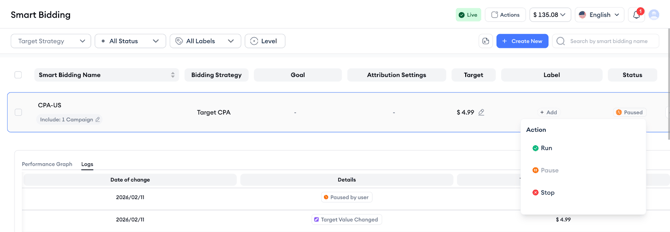
- Pause to temporarily stop Smart Bidding while keeping your setup.
- Run to reactivate a paused setup.
- Stop to end the setup and reset its progress.
When reactivating or stopping, the platform will show a confirmation message so you know exactly what will happen before you proceed.
Review logs and performance
Each Smart Bidding setup includes logs and a performance view so you can understand what changed and how results are trending. To access it, click the expand icon on the right side of a Smart Bidding row. This opens the detailed section directly below the setup.
This view is useful when you adjust targets, restart a setup, or want to confirm Smart Bidding is reacting the way you expect.
Pro Tip
If performance looks off, check the Logs tab before making new adjustments. It gives you context on what was changed and when, so you can avoid reacting to a recent update too quickly.
Performance Graph
The Performance Graph shows how the selected strategy is performing compared to your defined target and other relevant metrics.
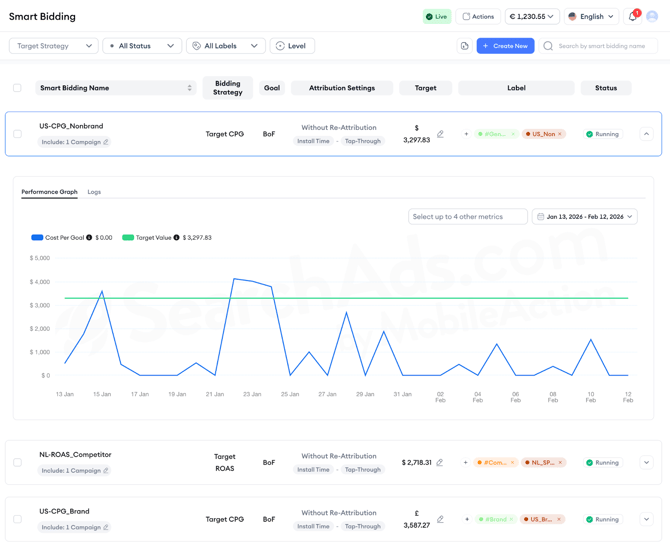
For example, if you’re running Target CPA, you’ll see:
- The actual average CPA over time
- The target value line
- 4 other metric lines, if selected
You can adjust the date range and understand whether performance is trending above, below, or aligned with your target.
Logs
The Logs tab provides a record of Smart Bidding actions and changes.
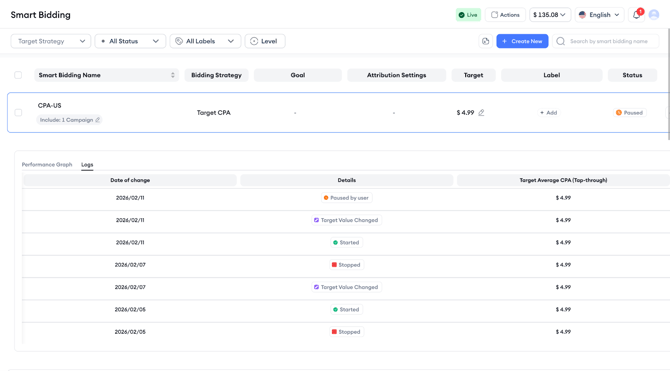
Here, you can review updates related to:
- Target value adjustments
- Status changes (Run, Pause, Stop)
This is especially helpful when you want to understand why performance shifted or confirm when a specific change was applied.
Tips and best practices for using Smart Bidding
- Successful campaigns often rely on having access to a wealth of data. To benefit from Smart Bidding, rather than obtaining a high number of goals from just one keyword, it’s important that the campaign collects data across a broad spectrum of keywords. Ideally, a healthy campaign should see 30-40% of its traffic distributed among a diverse array of keywords. This approach prevents data from being overly concentrated on a single keyword, which can skew results and reduce the overall usefulness of the data.
- Smart Bidding can be activated immediately for CPA-focused campaigns since it operates directly with data from Apple Ads and does not require MMP data. For the CPI mode, a brief waiting period is recommended to gather sufficient performance data. For CPG and ROAS modes, waiting around 20 days after starting the campaign may provide more accurate data for optimization.
- Always make sure your campaign is active before you try to set up or modify Smart Bidding strategies. If your campaign or the Smart Bidding is paused, you'll need to activate both the campaign and the Smart Bidding for the tool to start working. Note that each active campaign can support only one Smart Bidding strategy.
- Bid-changing automations can't be set up on campaigns with paused Smart Bidding; Smart Bidding must be stopped first. Also, activating Smart Bidding will disable existing bid automations, and a warning pop-up will notify you if there is an attempt to combine these actions.
- When using Smart Bidding with CPI, CPG and ROAS modes, which rely on MMP data, it is advisable to choose the “without re-attribution” option. This setting excludes redownloads from the optimization process, allowing for more precise bidding in the optimization efforts.
- Smart Bidding is advanced enough to assess paused keywords based on metrics like Share of Voice (SOV) and other performance indicators. If it detects potential, Smart Bidding can automatically activate these paused keywords. Although this feature can be toggled on or off, we recommend keeping it enabled for optimal results.
- After Smart Bidding is set to active, initial cost fluctuations are normal as the tool adapts to campaign conditions during its learning phase. It is advised to allow 2 to 3 weeks for the tool to stabilize and show improvements.
Smart Bidding makes it easier to monitor and control bidding toward your goals from one place, while keeping targets visible and changes easy to manage. If you have questions about which strategy to choose or what target value makes sense for your goals, reach out to your Customer Success Manager or contact support via live chat.