
After you launch a test, you track everything from the CPP A/B Testing dashboard. Each experiment appears as a single row, displaying its name, method, precision target, start and end dates, and a status badge indicating whether it is Running, Completed, or Stopped. Click the little chevron on the right side of the row to open the live view.
Inside the expanded panel, you will see three tabs: Performance and Logs.
Performance tab
The system opens this tab by default and shows the table view. A date picker is located on the right; it displays data for the period between test start and end dates, but you can widen or narrow the window as needed for extra context.
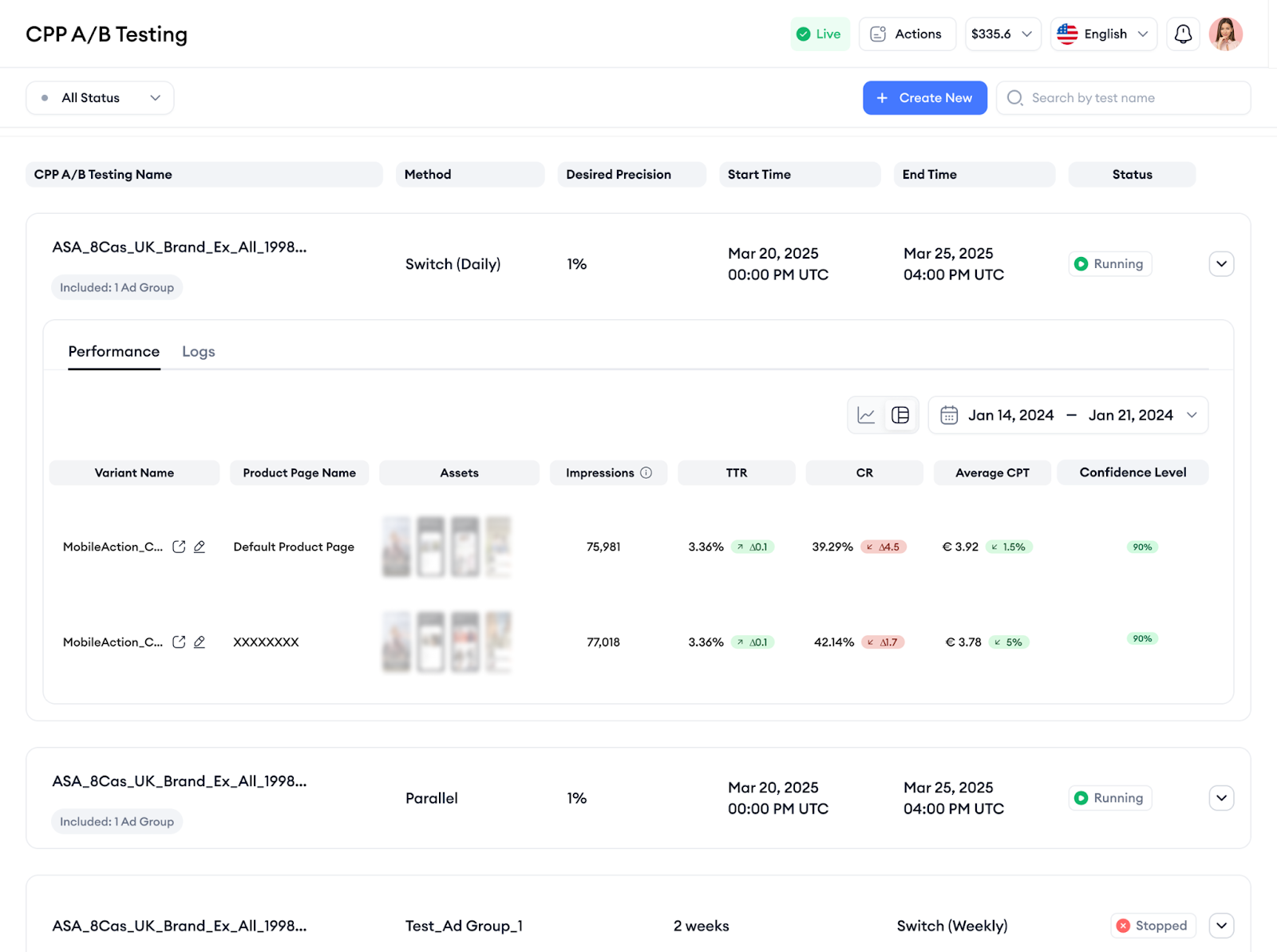
The table lists every variant in the first column, then shows Impressions, Tap‑Through Rate, Conversion Rate, Cost Per Tap, Average CPA, and a Confidence Level badge. If you’re unsure what each metric means, hover over the tooltips in the Performance tab, these tips offer short explanations to help you interpret the results confidently. You can also see the visual previews of your custom product pages directly in this view, helping you connect creative elements with performance.
The Confidence Level badge turns green when a variant reaches 90 percent confidence and gray while it is still gathering evidence. When one row is green and clearly ahead, you have enough proof to end the test early if you wish.
To help compare performance across variants, a benchmark based on the original product page is shown for each metric. To see the benchmark all you need to do is to hover over the metric. Additionally, each value is paired with a dynamic badge that reflects how much it has changed over time, and whether that change is positive or negative, relative to the baseline. These features make it easier to identify standout variants at a glance.
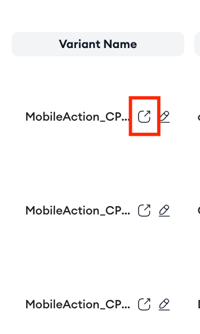
Pro Tip: If you want to explore additional metrics, including custom or cohort-based KPIs, use the button next to the variant name to access a filtered view of the asset. This capability will allow you to adjust the performance metrics based on your specific needs.
If you prefer lines to numbers, click the chart icon next to the table icon. The grid disappears, and a chart takes its place. You’ll see a drop‑down in the upper‑left corner that lets you switch the metric from Conversion Rate to anything else; Impressions, Tap‑Through Rate, Installs, Cost Per Tap, and so on.
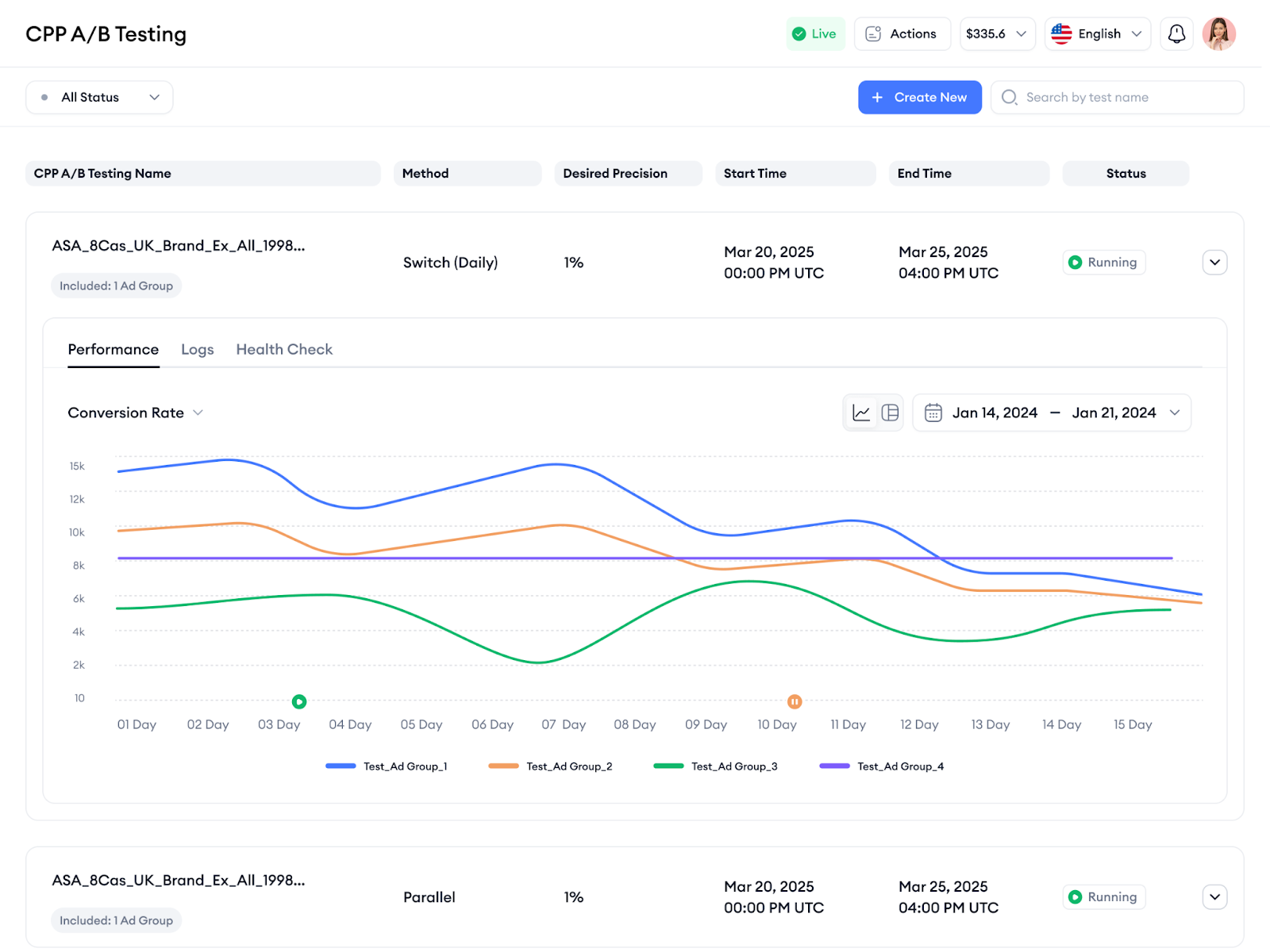
Each line on the chart represents a variant, either an ad or an ad group, depending on your setup. The colors match the legend at the bottom. Hover anywhere on the graph to read the precise value for that day.
Logs tab
Shows a time‑stamped record of every major event. The table has two columns: date of change and the action.
- Started – The moment the test became active.
- Completed – The exact time the test reached its scheduled end.
- Stopped – Indicates someone ended the test early.
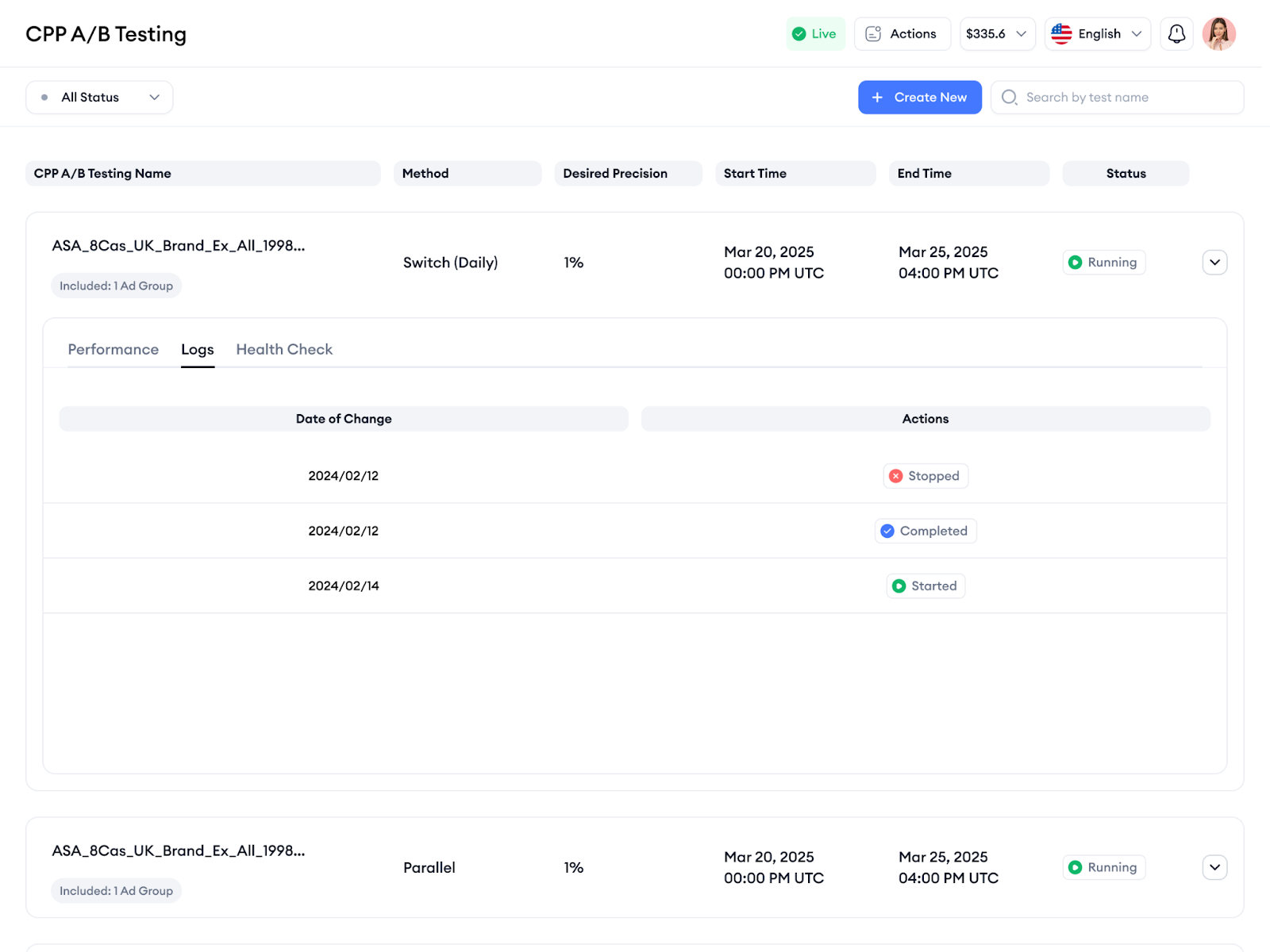
Use this list to verify that the test kicked off on schedule, ran for the expected duration, or to trace when it was stopped by a team member or completed.
If you have questions, your Customer Success Manager or the live chat team can help you move forward with confidence.