
The MMP Discrepancy Dashboard gives you a dashboard to compare install metrics reported by Apple with installs reported by your MMP. Instead of switching between platforms or trying to match numbers manually, this view helps you spot gaps right away and understand whether your install measurement is aligned.
It’s especially helpful for UA and app marketing teams who depend on both data sources to understand performance and want to catch issues early.
Before you begin
To see complete data in this dashboard, you need two things:
You must have an active and integrated Apple Ads account, and your MMP integration must be connected. These two sources allow the dashboard to pull new downloads from Apple and attributed installs from your MMP for comparison.
Once the integrations are in place, you can start reviewing match rates across apps and countries.
Get started
When you open the MMP Discrepancy Dashboard, you’ll see Apple-reported (New Downloads) and MMP-reported installs (Attributed Installs) side by side. The dashboard will automatically calculate a match rate, which shows how closely the two systems align.
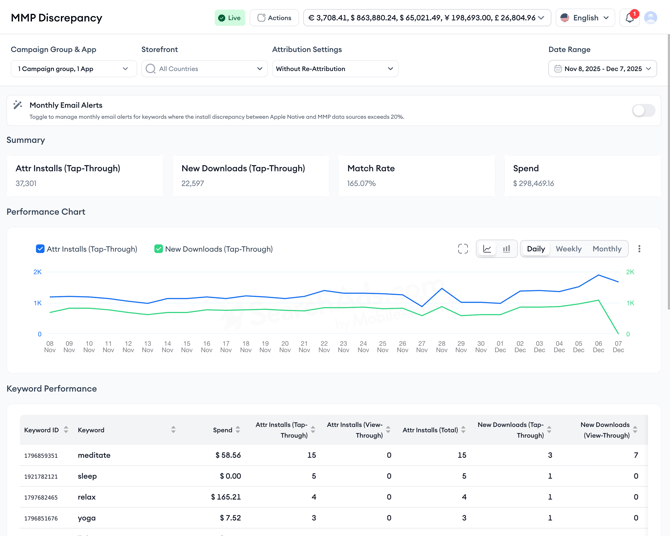
Here’s how to filter according to your needs:
- First, choose the app and campaign groups you want to review.
- Then, select the country to understand where discrepancies appear.
- Lastly, select the date range you would like to view the data for.
You'll see that the attribution settings dropdown is not editable and all data will have the "Without Re-Attribution" setting. After the data loads, you’ll see New Downloads, Attributed Installs, and the match rate, all updated based on the filters you’ve applied.
As you scroll, keyword-level details reveal exactly which terms have lower alignment, giving you a more precise view of where to investigate.
Keep in mind!
Some differences between Apple and MMP reporting are normal because they use different attribution logic and counting rules. Apple counts New Downloads based on its own policies, while MMPs count Attributed Installs using different attribution rules and configuration settings. Because the two systems define and process installs differently, a perfect match is not expected.
The match rate helps you interpret the gap. A high match rate means the two sources are aligned. A low match rate may point to issues such as incorrect or outdated MMP configuration, delays in data processing, or country-specific mismatches.
Match Rate = Attributed Installs (Tap-Through) ÷ New Downloads (Tap-Through) × 100
When you activate the monthly email alerts toggle, whenever the match rate for your app drops below 80%, the platform sends an automated email containing the top 50 keywords with the lowest match rates. This helps you catch potential configuration or data flow issues early without having to check manually each day.
Pro tip: Use the monthly emails to prioritize diagnosis. Low match rates often point to setup problems, tracking delays, or a missing event on the MMP side.
The MMP Discrepancy Dashboard brings clarity to one of the most common challenges in mobile app measurement: understanding why Apple and MMP install counts differ. With keyword-level insights and automated alerts, you can quickly spot issues, maintain accurate reporting, and keep your campaigns running smoothly.
Related links
Need more help?
If you have further questions on the process, contact your dedicated Customer Success Manager or contact the support team via live chat.